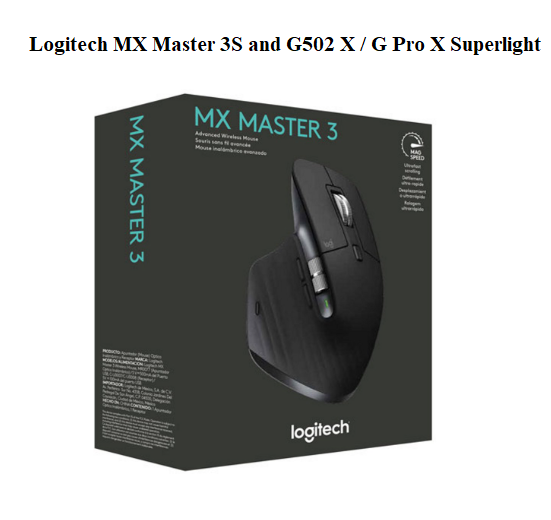

Logitech MX Master 3S and G502 X / G Pro X Superlight
Introduction
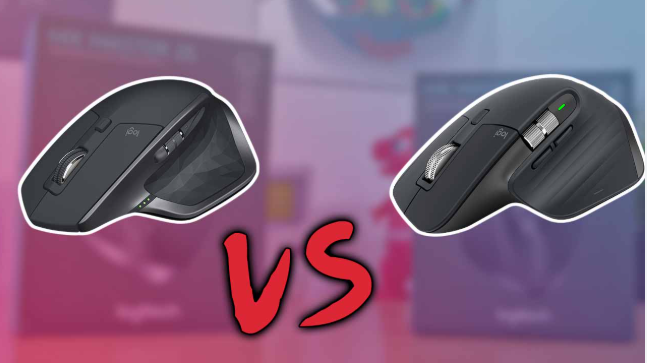
Logitech makes two of the most popular mouse families in the world: the MX Master series for productivity professionals and the G-series for gamers and performance users. Both are excellent, but they serve different needs.
This short guide covers:
-
MX Master 3S – Setup, buttons, Logitech Options+, and Flow (multi-device control)
-
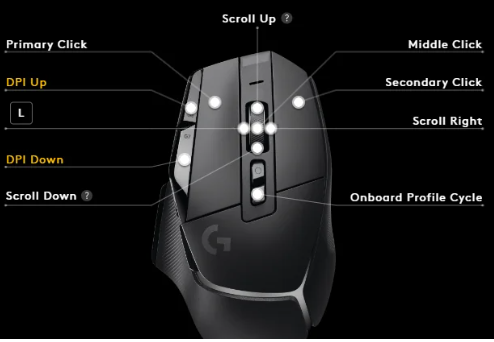
G502 X LIGHTSPEED / G Pro X Superlight – Setup, G HUB software, DPI tuning, and RGB
Whether you just unboxed your mouse or want to unlock its hidden features, read on. Each section is written in plain English – no technical clutter.
MX Master 3S – Quick Start
What’s in the Box
| Item | Description |
|---|---|
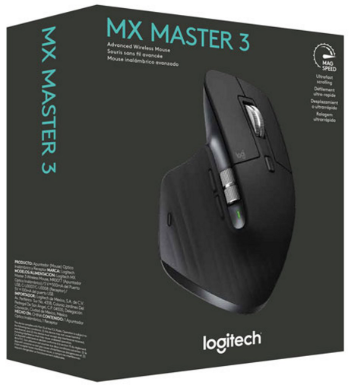
| MX Master 3S mouse | Ergonomic, darkfield sensor |
| USB-C charging cable | 1m length |
| Logi Bolt USB receiver | For secure wireless |
| Quick start guide | Basic setup poster |
Connect via Bluetooth (3 steps)
- Slide power switch to ON.
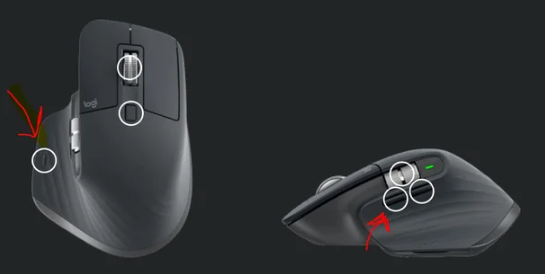
- Press and hold Easy-Switch button (bottom) for 3 seconds – LED 1 blinks fast.
- On your computer, go to Bluetooth settings → select MX Master 3S → click Pair.
To pair with a second or third device: short-press Easy-Switch to change channels (1,2,3), then repeat steps 2-3.
Default Button Functions
| Button | What It Does |
|---|---|
| Left / Right click | Standard |
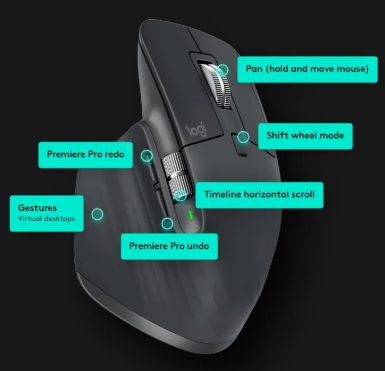
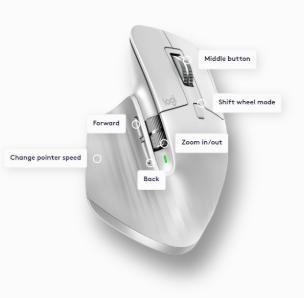
| Scroll wheel press | Auto-scroll |
| Mode shift (behind wheel) | Toggle ratchet ↔ free-spin |
| Thumb wheel | Horizontal scroll |
| Forward / Back (side) | Browser navigation |
| Gesture button (thumb rest) | Hold + move mouse for custom actions |
Logitech Options+ (Essential Software)
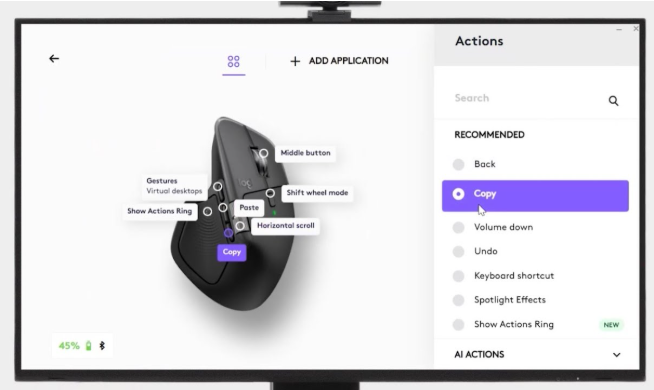
Download free from Logitech’s website. With it you can:
- Remap any button – copy/paste, media controls, custom shortcuts
- Create app-specific profiles – different settings for Photoshop, Word, Excel, etc.
- Adjust DPI – 200 to 8000
- Enable Flow – use one mouse across multiple computers (see below)
Logitech Flow – Control 2+ Computers
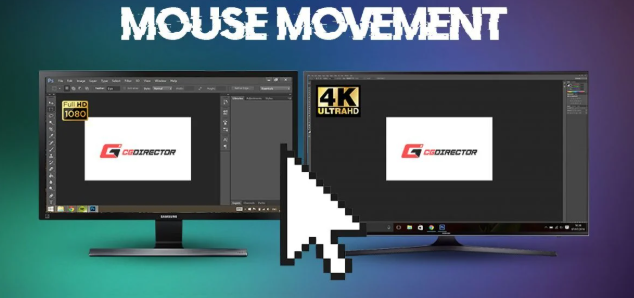
- Install Options+ on both computers.
- Pair mouse to both (Easy-Switch channels 1 and 2).
- In Options+, go to Flow → drag computer icons to match your setup.
- Move mouse to edge of screen – cursor jumps to other computer.
- Copy/paste works across computers – text, images, even files.
Mx master 3 s – Quick Troubleshooting
| Problem | Fix |
|---|---|
| Won’t connect | Hold Easy-Switch 3 sec. Remove old pairing from computer. Re-pair. |
| Scrolling not working | Restart Options+. Update firmware. |
| Battery not charging | Try different USB-C cable. Use computer port, not hub. |
Logitech G-Series (G502 X, G Pro X Superlight)
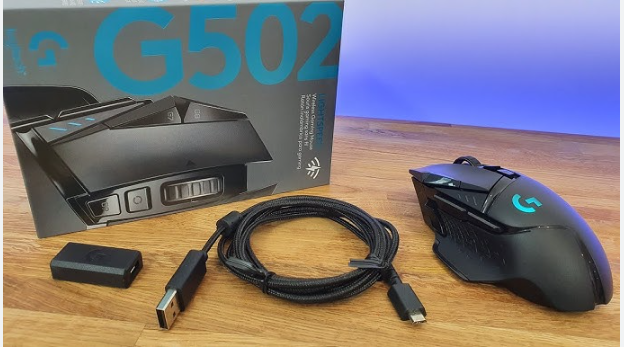
What’s in the Box (G502 X LIGHTSPEED)
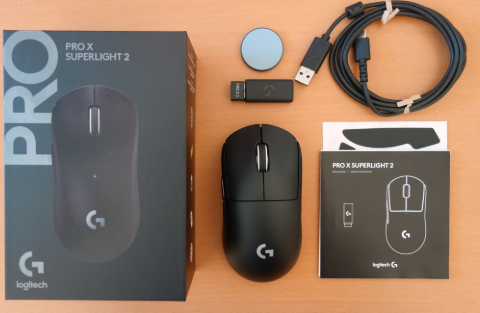
- G502 X LIGHTSPEED mouse
- LIGHTSPEED USB receiver
- USB extension adapter (place receiver on desk)
- USB-C charging cable
- Optional side button covers
Setup in 2 Minutes
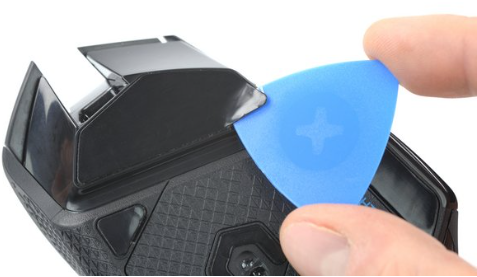
- Plug the LIGHTSPEED receiver into your computer (use extension for best performance).
- Turn mouse ON (bottom switch).
- (Optional) Connect USB-C cable to charge – you can use while charging.
- Download Logitech G HUB from Logitech G website.
G HUB – Customization Basics
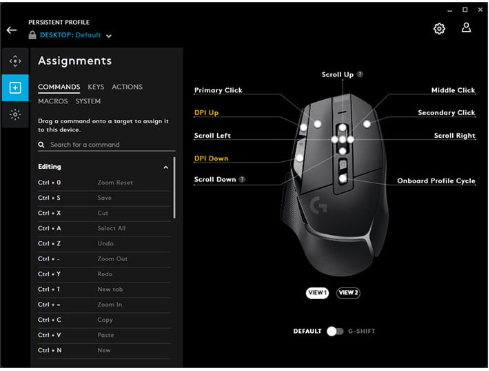
| Tab | What You Can Do |
|---|---|
| Sensitivity | Set DPI (100–25,600). Assign DPI up/down to buttons. |
| Assignments | Remap any of 11 buttons. Record macros. |
| LIGHTSYNC | Choose RGB effects – fixed, breathing, cycle, screen sampler, audio visualizer. |
| Power | Check battery level. Enable low-power mode. |
Onboard Memory Mode: Save profiles directly to mouse. Great for tournaments – settings travel with you.
DPI – Gaming Performance
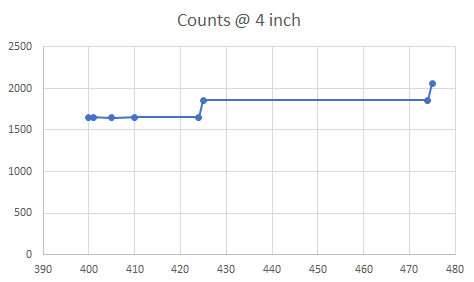
- Low DPI (400–800) – precise aiming, requires larger mouse movement
- Medium DPI (1600) – balanced for most games
- High DPI (3200+) – fast cursor, small hand movements
Use DPI Shift – hold a button to temporarily lower DPI for sniping.
G-Series Quick Troubleshooting
| Problem | Fix |
|---|---|
| G HUB not detecting mouse | Restart G HUB. Try different USB port. Reinstall G HUB. |
| Connection drops | Move receiver closer (use extension). Charge battery. |
| RGB not working | Check lighting not turned off. Restart G HUB. |
| Battery drains fast | Lower RGB brightness. Turn off when not in use. |
Maintenance (Both Series)
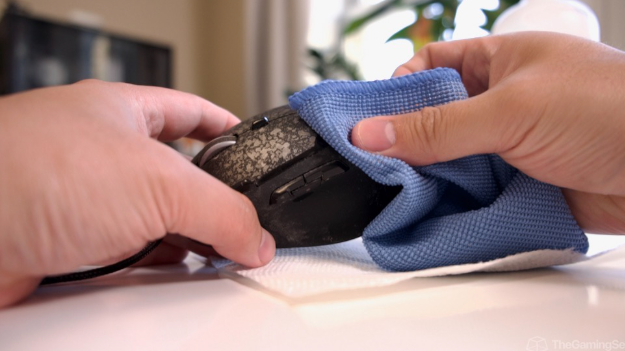
| Task | How To |
|---|---|
| Clean surface | Wipe with damp microfiber cloth (no chemicals) |
| Clean sensor | Compressed air – short bursts into lens |
| Clean wheel | Compressed air around edges; use toothpick for lint |
| Update firmware | Check Options+ or G HUB every 3 months |
Quick Comparison Table
| Feature | MX Master 3S | G502 X LIGHTSPEED |
|---|---|---|
| Best for | Work, design, coding | Gaming, FPS, MMO |
| Sensor | 8000 DPI Darkfield | 25,600 DPI HERO 25K |
| Buttons | 6 + gesture | 11 programmable |
| Scroll wheel | Mag Speed (auto-shift) | Free-spin + ratchet |
| RGB | No | Yes |
| Software | Options+ | G HUB |
| Multi-device | 3 devices + Flow | 1 device |
| Battery | 70 days | 140 hours |
Final Tips & Next Steps
You’ve now mastered the basics of your Logitech MX Master 3S or G502 X mouse. Here’s how to get even more value:
- Install the software – Options+ (MX Master) or G HUB (G-series) unlocks 80% of the features.
- Create app‑specific profiles – This is where productivity and gaming performance really improve.
- Enable Flow (MX Master only) – If you use two computers, this alone is worth buying the mouse.
- Save onboard profiles (G-series) – Your settings travel with you to LAN parties or tournaments.
- Bookmark this page – You’ll need the troubleshooting section again (we promise).
Help Others Find This Guide
If this guide saved you time or frustration, please:
- Share this page on Reddit (r/logitech, r/MouseReview, r/pcmasterrace)
- Link to us from your blog, forum signature, or company wiki
- Leave a comment below – we read every message and answer questions
Copyright Notice
© 2026 ProductsManuals.com – Original content written for real users. You may print or save one copy for personal use. Redistribution, scraping, or republishing without permission is prohibited.
Thank you for choosing ProductsManuals.com – we make product manuals simple.
