
Introduction
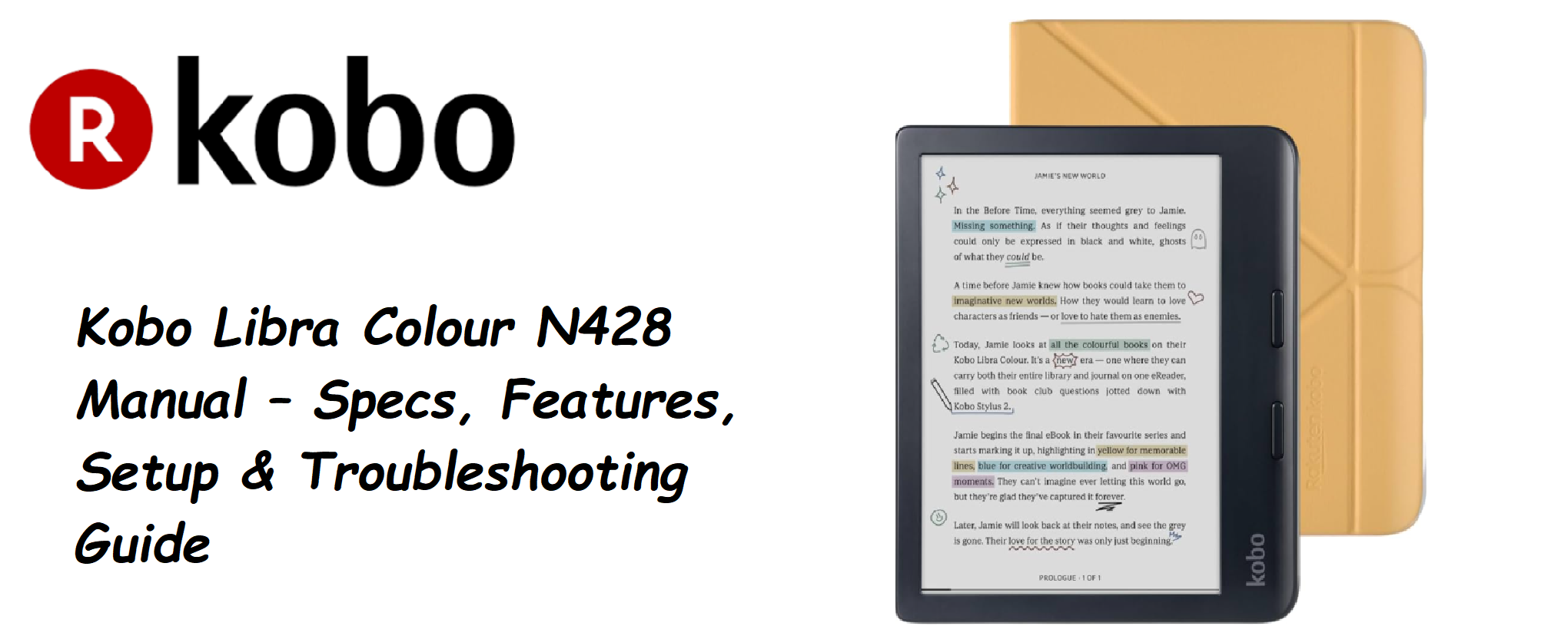
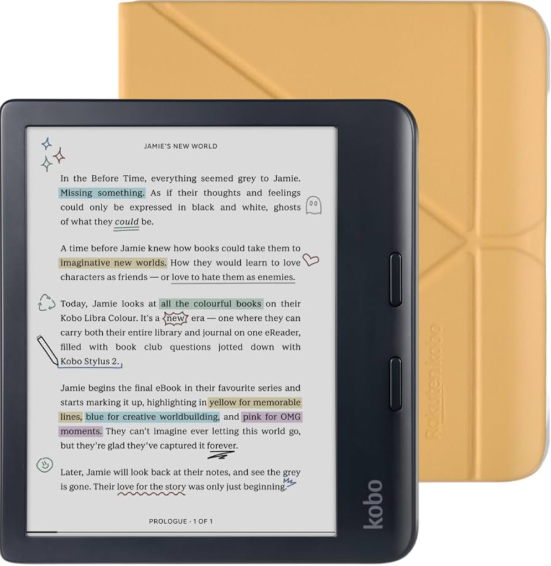
The Kobo Libra Colour is the first Kobo with a colour E Ink screen. It lets you read books, annotate with a stylus, and view covers and illustrations in soft, natural colour. Kobo ships it with a USB‑C cable, a Quick‑Start leaflet, and a safety booklet. Many new owners search for a “Kobo Libra Colour manual” because they want to know how to transfer library books, how to use the Kobo Stylus, or how to fix a frozen screen. This guide covers every specification, feature, and common fix in plain, practical language — no confusing eBook jargon.
Full Specifications
| Specification | Detail |
|---|---|
| Model | N428 (Kobo Libra Colour) |
| Display | 7‑inch E Ink Kaleido 3 colour display (1264 × 1680 resolution, 300 ppi for black‑and‑white content, 150 ppi for colour) |
| Front Light | ComfortLight PRO with adjustable colour temperature and brightness |
| Storage | 32 GB internal (non‑expandable) |
| Waterproof | IPX8 (up to 2 metres of fresh water for 60 minutes) |
| Battery Life | Up to 40 days (based on 30 minutes of reading per day, Wi‑Fi off, front light at 30%) |
| Charging | USB‑C (cable included, adapter not included) |
| Connectivity | Wi‑Fi 802.11ac (2.4 GHz / 5 GHz), Bluetooth 5.0 (for Kobo Audiobooks, headphones/speaker) |
| Supported Formats (eBooks) | EPUB, EPUB3, FlePub, PDF, MOBI, JPEG, GIF, PNG, BMP, TIFF, TXT, HTML, RTF, CBZ, CBR |
| Supported Formats (Audiobooks) | Kobo Audiobooks only (Bluetooth headphones/speaker required) |
| Page‑Turn Buttons | Yes (physical buttons on the right edge, can be used in portrait or landscape orientation) |
| Stylus Support | Kobo Stylus 2 (sold separately) for highlighting, note‑taking, and drawing |
| OverDrive / Libby | Built‑in (borrow library books directly from the device) |
| Dimensions | 144.6 × 161 × 8.3 mm (5.7 × 6.3 × 0.33 inches) |
| Weight | 199 g (7.0 oz) |
| Colour | Black or White |
| In‑the‑Box | Kobo Libra Colour device, USB‑C charging cable, Quick‑Start Guide, safety booklet |
Key Features at a Glance
- Kaleido 3 Colour Screen: Displays book covers, illustrations, and highlighted text in soft, natural colour. The screen is sharp at 300 ppi for black‑and‑white text and 150 ppi for colour.
- ComfortLight PRO: Adjusts both brightness and colour temperature automatically based on the time of day. You can set it to shift to warm amber light at night to reduce blue light.
- Physical Page‑Turn Buttons: Located on the right edge. Use them to flip pages forward and backward without moving your thumb. The device auto‑rotates when you flip it, so you can hold it in either hand.
- Waterproof (IPX8): You can read in the bath, by the pool, or at the beach. It survives accidental submersion in fresh water.
- Kobo Stylus 2 Support: Use the stylus (sold separately) to highlight, underline, and write notes directly on the page. You can also create notebooks with freehand drawings.
- OverDrive Integration: Borrow library books directly from the device without needing a computer. Sign in with your library card, browse, and borrow. Books automatically return when the loan period ends.
- Pocket Integration: Save web articles to Pocket on your phone or computer, and they appear on the Kobo to read later, formatted cleanly.
What’s Inside the Box
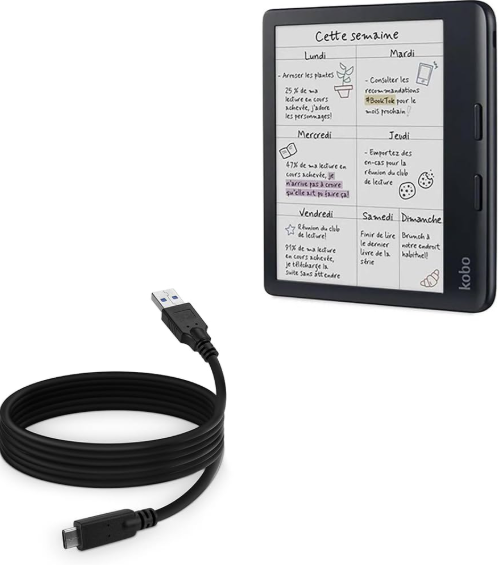
- Kobo Libra Colour e‑reader (with a protective film on the screen)
- USB‑C charging cable (about 1 metre)
- Quick‑Start Guide and safety information
No power adapter, case, or stylus is included. The device arrives partially charged; you can start using it immediately while it charges.
First‑Time Setup and Wi‑Fi Connection
- Press and hold the power button (located on the back, near the top edge) until the screen lights up.
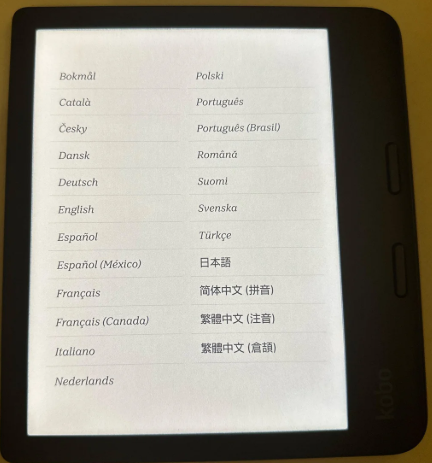
- Select your language, region, and connect to Wi‑Fi (2.4 GHz is sufficient; 5 GHz is also supported). If your router uses a captive portal (like a hotel), you may need to use a phone to authenticate first.
- Sign in with your Kobo account (or create one). If you previously used a Kobo, your purchased books will sync automatically.
- The device will check for updates. Let it install any pending firmware updates. This may take a few minutes.
- Once the home screen appears, you can immediately start reading. Your library will show any books you already own.
Understanding the Home Screen and Navigation
- Home Screen: The top row shows your most recent books. Swipe left to see your Library, where you can filter by books, authors, series, or collections. Swipe left again for the Discover tab (Kobo Store).
- Quick Settings: Tap the brightness icon at the top of the screen (sun) to adjust the front light, colour temperature, and battery percentage. Tap the gear icon for full Settings.
- Reading a book: Tap the cover to open it. In a book, tap the centre of the screen to bring up the menu bar. The top menu shows Home, Back, and book‑specific options. The bottom menu shows page navigation, font settings, and annotation tools.
- Physical Buttons: Press the top button to go forward a page; press the bottom button to go back. They work in either orientation (the device auto‑rotates).
Adjusting the Screen and Reading Comfort
- Brightness and warmth: Tap the sun icon at the top. Drag the brightness slider left or right. The “Natural Light” slider adjusts the amount of amber light. You can also set a schedule for automatic warmth changes by going to Settings > Reading Settings > Bedtime.
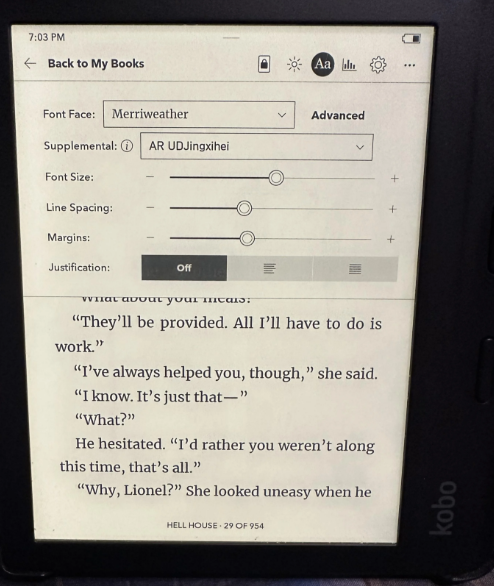
- Font and layout: While reading, tap the centre of the screen, then tap the Aa icon. You can change the font face, size, weight (thickness), line spacing, and margins. There’s also a “Publisher Default” toggle to use the book’s original formatting.
- Orientation: The screen auto‑rotates based on how you hold it. You can lock it in portrait or landscape mode under Settings > Reading Settings > Page Orientation.
- Dark Mode: Invert the screen to white text on a black background. Enable it in Settings > Reading Settings > Dark Mode.
Transferring Books and Using OverDrive
- Purchase from Kobo Store: Tap the Discover tab on the home screen, browse or search, and buy. The book downloads immediately.
- Sideload books (from computer): Connect the Kobo to your computer via USB‑C. It appears as a drive. Drag and drop EPUB, PDF, or other compatible files into the main directory (or into folders). Eject the device, and the books will appear in your Library.
- OverDrive / Library borrowing: Go to Settings > OverDrive. Sign in with your library card. You can then browse and borrow books directly from the device. To return a book, long‑press its cover and select Return.
- Adobe DRM books: If you buy books from other stores that use Adobe DRM, you’ll need to authorise the Kobo with Adobe Digital Editions on your computer first.
Using the Kobo Stylus 2 (Sold Separately)
If you have the Kobo Stylus 2:
- Highlight: Press the button on the stylus and drag across text to highlight. Choose a colour.
- Note‑taking: Tap the Notebook icon on the home screen to create freehand notes and drawings.
- Erase: Flip the stylus over to use the eraser end.
- Charging: The Stylus 2 charges via USB‑C (separate cable included with the stylus). It does not need to be paired; it works immediately.
Troubleshooting Common Issues
| Problem | Likely Cause | What to Try |
|---|---|---|
| Screen is frozen | Software glitch | Press and hold the power button for 20 seconds until the screen flashes and the device restarts. No data is lost. |
| Touchscreen unresponsive | Temporary lockup | Hard restart as above. Clean the screen with a dry microfiber cloth. |
| Books not syncing | Wi‑Fi off or account sync issue | Swipe down from the top to check Wi‑Fi. Go to Settings > Sync. If a specific book is stuck, remove it and re‑download. |
| Battery drains fast | Wi‑Fi on, or indexing new books | Turn off Wi‑Fi when not needed (swipe down, tap the Wi‑Fi icon). After sideloading many books, leave the device plugged in overnight to finish indexing. |
| OverDrive books not appearing | Library card expired or sync issue | Re‑sign into OverDrive in Settings. Check your library account on a computer to ensure the card is valid. Sync again. |
| Colour screen looks washed out | Normal for E Ink colour; saturation is lower than LCD | Increase brightness slightly. Colour is optimised for book covers and illustrations, not for photo‑quality viewing. |
How to Factory Reset and Restart
Soft restart: Press and hold the power button for about 10 seconds, then release. The device will restart. No data is lost.
Factory reset (erase everything): Go to Settings > Device information > Factory reset. Confirm. This wipes all content, settings, and accounts. Use this before selling or giving away the device.
Quick Reference Card
| Task | How |
|---|---|
| Restart (frozen screen) | Hold power button for 20 seconds until screen flashes |
| Adjust brightness | Tap the sun icon at the top, drag slider |
| Borrow library book | Settings > OverDrive > sign in, browse, borrow |
| Sideload from PC | Connect via USB‑C, drag files, eject |
| Factory reset | Settings > Device information > Factory reset |
| Enable dark mode | Settings > Reading Settings > Dark Mode |
Official Kobo Support and Manuals
For warranty, software updates, and the full user guide, visit: https://help.kobo.com
Frequently Asked Questions
- Is the Kobo Libra Colour fully waterproof?
Yes, it has an IPX8 rating, meaning it can be submerged in fresh water up to 2 metres for up to 60 minutes. Avoid salt water and chlorinated pools; if it gets wet, dry it with a soft cloth and let the USB‑C port air‑dry before charging. - Can I read Kindle books on this device?
No, Kindle books use Amazon’s proprietary DRM and are not compatible. You can read books purchased from the Kobo Store, sideloaded EPUBs, and borrowed library books. - Do I need a screen protector?
The screen is slightly recessed and durable, but if you carry it in a bag with keys, a screen protector adds peace of mind. The stylus does not scratch the screen. - How do I take a screenshot?
Press and hold the power button and the bottom page‑turn button simultaneously. The screenshot saves to the device. Connect to a computer to view it in the “Screenshots” folder. - Can I listen to audiobooks on the Libra Colour?
Yes, via Bluetooth headphones or a speaker. Audiobooks must be purchased from the Kobo Store. Go to Settings > Bluetooth to pair your headphones. MP3 audiobooks cannot be sideloaded. - How do I set up Pocket on my Kobo?
Go to Settings > Accounts > Pocket. Sign in with your Pocket account. Any articles you save to Pocket on your phone or browser will appear in the Articles section of your Library. - Can I use the Kobo without Wi‑Fi?
Yes, you can read books already downloaded. To buy books, borrow from the library, or sync, you need a Wi‑Fi connection temporarily. - Why does the screen flash black occasionally?
That’s the E Ink refresh cycle. It prevents ghosting (faint remnants of previous pages). You can reduce it in Settings > Reading Settings > Refresh the screen every… (set to every chapter or every 10 pages). - Can I organise books into collections?
Yes. Long‑press a book cover, tap Add to collection. You can create collections like “To Read” or “Sci‑Fi.” Collections sync across Kobo devices. - What file formats does the Libra Colour support?
EPUB, EPUB3, PDF, MOBI, JPEG, GIF, PNG, BMP, TIFF, TXT, HTML, RTF, CBZ, CBR. For best results, use EPUB. PDFs are displayed as fixed‑layout; you can pinch‑zoom but reflow is limited. - Does the Kobo Libra Colour have ads?
No. Unlike some Kindle models, Kobo devices do not display advertisements on the lock screen. You see the cover of the book you’re reading. - How do I update the firmware manually?
If the device doesn’t update automatically, download the firmware from the Kobo website, extract the files, and copy them to the .kobo folder on the device when connected to a computer. Eject and restart.
Other Manuals You May Like
If this guide was helpful, here are a few more popular manuals from productsmanuals.com that you might find useful:
- Amazon Kindle Paperwhite 11th Gen – Warm Light, Libby & Reset Guide
Borrow library books, adjust warmth, and fix a frozen screen. - TP‑Link Deco XE75 – Mesh Wi‑Fi Setup, Parental Controls & 6 GHz Band
Blanket your home in fast, stable Wi‑Fi with easy placement tips. - iPhone 17 – Settings, Camera & Hidden Features Manual
Master Dynamic Island, Action button, and battery‑health tricks. - Samsung Galaxy S24 Ultra – S Pen, Galaxy AI & Pro Camera Guide
Get the most from the 200 MP sensor, Circle to Search, and DeX. - Haier Super T3 AC – Remote, Self‑Clean & Error Codes Guide
Cool efficiently and fix blinking lights with simple steps.
Browse all guides at productsmanuals.com .
Copyright 2026 productsmanuals.com All rights reserved. This Kobo Libra Colour N428 manual is original content and may not be copied, republished, or redistributed without written permission. Kobo, Libra, and the Kobo logo are trademarks of Rakuten Kobo Inc. This guide is unofficial and not affiliated with Kobo.
