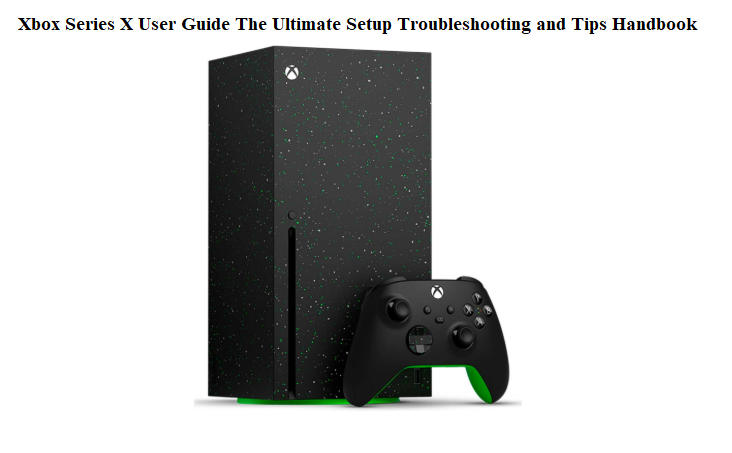

Xbox Series X User Guide The Ultimate Setup Troubleshooting and Tips Handbook
A Friendly Welcome
You just brought home Microsoft’s most powerful console. Inside the box, you’ll find the console, a controller, an HDMI cable, and a tiny safety booklet that tells you almost nothing useful. The real manual is an online document that reads like a legal agreement. So every day, thousands of gamers search “Xbox Series X user guide” looking for real-world help: how to set up the console for the best picture, why games take so long to install, how to fix a drifting controller, and where all the privacy settings are hiding.
This Xbox Series X user guide is the missing manual, written by a fellow gamer. I’ll walk you through every setting that matters, show you how to speed up downloads, protect your account, manage storage, and fix common problems without waiting on hold with support. Bookmark this page — the next time your console won’t turn on, a game crashes, or you can’t remember how to pair a second controller, the answer is right here.
What’s in the Box and What to Do First
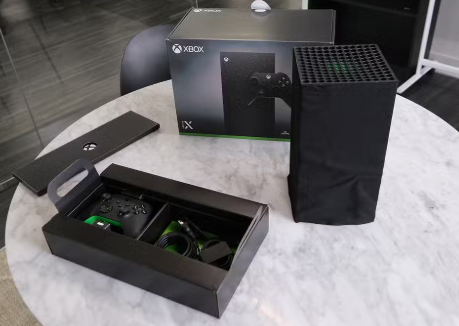
Your Xbox Series X box contains:
- Xbox Series X console
- Xbox Wireless Controller (with two AA batteries)
- Ultra High Speed HDMI cable
- Power cord
- Quick Start Guide and Warranty Card
No headset, no rechargeable battery pack, and no games unless you bought a bundle. You’ll need a Microsoft account to do anything meaningful.
First steps after unboxing
- Place the console horizontally or vertically on a stable surface with at least 4 inches of clearance around the vents.
- Plug the HDMI cable into your TV and the power cord into a wall outlet.
- Insert the batteries into the controller.
- Press the Xbox button on the controller to turn on the console.
Initial Setup and the Settings You Must Change Right Away
The on‑screen setup will guide you through language, network, and account sign‑in. After that, jump into these settings before installing a single game.
TV and display options
Press the Xbox button, go to Profile & system > Settings > General > TV & display options. Set the resolution to 4K UHD if your TV supports it. Under Video modes, enable “Allow 4K,” “Allow HDR10,” “Allow Dolby Vision,” and “Allow Dolby Vision for Gaming.” If your TV supports 120Hz, also enable “Allow 120 Hz.” This unlocks the smooth, responsive gameplay the Series X is built for.
Power mode
Under Settings > General > Power options, choose “Sleep” mode if you want the console to boot instantly and support remote wake. Choose “Shutdown (energy saving)” if you prefer lower power consumption. The energy‑saving mode now downloads updates overnight, so it’s a solid choice.
Storage and default install location
Go to Settings > System > Storage devices. If you have an external drive, set the default install location for games. Xbox Series X|S optimized games must run from the internal SSD or the Seagate Expansion Card. Older games can run from any USB 3.0 external drive.
Privacy and online safety
Go to Settings > Account > Privacy & online safety > Xbox privacy. Set “View details & customize” and review each category. I recommend setting “You can join multiplayer games” to “Allow,” but restrict “Others can see your game and app history” to “Friends.” Adjust communication and message filters to your comfort level.
Getting to Know Your Xbox Wireless Controller
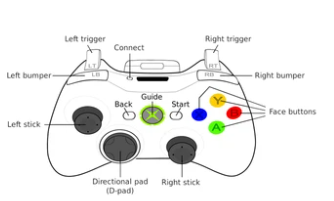
The Xbox Wireless Controller feels great out of the box, but a few features are easy to miss.
The Share button
That small button in the centre, below the Xbox button, is your capture tool. Press once to take a screenshot. Hold for 2 seconds to record the last 30 seconds of gameplay. You can remap it in Settings > Devices & connections > Accessories > Configure.
Remapping buttons
Under Accessories, you can create custom profiles that swap button functions, invert thumb sticks, or adjust trigger sensitivity. The controller stores one profile; you can create multiple and switch via the Xbox Accessories app.
Battery and charging
The controller uses AA batteries by default. I recommend the Xbox Rechargeable Battery + USB‑C cable, or any third‑party play‑and‑charge kit. The USB‑C port on the top of the controller is for wired play and charging only — it doesn’t carry audio.
Connecting wirelessly
The controller pairs automatically with the console it was boxed with. To pair a second controller, press and hold the small Pair button on the top of the controller until the Xbox button flashes, then press the Pair button on the front of the console.
Making Game Downloads Painfully Fast
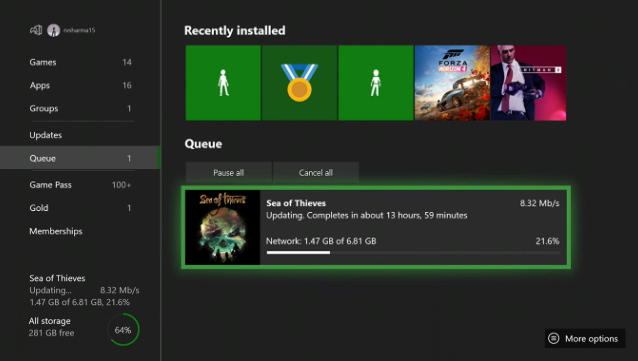
Nothing kills gaming excitement like waiting hours for a game to install. Here’s how to get maximum speed.
Use a wired connection if possible
Plug an Ethernet cable directly into the console. The Series X has a gigabit port that outperforms even the best Wi‑Fi. If you must use Wi‑Fi, connect to the 5 GHz band and ensure the console is close to the router.
Close running games and apps
The console throttles download speeds dramatically when a game is running. Suspend or quit any open game by highlighting it on the dashboard, pressing the Menu button, and selecting “Quit.” You’ll see download speeds instantly jump.
Disable auto‑updates for apps you don’t need
Go to Settings > System > Updates & downloads. Uncheck “Keep my games & apps up to date” if you only play a few titles. Update manually when needed.
Install while sleeping
In Power options, make sure “Keep my console up to date” and “Keep my games & apps up to date” are enabled. The console will download patches and even pre‑installed games overnight while in energy‑saving mode.
Using Quick Resume and Managing Game Storage
Quick Resume explained
Quick Resume lets you suspend multiple games and switch between them in seconds without loading screens. The console saves the game state to the SSD. Not all games support it, but most do. Press the Xbox button and look for the Quick Resume tag on recently played titles.
Freeing up space
Go to My games & apps > Manage > Storage devices. Select “Free up space” to see which games are taking the most room. You can delete a game but keep its save files, which are stored separately in the cloud. You can also move games to an external USB drive.
Choosing what to delete
Tap the Menu button on a game tile and select “Manage game and add‑ons.” You can remove specific add‑ons, like high‑resolution texture packs or language packs, without deleting the base game.
Parental Controls and Setting $Up a Child Account
If you’re setting up the console for a younger player, the Xbox family settings are excellent but spread across multiple menus.
Create a child account
Go to Settings > Account > Family settings. You can add a child by entering their email or creating a new account. You’ll be prompted to set age‑appropriate content restrictions, web filters, and spending limits.
Screen time limits
In the Xbox Family Settings app on your phone, you can set daily time limits, schedules, and even grant extra time as a reward. The console enforces these across all devices linked to the child’s account.
Ask to Buy
Enable “Ask a parent” for purchases. When your child tries to buy a game or add‑on, you’ll receive a notification on your phone and can approve or deny it instantly.
Fixing the Most Annoying Problems
| Problem | Likely Cause | What to Try |
|---|---|---|
| Console won’t turn on | Power supply issue | Unplug the power cord for 30 seconds, then reconnect. Try a different wall outlet. |
| No signal on TV | HDMI or input setting | Check the HDMI cable is fully seated in both the console and TV. Try a different TV input. |
| Controller disconnects or drifts | Low battery or interference | Replace the AA batteries or charge the battery pack. Update the controller firmware in Accessories. |
| Game crashes or freezes | Game or system bug | Restart the console: hold the Xbox button > Restart console. Delete and reinstall the game if crashing persists. |
| Download speed very slow | Game running in background | Quit all games and apps. Pause and resume the download. Test network speed in Settings > Network. |
| Disc won’t eject | Stuck mechanism | Press the physical eject button on the front. If it fails, restart the console and try again. Do not insert objects. |
Resetting, Updating, and Factory Restoring
Restart the console
Press and hold the Xbox button on the controller, then select “Restart console.” This fixes most temporary glitches.
Power cycle (hard reset)
Hold the power button on the front of the console for 10 seconds until it shuts down completely. Unplug the power cord for 2 minutes, then plug it back in and turn the console on. No data is lost.
Reset and keep games
Go to Settings > System > Console info > Reset console > “Reset and keep my games & apps.” This reinstalls the operating system while keeping your installed games and apps. Use this when the dashboard is buggy or updates fail.
Factory reset
Choose “Reset and remove everything” from the same menu. This wipes all accounts, games, and settings. Do this before selling or giving away the console.
Offline system update
If the console won’t boot, you can reinstall the OS via a USB flash drive. Download the OSU1 file from Xbox.com, copy it to a formatted USB drive, and boot the console by holding the Pair and Eject buttons, then pressing the Power button.
Hidden Features That Most Gamers Miss
Night mode
Settings > Accessibility > Night mode. You can dim the screen and controller LED, and apply a blue light filter. I set it to schedule automatically from sunset to sunrise.
Xbox app remote control
The Xbox app on your phone acts as a full remote control. You can navigate the dashboard, type with your phone keyboard, and even start a game download while you’re away from home.
Co‑pilot mode
Settings > Accessibility > Controller > Co‑pilot. This links two controllers so they act as one, allowing two people to play a single‑player game together. Great for assisting young children or players with disabilities.
Audio passthrough and Dolby Atmos
Settings > General > Volume & audio output > Advanced > Audio passthrough. Enable it to send uncompressed audio to your sound system. For Dolby Atmos, download the Dolby Access app and follow the setup.
Capture and share screenshots and clips
The Share button is the fastest way. Captured media uploads automatically to the Xbox network. You can also set up automatic OneDrive upload in Settings > Preferences > Capture & share.
Quick Reference for the Dashboard
| Action | How |
|---|---|
| Open the guide | Press the Xbox button on the controller |
| Restart console | Xbox button > Profile & system > Power > Restart console |
| Eject disc | Press the physical eject button or press Xbox button > disc icon |
| Pair new controller | Press the Pair button on console, then on controller |
| Capture screenshot | Press Share button once |
| Record last 30 seconds | Hold Share button |
| Access settings | Xbox button > Profile & system > Settings |
| Full power cycle | Hold console power button 10 seconds, unplug for 2 minutes |
Download the Xbox Series X Cheat Sheet
A one‑page PDF with key settings, button shortcuts, parental control steps, and troubleshooting fixes. Keep it on your phone so you can fix any issue before your gaming session starts.
Download PDF here:
“Xbox Series X Quick Guide (PDF)”
Official Microsoft Support and Manual Link
For warranty, service, and the official Xbox Series X digital manual, visit:
https://support.xbox.com
The full online user guide is available at:
https://support.xbox.com/help/hardware-network/console/manuals-and-specs
One Last Thing
This guide was written to get you out of the settings menus and into your games faster. May your installs be swift, your Quick Resume never fail, and your controller battery survive the longest boss fight. If a friend ever struggles with their new Xbox, send them this guide — it’s the manual Microsoft forgot to include.
Copyright Warning!
Copyright 2026 [Your Name or Site Name]. All rights reserved. This Xbox Series X user guide is original content and may not be copied, republished, or redistributed without written permission. Xbox, Xbox Series X, and the Xbox logo are trademarks of Microsoft Corporation. This guide is unofficial and not affiliated with Microsoft.
