
SteelSeries Apex Pro TKL 64856 Manual: Specs, Setup & Hidden Features Guide
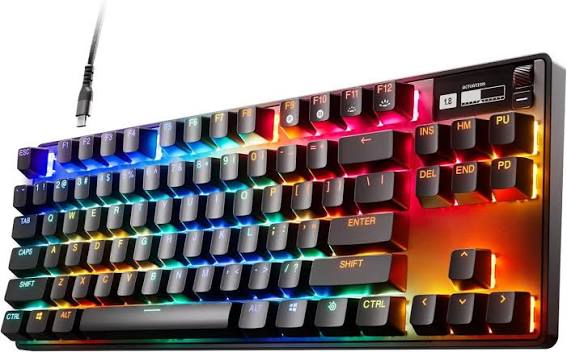
Introduction
SteelSeries ships the Apex Pro TKL with the keyboard, a detachable USB‑C cable, a magnetic wrist rest, a keycap puller, and a small Quick‑Start leaflet. The printed guide shows only basic plug‑in steps. Real‑world questions — “how do I change the actuation point,” “what does the OLED screen do,” “how do I save profiles,” or “why are some keys registering twice” — are what gamers search for every day. This companion answers all of that in clear, practical language without marketing fluff.
What’s Inside the Box
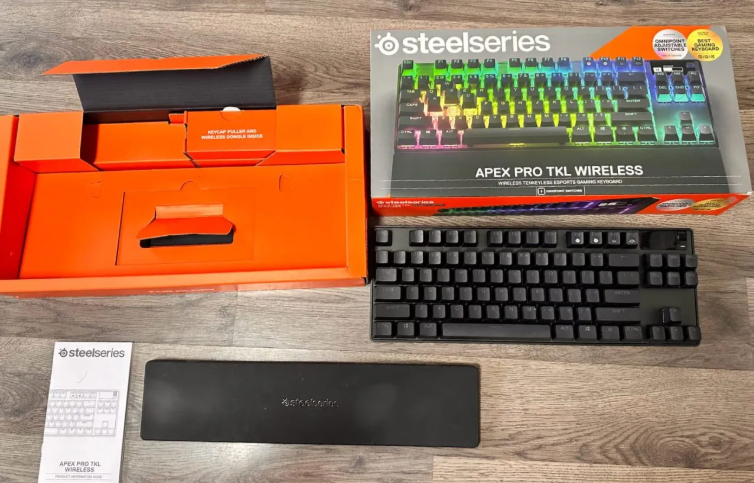
Your package includes:
- The SteelSeries Apex Pro TKL keyboard (model 64856, tenkey less layout, black aluminum frame)
- A detachable braided USB‑C to USB‑A cable (about 1.8 metres)
- A magnetic wrist rest (soft‑touch finish, attaches magnetically to the keyboard)
- A plastic keycap puller
- A Quick‑Start Guide and warranty card
No extra keycaps or switches are included. The keyboard uses SteelSeries OmniPoint 2.0 adjustable mechanical switches on the main keys, with fixed linear red switches on the function row and navigation cluster.
Physical Tour and Layout
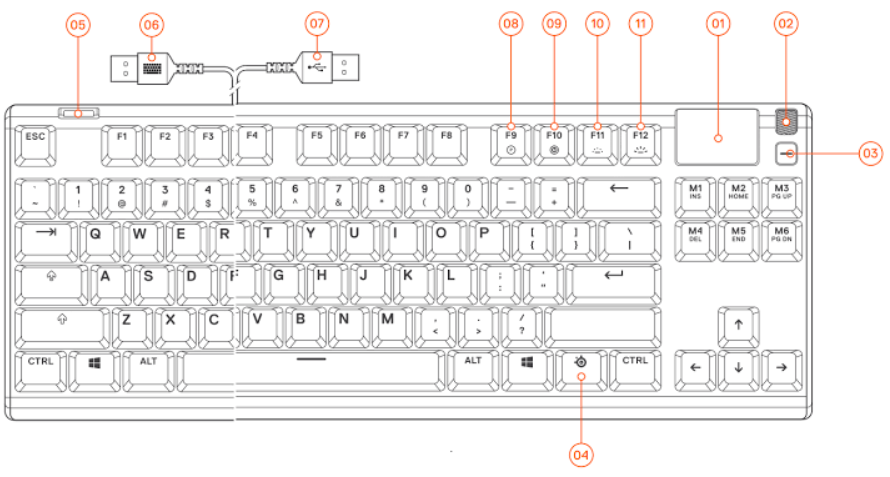
The keyboard has a sleek, tenkey less design that saves desk space. All controls are easily accessible.
- OLED Smart Display (top‑right): A small 128×40 monochrome screen that shows system info, music track names, Discord messages, or custom GIFs. You control it via SteelSeries GG software.
- Media wheel (top‑right, scrollable): Turn to adjust volume. Press it in to mute/unmute. It can be reprogrammed in the software.
- Profile button (next to the media wheel): Press to cycle through onboard profiles. The OLED screen shows the current profile name.
- Brightness button (next to the profile button): Press to cycle through three keyboard brightness levels (high, medium, low) or turn off lighting.
- USB‑C port (top‑left edge): For the detachable cable. The port is recessed; the included cable has a slim connector that fits securely.
- OmniPoint keys: The alphanumeric keys, modifiers, and arrow keys use adjustable magnetic switches. You can feel a slight difference compared to standard mechanical switches; they’re smooth with no tactile bump.
- Fixed switches: The top row (Esc, F1–F12, Print Screen, etc.) uses SteelSeries Red linear switches that are not adjustable.
First‑Time Setup and SteelSeries GG Software
- Plug the USB‑C cable into the keyboard and your PC. The keyboard lights up immediately with a default rainbow wave. No drivers are needed for basic use.
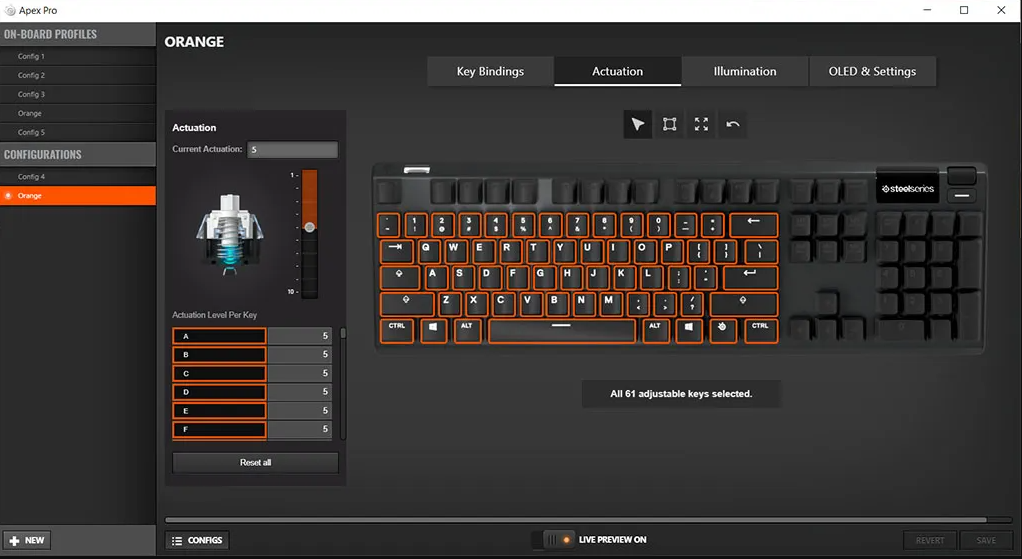
- Download SteelSeries GG from the SteelSeries website (steelseries.com/gg). Install and launch it. The software automatically detects the Apex Pro TKL and adds it to the Engine tab.
- In the Engine tab, click on the keyboard. You’ll see the full configuration screen with options for Key Bindings, Actuation, Dual Bindings, Meta Bindings, OLED & Settings, and Illumination.
- The software may prompt a firmware update. Install it. Do not unplug the keyboard during the update.
Understanding OmniPoint 2.0 and Adjustable Actuation
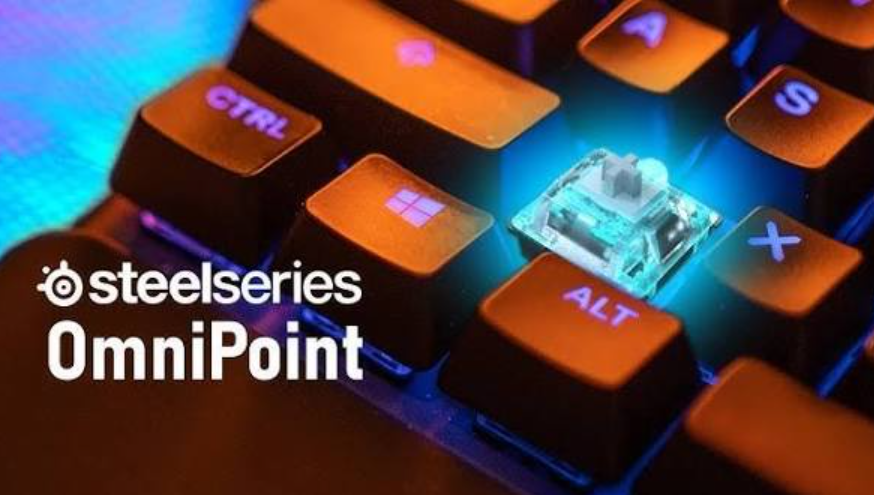
The core feature of the Apex Pro TKL is the ability to change how far a key must be pressed before it registers (actuation point) and to assign two different functions to a single keypress (Dual Binding).
- Adjusting actuation (per‑key): In SteelSeries GG, go to the Actuation tab. Click on any OmniPoint key on the on‑screen keyboard. Drag the slider from 0.1 mm (fastest, hair‑trigger) to 4.0 mm (deepest press). You can set different actuation points for different keys. For example, set WASD to 0.4 mm for rapid movement in shooters, and set Tab or Shift to 2.0 mm to avoid accidental presses.
- Dual Binding: In the same tab, click the Dual Binding toggle. You can assign a primary action (e.g., walk) when the key is pressed lightly, and a secondary action (e.g., sprint) when the key is pressed all the way down. The transition point is adjustable.
- Rapid Trigger: When enabled (in the Actuation tab), the key resets instantly as soon as you begin to release it, without needing to pass the full actuation point. This is ideal for fast strafing and repeated key taps. Turn it on for gaming and off for typing.
- Protective Threshold: A small dead zone at the top of the keystroke to ignore micro‑vibrations when the key isn’t pressed. Default is fine for most users.
Customizing the OLED Display and Profiles
- OLED Screen: In SteelSeries GG, under the OLED & Settings tab, you can choose what the screen shows: a static image (GIF), system stats (CPU/GPU temp, RAM usage), currently playing music, Discord notifications, or a custom text string. Upload a GIF (128×40 pixels) to personalize it.
- Profiles: The keyboard stores up to five onboard profiles in its internal memory. Each profile can have different key bindings, actuation settings, and RGB lighting. Press the Profile button below the OLED screen to cycle through them. The OLED shows the active profile name.
- Setting a profile as default: In SteelSeries GG, after configuring a profile, click Save. The profile syncs to the keyboard. You can also set a profile to auto‑launch with a specific game.
Per‑Key RGB Lighting and Presets
In SteelSeries GG, go to the Illumination tab. You can apply effects globally or per‑key:
- Presets: ColorShift, Breathing, Reactive, Ripple, and more.
- Per‑key customization: Click on individual keys to assign a static colour or create a custom gradient.
- Reactive layers: You can add an effect that triggers on keypress (e.g., a ripple or a flash). This is independent of the base lighting.
- Brightness control: Use the physical brightness button on the keyboard, or adjust in the software. The LEDs are bright, even in a well‑lit room.
Cleaning and Maintenance
- Keycap removal: Use the included keycap puller. Place the wire loops under a keycap, pull straight up. Do not twist. The OmniPoint switches have a standard Cherry‑style stem; keycaps are replaceable with any Cherry MX‑compatible keycaps.
- Cleaning the keyboard: Unplug the USB cable. Use a can of compressed air to blow out dust and debris between the switches. Wipe the aluminum top plate with a damp microfiber cloth. Do not pour any liquid into the switches.
- Wrist rest: Wipe with a damp cloth and mild soap if needed. It attaches magnetically; simply pull it away to clean.
- USB‑C port: The recessed port is designed to hold the cable securely. Check occasionally for lint or debris; clean gently with a dry toothpick if needed.
Troubleshooting Common Issues
| Problem | Likely Cause | What to Try? |
|---|---|---|
| Keyboard not recognized | Loose cable or driver issue | Re‑seat the USB‑C cable firmly. Try a different USB port (avoid USB hubs). Restart your PC. |
| Keys double‑registering | Actuation point set too high or debris | In GG, increase the actuation slightly (e.g., from 0.1 mm to 0.4 mm). Clean around the affected keys with compressed air. |
| OLED screen frozen | Software or firmware glitch | Press and hold the Profile button for 5 seconds to force‑restart the OLED. Also check for firmware updates. |
| RGB lighting not responding | Software conflict or profile issue | Quit SteelSeries GG and relaunch it. Check that the brightness button hasn’t turned off lighting. Try a different onboard profile. |
| Media wheel not adjusting volume | Windows audio device conflict | In GG, check the media wheel assignment. In Windows, ensure the correct audio output device is set. |
| Keys feel inconsistent | Magnetic interference or dust | Remove the keycap and clean the switch with compressed air. If a switch feels very different, test it in the GG software’s actuation debug mode. |
How to Factory Reset
- Unplug the USB‑C cable.
- While holding the Profile button and the Brightness button down, plug the cable back in.
- Continue holding the buttons for about 5 seconds until the OLED screen goes blank and the keyboard lights flash. Release.
- The keyboard will restart with all settings cleared to factory defaults. All onboard profiles and custom actuation settings will be erased. Re‑configure in SteelSeries GG.
Quick Reference Card
| Task | How |
|---|---|
| Change actuation point | SteelSeries GG > Actuation tab > click a key > drag slider |
| Cycle profiles | Press the Profile button below the OLED |
| Mute audio | Press the media wheel inward |
| Factory reset | Hold Profile + Brightness while plugging in USB |
| Clean switches | Compressed air; remove keycaps with puller |
| Update firmware | SteelSeries GG will prompt; do not unplug during update |
Download the Apex Pro TKL Cheat Sheet
A one‑page PDF with OmniPoint settings, shortcut buttons, and reset instructions. Print it and keep it with your gaming gear.
“SteelSeries Apex Pro TKL Quick Guide (PDF)“
Official SteelSeries Support and Manuals
For warranty, replacement parts, and the official PDF manual, visit: Steel Series Official Support
Frequently Asked Questions
- Can I use the Apex Pro TKL on a Mac?
Yes, basic keyboard functions work. SteelSeries GG is available for macOS (with somewhat reduced features compared to Windows). The Command/Option keys map automatically, but you may need to adjust them in System Preferences > Keyboard > Modifier Keys. - What is the difference between OmniPoint 1.0 and 2.0?
OmniPoint 2.0 has faster response, more precise actuation adjustment (0.1 mm increments), and supports Rapid Trigger and Dual Binding across more keys. The Apex Pro TKL uses OmniPoint 2.0. - Can I replace the switches?
The OmniPoint switches are not hot‑swappable. The keyboard is built with them soldered to the PCB. The fixed switches on the top row are also not replaceable by the user. - How do I clean the OLED screen?
Use a dry microfiber cloth. Do not apply pressure; wipe gently. - Does the keyboard have onboard memory?
Yes, it stores up to five profiles directly on the keyboard. These profiles include key bindings, actuation settings, and lighting. You can switch between them without the software running. - What is the lifespan of the OmniPoint switches?
Rated for 100 million keypresses, double the typical mechanical switch lifespan. - Can I disable the Windows key during gaming?
Yes, SteelSeries GG has a Meta Binding that lets you remap or disable the Windows key, or you can set a profile that toggles Game Mode (disables Win key) with a key combination. - Is the USB cable replaceable?
Yes, any high‑quality USB‑C to USB‑A cable with a slim connector will work. SteelSeries sells official replacements. - How do I set up Dual Binding for a specific game?
In GG, create a new profile for the game. In the Actuation tab, enable Dual Binding on the desired keys, set the actions, and save. The profile can auto‑launch with the game. - Why does my keyboard sometimes not wake from sleep?
This can happen with certain USB power settings. In Windows Device Manager, under Universal Serial Bus controllers, find your USB Root Hubs, right‑click, Properties, Power Management tab, and uncheck “Allow the computer to turn off this device to save power.” Also, ensure your BIOS is set to provide power to USB ports during sleep if you want to wake the PC with the keyboard. - Can I use the keyboard without the software?
Yes, all basic functions and onboard profiles work without GG. However, to adjust actuation points, set up Dual Bindings, or change the OLED screen content, you need GG. - What should I do if I spill liquid on the keyboard?
Immediately unplug it. Turn it upside down to drain. Do not use a hair dryer. Let it dry for at least 48 hours before testing. Spills can permanently damage the OmniPoint sensors.
Technical Support and Warranty Information
SteelSeries provides a limited warranty for manufacturing defects (typically 1–2 years depending on region). If your keyboard stops working and the troubleshooting steps don’t help, submit a ticket at steelseries.com/support with your proof of purchase. The support team may walk you through advanced diagnostics or issue a replacement if the keyboard is under warranty. For out‑of‑warranty repairs, SteelSeries does not offer a paid repair service; you would need to take the keyboard to a third‑party electronics repair specialist.
Copyright warning!
Copyright 2026 productsmanuals.com All rights reserved. This SteelSeries Apex Pro TKL 64856 manual is original content and may not be copied, republished, or redistributed without written permission. SteelSeries, Apex Pro, and the SteelSeries logo are trademarks of SteelSeries ApS. This guide is unofficial and not affiliated with SteelSeries.

[…] Logitech K380 is a compact, lightweight Bluetooth keyboard that can switch between three devices — your phone, […]