Introduction
Microsoft ships the Xbox Series S with a controller, an HDMI cable, a power cord, and a Quick‑Start pamphlet. There’s no printed manual that explains how to move games to an external drive, set up remote play, share digital games, or clear the cache when the console freezes. Thousands of people search for an “Xbox Series S manual” every day. This companion gives you all the real‑world answers in one place.
What Comes in the Box

Your box includes:
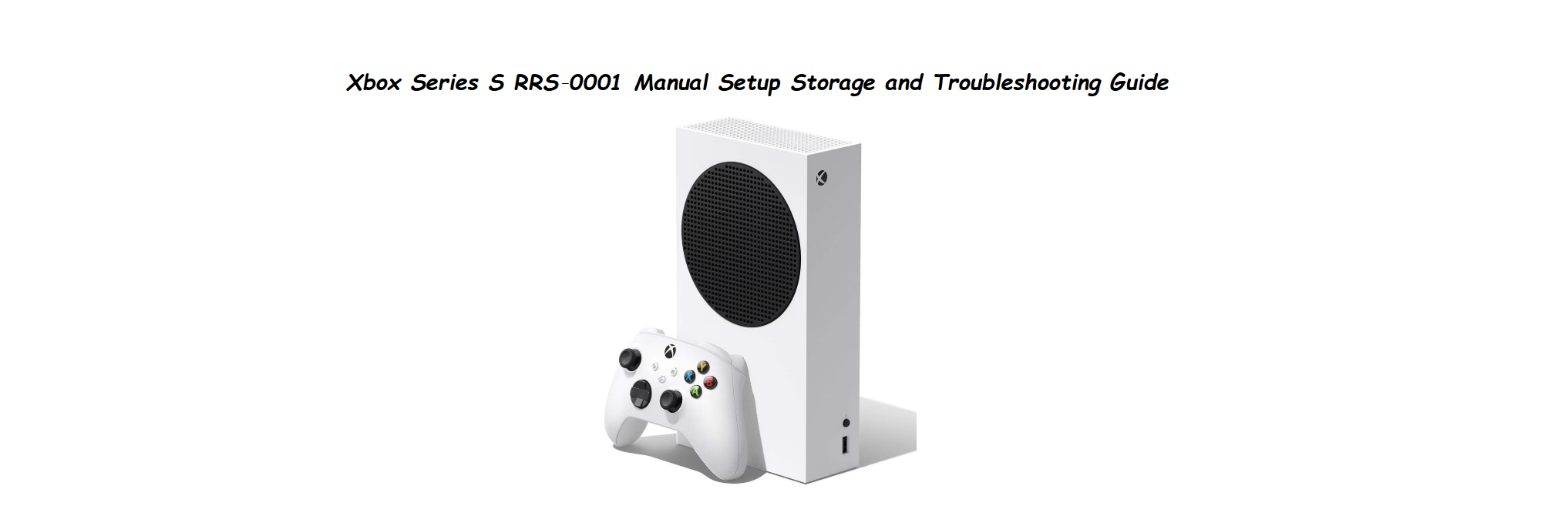
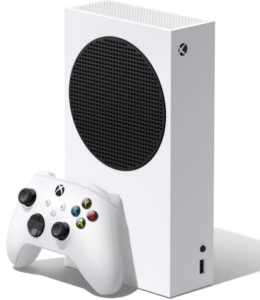
- The Xbox Series S console (model RRS‑0001) – compact, white, with a black circular vent
- One Xbox Wireless Controller (Robot White)
- Two AA batteries for the controller
- A high‑speed HDMI 2.1 cable
- A power cord
- A Quick‑Start Guide and safety booklet
No physical game discs work with this console; it’s digital‑only. You’ll need a Microsoft account and internet access for game downloads.
Physical Tour: Ports and Button
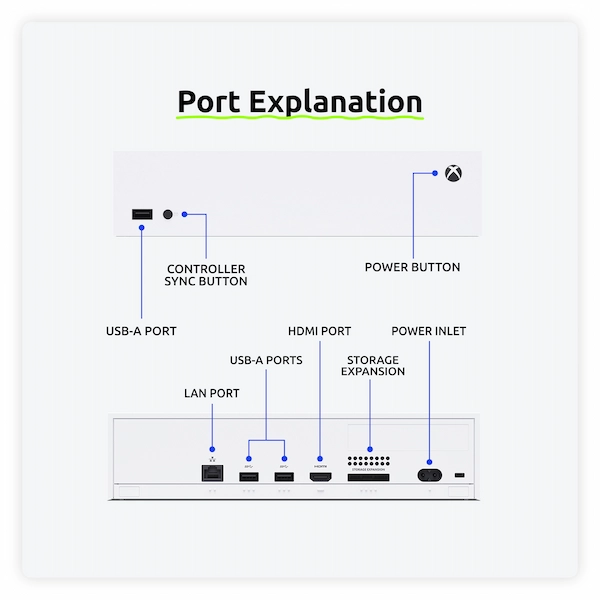
The console has a minimal set of ports:
- HDMI out (back): Connect to your TV or monitor. Supports up to 1440p at 120Hz. It also supports 4K upscaling for video streaming.
- Two USB‑A 3.1 Gen 1 ports (one on front, one on back): For wired controllers, external drives, or charging accessories.
- Ethernet port (back): For a wired internet connection.
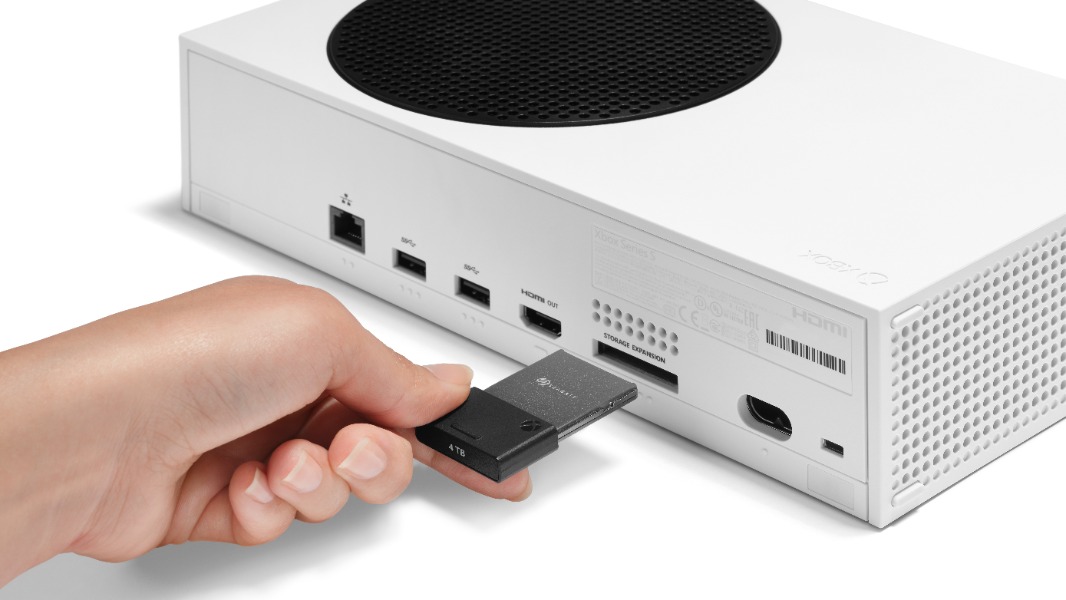
- Storage expansion slot (back): For the Seagate Storage Expansion Card (sold separately). This is the only way to play Series S‑optimised games from an external drive.
- Power port (back): The figure‑8 connector.
- Pair button (front, next to USB port): Used to sync wireless controllers.
- No optical disc drive. All games must be downloaded or streamed.
First‑Time Setup and Account
- Connect the HDMI cable to your TV and the power cord to a wall outlet. Press the Xbox button on the console to turn it on (or press and hold the Xbox button on the controller, then press the console’s pair button to sync).
- Follow the on‑screen prompts: choose language, connect to Wi‑Fi (or use Ethernet), and sign in with your Microsoft account. If you don’t have one, you can create it during setup.
- The console will check for updates. Let it install any system updates.
- You can transfer games and settings from an older Xbox One or Series X by following the on‑screen transfer wizard (requires both consoles on the same network).
Xbox Wireless Controller

The Xbox Wireless Controller included with your Series S is the primary way to interact with the console. It connects wirelessly via Xbox Wireless protocol (proprietary) or Bluetooth, or wired via USB‑C.
Physical Layout (from top to bottom):
- Left thumb/Joystick (LS): Move your character or cursor. Press it down (L3) for additional in‑game actions (sprint, toggle crouch).
- Right thumb/Joystick (RS): Control camera view. Press it down (R3) for actions like melee or focus.
- D‑pad (directional pad): Navigate menus or switch weapons/items. It’s a hybrid faceted D‑pad for both cardinal and diagonal inputs.
- View button (two overlapping squares, left‑centre): Opens maps, inventory, or back function; game‑dependent.
- Menu button (three horizontal lines, right‑centre): Opens pause menu or settings; game‑dependent.
- Share button (centre, below Xbox button): Press once to take a screenshot. Hold to record the last 30 seconds of gameplay. Press the Xbox button then Share button to see recent captures.
- Xbox button (illuminated sphere, top centre): Press to open the guide (overlay). Hold for power options. Double‑tap to switch between guide tabs. It also indicates controller status (solid white for player 1, pulsing if syncing).
- Left bumper (LB) and Right bumper (RB): Digital shoulder buttons for actions like grenade throw, shield, or quick menu navigation.
- Left trigger (LT) and Right trigger (RT): Analog triggers with impulse feedback (vibration) – used for acceleration, aiming, or shooting.
- USB‑C port (top edge): For wired connection to the console or PC, charging the rechargeable battery (sold separately), or connecting accessories.
- 3.5mm headphone jack (bottom edge): For standard audio headsets. Microphone input is supported if your headset has a mic.
- Battery compartment (back): Uses two AA batteries (included). You can also use the Xbox Rechargeable Battery + USB‑C cable (sold separately).
- Pair button (small circle on top edge, next to USB‑C): Used to sync the controller with the console or a Bluetooth device.
How to Pair the Controller
To the Xbox Series S console:
- Turn on the console.
- Press the Pair button on the console (front right, next to USB port) until the Xbox button on the console starts blinking.
- Within 20 seconds, press and hold the Pair button on the controller until the Xbox button blinks rapidly. Once paired, the controller’s button will stay solid.
To a Windows PC (Bluetooth):
- Right‑click the Bluetooth icon in the system tray, select “Add a Bluetooth device.”
- On the controller, hold the Pair button for 3 seconds until the Xbox button blinks.
- Select “Xbox Wireless Controller” on your PC.
Wired connection:
Simply plug the controller into the console’s USB‑A port using a USB‑C cable. The controller will pair automatically and work without batteries. This is the lowest‑latency method.
Controller Battery and Power
- The controller uses two AA batteries. With heavy usage, they last about 20–30 hours.
- To check battery level, press the Xbox button: the guide’s top‑right corner shows a battery icon.
- Low battery warning: The Xbox button will start blinking when batteries are critically low.
- For a rechargeable solution, buy the official Xbox Rechargeable Battery + USB‑C cable or any compatible play‑and‑charge kit. The controller can be used while charging via USB‑C.
Customizing the Controller
You can remap buttons and adjust stick/trigger sensitivity:
- Go to Settings > Devices & connections > Accessories.
- Select your controller (must be connected).
- Choose Configure to create a new profile.
- Button mapping: Swap any button function (e.g., make Left Bumper act as Right Trigger).
- Stick sensitivity: Adjust the response curve (Default, Aggressive, Smooth) for aiming.
- Trigger vibration: Turn impulse triggers on/off.
- Invert axis: Swap X or Y axes individually.
- Save the profile. You can have multiple profiles and switch between them.
Troubleshooting Controller Issues
Updating controller firmware:
Microsoft occasionally releases firmware updates. In the Accessories app, select your controller, then check under “…” (More options) for Firmware version. If an update is available, install it.
Managing Storage and Expanding It
The Series S has a 512GB or 1TB internal SSD (depending on the model). Only about 364GB or 800GB is usable for games. This fills up quickly.
How to move games to an external USB drive:
- Plug a USB 3.0 external HDD or SSD into the front or back USB port.
- Go to Settings > System > Storage devices. Select the internal drive, then Move or copy. Choose the games you want to move, and select the external drive as the destination.
- Games stored on a USB drive can be played directly if they’re backward‑compatible (Xbox One, 360, Original). Series S‑optimized games must be moved back to the internal SSD or the Expansion Card to play.
Using the Seagate Storage Expansion Card:
- Insert it into the dedicated slot on the back. It will be recognized instantly.
- You can set it as the default install location in Settings > System > Storage devices > Change install locations.
Controller Pairing and Shortcuts
- The included controller pairs automatically via wireless. To pair a second controller, press the small Pair button on the console (next to the front USB port), then press and hold the Pair button on the controller (top edge near the USB‑C port) until the Xbox button flashes rapidly.
- Double‑tap the Xbox button to open the guide, then navigate to the party, friends, and settings.
- Hold the Xbox button for the power menu (turn off console, restart).
- Screenshot: Press the new Share button (centre of controller, below Xbox button) once. Record clip: Hold the Share button for a few seconds.
Game Share and Home Console
You can share your digital games with one other person by setting their console as your “Home Xbox.”
- Press the Xbox button, go to Profile & system > Settings > General > Personalization > My home Xbox.
- Select Make this my home Xbox. You can change this up to 5 times per year.
- Anyone who signs in on your home console can play your games and use your subscriptions (Game Pass, Gold) without you being signed in. On any other console, you must be signed in to play your own games.
Remote Play and Cloud Gaming
- Remote play: Stream your console to your phone or PC. Enable it in Settings > Devices & connections > Remote features > Enable remote features. Set power mode to Instant‑on (Sleep mode) for remote wake.
- Cloud gaming (xCloud): With Game Pass Ultimate, you can play many games directly on your phone or PC via the cloud, no download needed. The Series S doesn’t need to be on for cloud gaming; it streams from Microsoft’s servers.
Troubleshooting Console Issues
How to Restart, Power Cycle, and Factory Reset
Restart: Press and hold the Xbox button on the controller, select Restart console. This keeps all data.
Power cycle (hard reset): Hold the Power button on the console for 10 seconds until it turns off. Unplug the power cord for 30 seconds, then plug back in and turn on. This clears the cache and fixes many glitches.
Factory reset (keep games and apps): Go to Settings > System > Console info > Reset console > Reset and keep my games & apps. This reinstalls the operating system while preserving your installed titles.
Factory reset (remove everything): Choose Reset and remove everything to wipe all accounts, games, and data. Use this before selling or giving away the console.
Quick Reference Card
Download the Xbox Series S Cheat Sheet
A one‑page PDF with storage tips, button shortcuts, and troubleshooting. Print it and keep it near your console.
“Xbox Series S Quick Guide (PDF)”
Official Microsoft Support and Manuals
For warranty, digital manual, and service, visit: https://support.xbox.com
FAQs
- Can I play my old Xbox One games on the Series S?
Yes, thousands of Xbox One, Xbox 360, and original Xbox games are backward‑compatible. You can download them from your library or insert the disc… wait, you can’t insert a disc. You must own the digital version or use a disc‑to‑digital upgrade program if available.
- Do I need a 4K TV for the Series S?
No. The Series S targets 1440p resolution, and it upscales to 4K for video streaming. It works perfectly on 1080p TVs as well.
- How do I get Game Pass?
Press the Xbox button, scroll to the Game Pass tab, and subscribe. New subscribers often get a discounted trial. Game Pass gives you access to hundreds of games for a monthly fee.
- Can I use my old Xbox One controller?
Yes, all official Xbox One wireless controllers work with the Series S. Connect them the same way.
- Why does my console make a slight humming noise?
A quiet fan noise is normal. If it sounds like a jet engine, the vents may be clogged. Clean them with compressed air. The Series S is generally very quiet.
A Quick Note Before You Play
Keep the console in a well‑ventilated space, and don’t stack anything on top of it. The white finish can pick up scuffs, so a damp microfibre cloth is your friend. If you ever run out of space, an external USB SSD is a cheaper alternative to the Expansion Card for backward‑compatible games. Enjoy the digital‑only library!
Copyright Warning!
Copyright 2026 productsmanuals.com All rights reserved. This Xbox Series S RRS‑0001 manual is original content and may not be copied, republished, or redistributed without written permission. Microsoft, Xbox, and the Xbox logo are trademarks of Microsoft Corporation. This guide is unofficial and not affiliated with Microsoft.