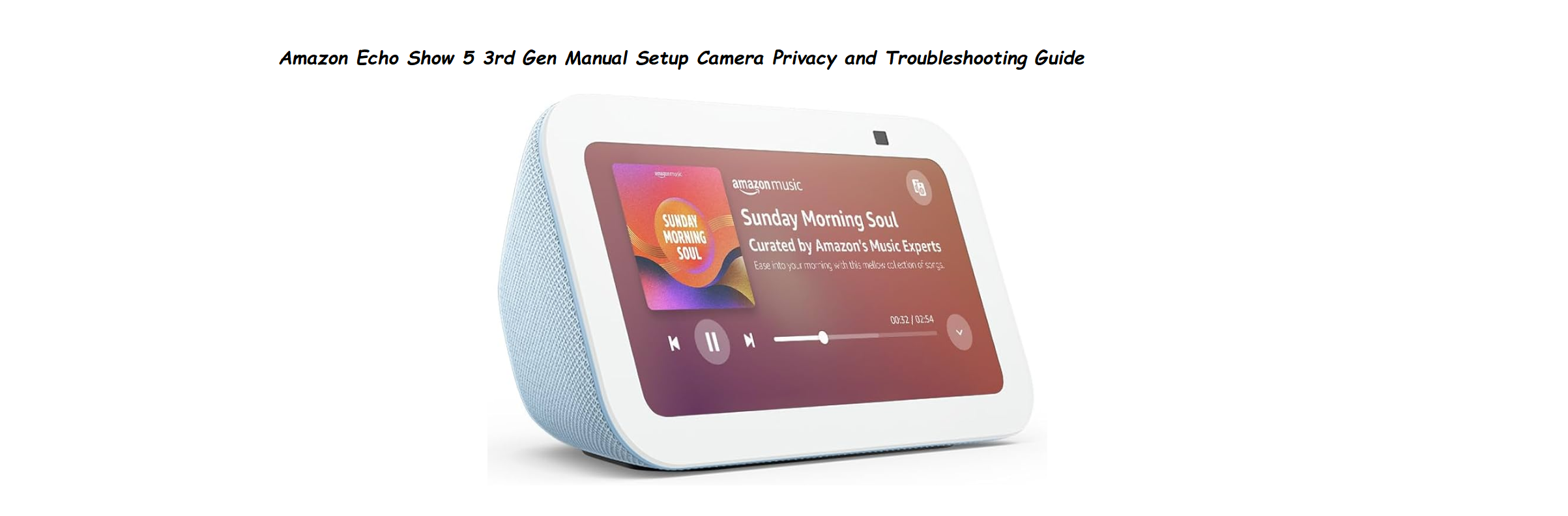
Amazon Echo Show 5 3rd Gen Manual Setup Camera Privacy and Troubleshooting Guide

Why This Companion Is Made
The Echo Show 5 (3rd Gen) ships with a power adapter, a quick‑start leaflet, and a link to the Alexa app. There’s no printed manual that explains how to use the sunrise alarm, what the ambient light sensor does, how to make video calls without the camera watching you all day, or why the screen dims on its own. Thousands of people search for an “Echo Show 5 manual” every day. This guide fills those gaps with plain, direct help.
What’s Inside the Box
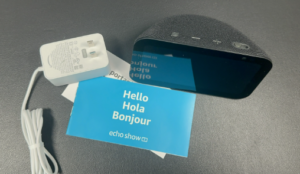
Your box includes:
- The Echo Show 5 (3rd Gen) smart display (5.5‑inch touchscreen, charcoal or glacier white)
- A 15W power adapter with a non‑detachable cable
- A Quick‑Start Guide and safety booklet
No stand is needed; it sits upright by itself. The camera is in the top‑right corner, covered by a physical shutter.
Physical Tour and Button Layout
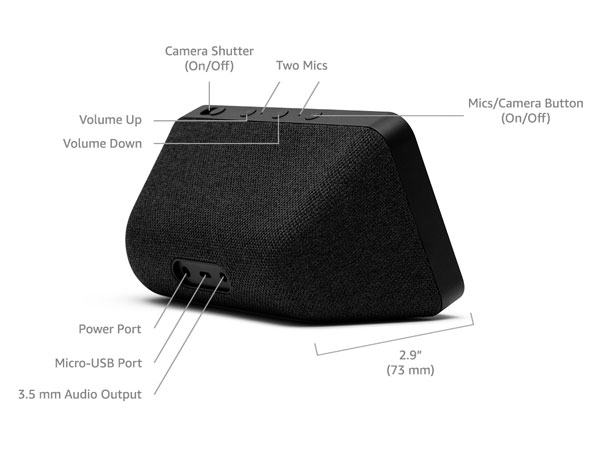
The device has minimal controls:
- Volume Up (+) and Volume Down (–) buttons on the top edge. Press them and a slider appears on screen.
- Microphone Mute button (a circle with a line through it) on the top edge. Press it and the screen shows an orange bar; Alexa can’t hear you until you press it again.
- Camera Shutter slider on the top edge, to the right of the mute button. Slide it to cover the lens completely. The screen will display a crossed‑out camera icon whenever an app tries to access the camera.
- There is no physical power button. To turn the device off completely, unplug it.
First‑Time Power‑On and Setup
- Plug the adapter into a wall outlet and connect the cable to the back of the Echo Show 5. The screen lights up with the Amazon logo.
- Choose your language, then connect to Wi‑Fi. The device supports both 2.4 GHz and 5 GHz networks.
- Sign in with your Amazon account. You can use the on‑screen keyboard or the QR code displayed – scan it with your phone’s Amazon app to speed things up.
- After signing in, the screen will ask about enabling the camera. You can enable it now or leave the shutter closed. The choice is yours.
- The device will download any waiting software updates. Do not unplug it during this time. Once the home screen appears, you’re ready to go.
Understanding the Home Screen and Display Settings
The 5.5‑inch screen shows a rotating carousel of information: clock, weather, calendar events, news headlines, and smart home shortcuts. Swipe down from the top to open Quick Settings (brightness, do not disturb, settings gear). Swipe left from the right edge to access the smart home dashboard.
Key display settings:
- Adaptive Brightness: The ambient light sensor automatically adjusts screen brightness. You can disable this in Settings > Display and set a fixed brightness.
- Photo Frame: In Settings > Display > Photo Frame, you can set the device to show a slideshow from Amazon Photos or Facebook after a period of inactivity. This turns the Show 5 into a digital picture frame.
- Night Mode: In Settings > Display > Night Mode, set a schedule for the screen to dim and show a dark clock face, reducing glare at night.
Alarm Clock and Sunrise Alarm
The Echo Show 5 is often used as a bedside alarm clock. Its special feature is the Sunrise Alarm, which gradually brightens the screen over a set period before the alarm goes off, mimicking a natural sunrise.
To set a sunrise alarm:
- Swipe down, tap Settings > Alarms & Timers.
- Tap Add Alarm, set the time and days.
- Under Alarm Tone, choose a sound. Under Sunrise Effect, toggle it on. You can select the duration (15, 30, or 45 minutes).
- Tap Save. The screen will start glowing softly before the alarm, reaching full brightness at the alarm time.
Camera Privacy and Video Calling
The physical camera shutter is the most important privacy feature. When closed, the camera cannot see anything – no light gets through. The screen shows a blocked‑camera icon in any app that tries to access video.
Making a video call:
- Say, “Alexa, call [contact name].” If the contact has an Echo Show or the Alexa app, a video call will start. You must open the camera shutter first, or the call will be audio‑only.
- You can also swipe down, tap Communicate, and select a contact.
- During a call, the camera follows you with auto‑framing. Turn this off in Settings > Camera.
Drop‑In:
Drop‑In is an instant intercom feature. You can allow Drop‑In from specific contacts or your own household. Configure in Settings > Communication > Drop‑In. You can drop in on your own Echo Show 5 from your phone when you’re away from home.
Smart Home Dashboard and ZigBee
The Echo Show 5 (3rd Gen) has a built‑in Zigbee hub and supports Matter/Thread as a border router. Swipe left from the right edge of the screen to open the dashboard. You’ll see tiles for lights, locks, cameras, and thermostats. Tap to toggle, slide to dim.
Adding a Zigbee device:
- Put the smart bulb, plug, or sensor into pairing mode.
- Say, “Alexa, discover my devices,” or tap Add Device in the smart home dashboard.
- The Show 5 will scan, find the device, and add it to your network. You can then control it by voice or from the dashboard.
Troubleshooting Common Issues
| Problem | Likely Cause | What to Try |
|---|---|---|
| Screen is stuck on the Amazon logo | Frozen during update | Unplug for 60 seconds, then plug back in. If still stuck, press and hold the Volume Down and Mute buttons while plugging in until the recovery menu appears. Use volume buttons to select “Factory Reset,” then press Mute to confirm. |
| Alexa doesn’t hear me | Microphone muted | Press the Mute button on top; the orange bar should disappear. If still not hearing, restart the device. |
| Camera not working | Shutter closed | Slide the shutter open. The blocked‑camera icon will vanish. |
| Wi‑Fi drops often | Weak signal or router band steering | Move the Show 5 closer to the router, or switch to 2.4 GHz in Settings > Network. |
| Sunrise alarm screen stays dark | Brightness set too low or Night Mode overriding | In Settings > Display, increase brightness and check Night Mode schedule. Also verify the Sunrise Effect is toggled on in the alarm settings. |
| Smart home devices not responding | Zigbee connection lost | Say “Alexa, discover my devices.” If that fails, power cycle the Show 5 and the smart device. |
How to Reset
How to Factory Reset and Deregister
Soft restart: Unplug the power, wait 30 seconds, then plug back in. No data is lost.
Factory reset from the screen: Swipe down, tap Settings > Device Options > Reset to Factory Defaults. Confirm. The device will restart as new.
Factory reset using buttons: Press and hold the Volume Down and Mute buttons together for about 15 seconds until the screen goes black and the Amazon logo reappears. Then release.
Deregister from your Amazon account: In the Alexa app, go to Devices > Echo Show 5 > Settings > Deregister. This unlinks the device without erasing local data, but it won’t work until re‑registered.
Quick Reference Card
| Task | How |
|---|---|
| Mute microphone | Press the Mute button (orange bar) |
| Block camera | Slide camera shutter closed |
| Open smart home dashboard | Swipe left from the right edge |
| Quick settings | Swipe down from the top |
| Factory reset (screen) | Settings > Device Options > Reset to Factory Defaults |
| Recovery menu | Hold Volume Down + Mute while plugging in |
| Set sunrise alarm | Settings > Alarms & Timers > Add Alarm > Sunrise Effect |
Download the Echo Show 5 Cheat Sheet
A one‑page PDF with privacy tips, sunrise alarm setup, and troubleshooting. Print it and keep it on your nightstand.
“Echo Show 5 Quick Guide (PDF)”
Official Amazon Support and Manuals
For warranty, help videos, and the official manual, visit: https://www.amazon.com/help/echoshow5
Frequently Asked Questions
- Can I use the Echo Show 5 without a camera?
Yes. Keep the shutter closed. You can still use Alexa, play music, and control smart home devices. Video calls will be audio‑only. - Does the sunrise alarm work in a completely dark room?
Yes. The screen gradually brightens from off to a soft glow, simulating sunrise. It’s very effective. - Can I turn off the screen at night?
Yes. Say, “Alexa, turn off the screen,” or set a Night Mode schedule in Settings > Display. - Is the Echo Show 5 waterproof?
No. It is not water‑resistant. Keep it away from splashes and humidity. - How do I stop the screen from showing my photos?
In Settings > Display > Photo Frame, toggle it off. - Can I watch YouTube on this device?
Yes, you can access YouTube through the built‑in Silk browser or by linking your Google account in the Alexa app.
A Practical Thought Before You Place It
The Echo Show 5 fits comfortably on a nightstand or a small desk, but keep the camera shutter closed when you’re not using video. The screen’s adaptive brightness works best when the device is not in direct sunlight. Dust the screen gently with a microfiber cloth; no cleaners needed. With the sunrise alarm and smart home controls at your fingertips, this little display can become the quiet center of your morning routine.
Copyright Warning!
Copyright 2026 productsmanuals.com All rights reserved. This Amazon Echo Show 5 3rd Gen manual is original content and may not be copied, republished, or redistributed without written permission. Amazon, Echo, Alexa, and the Amazon logo are trademarks of Amazon.com, Inc. This guide is unofficial and not affiliated with Amazon.
