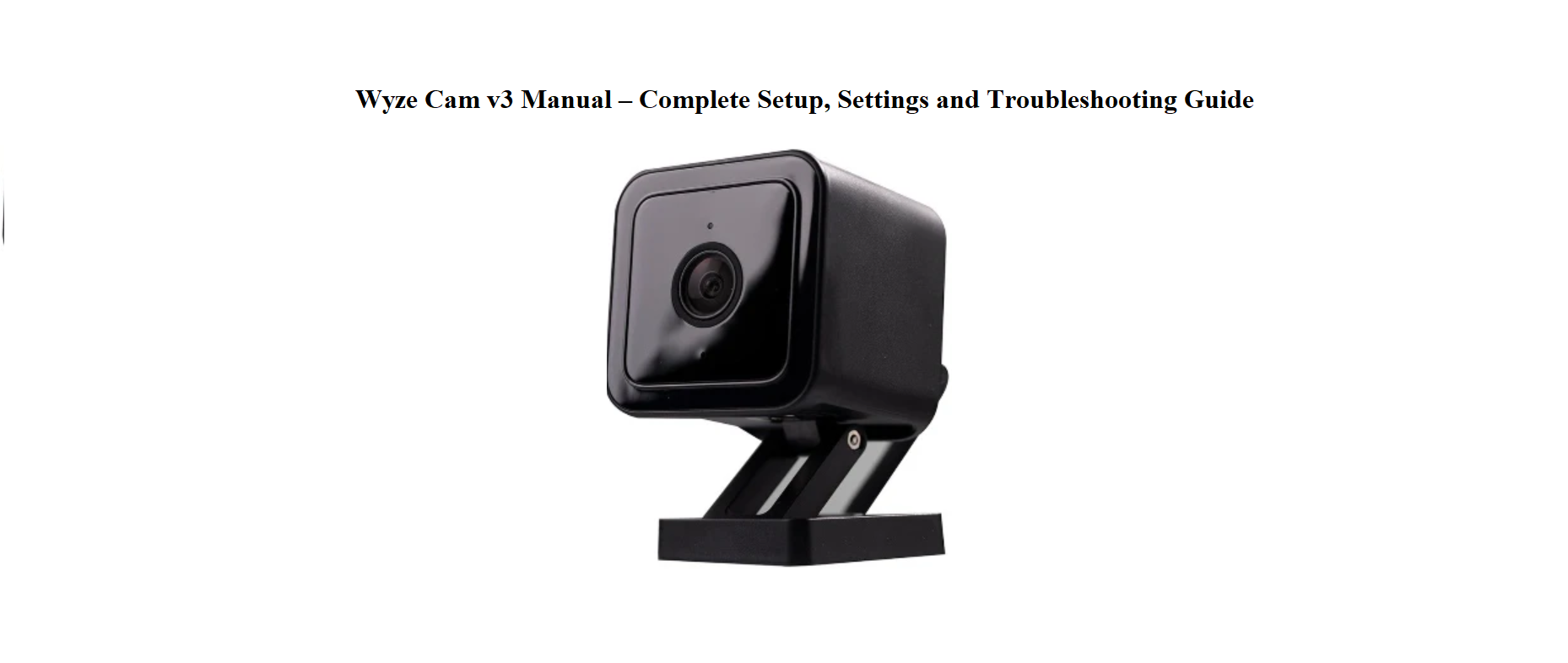

Wyze ships the Cam v3 with a USB cable, a wall adapter, a mounting disc, and a quick‑start card that covers just the basics. The full manual is online, but it doesn’t always answer real‑world questions like “why won’t the camera scan the QR code,” “how do I get the microSD card to work,” or “what does the flashing yellow light mean.” Thousands of people search for a “Wyze Cam v3 manual” every day because they want clear, practical answers. This companion gives you exactly that.
What’s in the Box
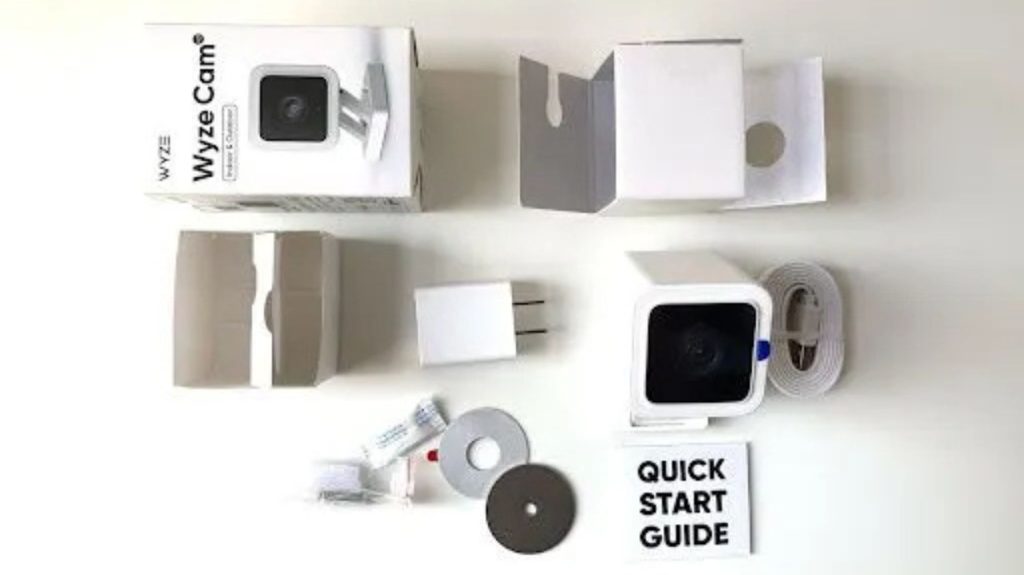
Your package includes:
- The Wyze Cam v3 (indoor/outdoor, magnetic base)
- A 6‑foot micro‑USB power cable (flat, to fit through window gaps)
- A USB wall adapter
- A round metal mounting disc (for sticking to walls)
- A screw kit with anchors (for permanent mounting)
- A quick‑start card and safety leaflet
No microSD card is included; you’ll need to buy one separately if you want continuous recording or event playback without a subscription.
Getting to Know the Camera
The camera has a few physical features worth knowing by touch.
- Lens: The black circle on the front. Behind it are two infrared LEDs for night vision.
- Status light: A small LED on the front. Solid red means powered and working. Flashing red means ready to connect. Flashing blue means connecting to Wi‑Fi. Solid blue means connected.
- Micro‑USB port: On the back, under a rubber cover. Plug the cable in tightly; a loose connection causes the camera to reboot randomly.
- microSD slot: Under the same rubber cover, next to the power port. Insert a microSD card (up to 256 GB, FAT32 format) for local recording.
- Setup button: A small recessed button on the bottom. Press and hold it to factory reset the camera.
- Magnetic base: The flat bottom is magnetic. You can stick it to any metal surface without tools. The included metal disc can be stuck to a wall for non‑magnetic surfaces.
Setting Up the Camera in the Wyze App

- Download the Wyze app (iOS or Android) and create a free account.
- Plug the camera into the included wall adapter (not a TV USB port — the camera needs steady power).
- The status light will flash red after a few seconds. If it doesn’t, press and hold the setup button on the bottom for 10 seconds until it says “Ready to connect.”
- In the app, tap the “+” button, then “Add Device” > “Cameras” > “Wyze Cam v3.”
- The app will ask you to connect to a 2.4 GHz Wi‑Fi network (the Cam v3 does not support 5 GHz). Enter the password.
- The app displays a QR code. Hold the camera about 15–20 cm from the phone screen. The camera will scan the code — you’ll hear a voice prompt saying “QR code scanned.”
- Tap “Next.” The camera will connect to your Wi‑Fi. The status light turns solid blue when it’s online.
If the QR code won’t scan, increase your phone’s screen brightness to maximum, remove any screen protector, and ensure the camera is not too close or too far. Try resetting the camera and scanning again.
Mounting the Camera Indoors or Outdoors
The Cam v3 is IP65 weather‑resistant, so it can live outside in rain or snow. Here’s how to mount it securely.
- Magnetic mount: The base sticks strongly to any steel surface (like a refrigerator, a metal shelf, or a metal junction box). Just place it — no screws needed.
- Wall mount with disc: Peel the adhesive backing off the metal disc, stick it to a clean, dry wall, then attach the camera magnetically. For outdoor use, place the disc under an eave or overhang to protect the camera from direct heavy rain.
- Screw mount: For the most permanent hold, use the included screws and anchors. Run the flat USB cable through a window or door gap (the flat design allows the window to close over the cable).
Positioning tip: Place the camera at about 2–2.5 metres high, angled slightly downward. This captures faces clearly and reduces false motion alerts from passing cars or branches.
Status Light and Voice Prompts
Understanding the Status Light and Voice Prompts
The camera communicates through light colours and spoken messages.
| Light / Sound | Meaning |
|---|---|
| Solid red | Camera is powered on and working |
| Flashing red | Ready to connect (setup mode) |
| Flashing blue | Connecting to Wi‑Fi |
| Solid blue | Connected and streaming |
| Yellow (solid or blinking) | microSD card issue (not formatted, full, or incompatible) |
| “QR code scanned” | The camera has read the Wi‑Fi QR code |
| “Ready to connect” | Setup mode activated |
| “Pairing is successful” | Camera connected to the app |
Using a microSD Card
Using a microSD Card for Continuous Recording
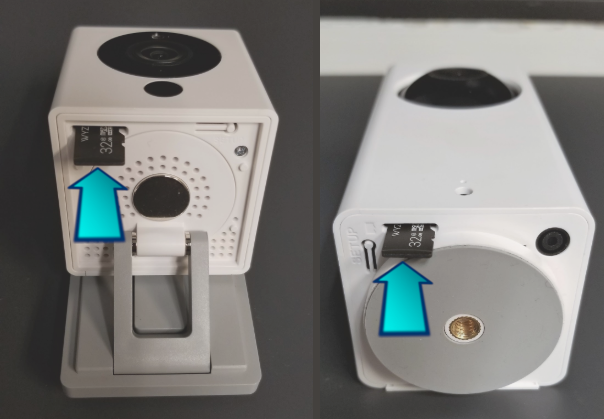
The camera can record to a microSD card (sold separately). This is optional but highly recommended.
- Card type: microSD card, up to 256 GB, formatted as FAT32. Use a Class 10 or higher card.
- Inserting the card: The slot is under the rubber cover on the back. Push the card in until it clicks. The camera may reboot. If the light turns solid yellow, the card needs to be formatted.
- Formatting: In the Wyze app, tap the live view of the camera, then the gear icon (Settings) > Advanced Settings > Manage microSD Card > Format.
- Continuous recording: Once formatted, go to Settings > Advanced Settings > Local Recording to microSD Card and choose Continuous. The card will fill up and then overwrite the oldest files.
- Event recording (without subscription): Without a card, the camera records 12‑second motion clips to the cloud, but there’s a 5‑minute cooldown between clips. With a card, you can set it to record events only, saving space.
