
Introduction
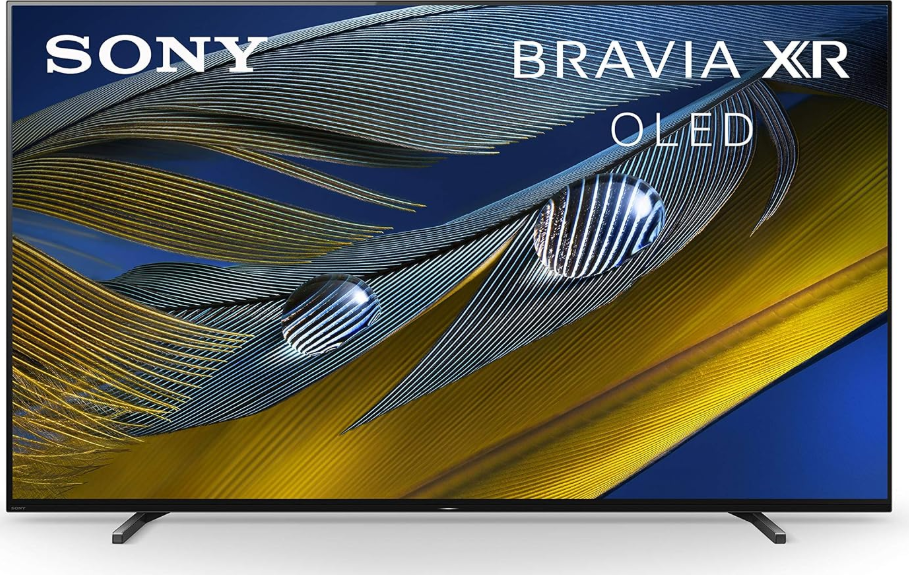
Sony’s BRAVIA XR televisions represent the pinnacle of home entertainment, combining the Cognitive Processor XR with advanced display technologies like OLED and Full Array LED. Whether you own a flagship A95L QD-OLED, an A80L OLED, or an X90L Full Array LED, the core setup and operation principles are similar. This manual covers everything from unboxing and initial setup to picture calibration, Google TV navigation, HDMI 2.1 gaming features, and troubleshooting. It applies to the 2023–2025 BRAVIA XR lineup, including the A95L, A80L, X95L, X90L, X85K, and BRAVIA 9/8/7 series.
Product Overview
The BRAVIA XR series is powered by Sony’s Cognitive Processor XR, which cross-analyzes images the way the human eye does. Depending on your model, you get either:
- OLED (A95L, A80L): Perfect blacks, infinite contrast, and wide viewing angles.
- Full Array LED (X95L, X90L): High brightness with precise backlight control.
- Mini LED (BRAVIA 9, BRAVIA 7): Exceptional brightness and contrast with XR Backlight Master Drive.
All models run Google TV, support HDMI 2.1 with 4K120 and VRR, and include the BRAVIA CORE movie service.
Key Features
- Cognitive Processor XR: Delivers lifelike picture quality by analyzing and enhancing every element of the image.
- XR Triluminos Pro / QD-OLED: Wide colour gamut for vibrant, natural colours.
- Acoustic Multi-Audio / Acoustic Surface Audio+: Sound comes from the screen itself for immersive audio.
- HDMI 2.1 (4K120, VRR, ALLM): Ideal for PlayStation 5 and Xbox Series X gaming.
- Google TV: Access thousands of apps, voice search, and personalized recommendations.
- BRAVIA CORE: Sony’s movie streaming service with high-bitrate 4K HDR films.
- XR Backlight Master Drive (Mini LED models): Precise backlight control for exceptional contrast.
- Perfect for PlayStation 5: Auto HDR Tone Mapping and Auto Genre Picture Mode.
How to Use
What’s in the Box
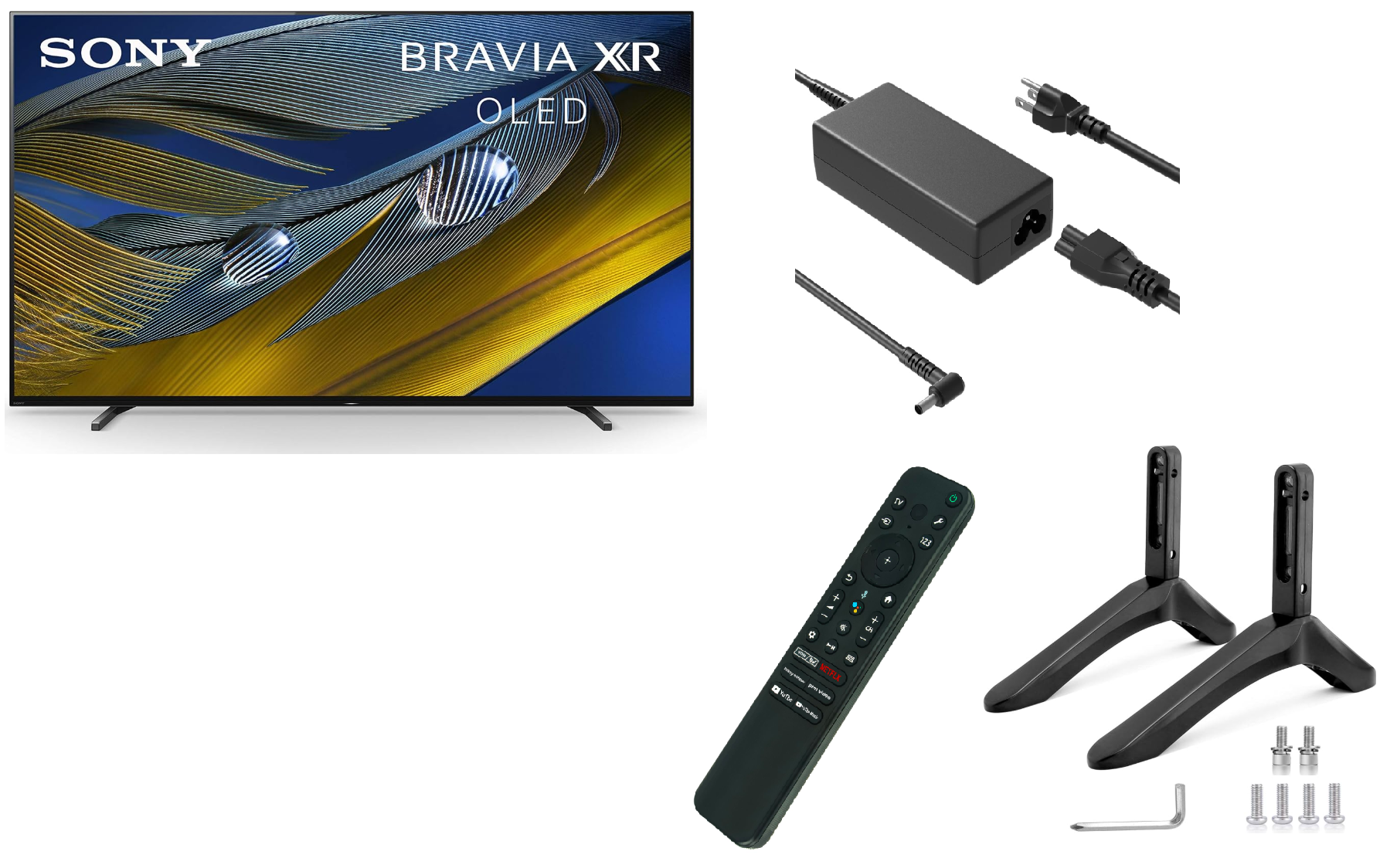
- Sony BRAVIA XR TV (with stand base or wall-mount bracket)
- Voice Remote Control (RMF-TX810P or similar)
- Power cord (region-specific)
- Table-top stand (some models include feet or a central stand)
- Setup Guide, Reference Guide, and Safety Documentation
Initial Setup
- Attach the stand: Follow the Setup Guide. Most BRAVIA XR models have a central or edge stand. For wall mounting, use a compatible Sony bracket (sold separately).
- Connect power: Plug the TV into a wall outlet.
- Power on: Press the power button on the remote. The TV will guide you through initial setup.
- Pair the remote: The Voice Remote should pair automatically via Bluetooth. If not, press and hold the MIC and HOME buttons simultaneously for 3 seconds.
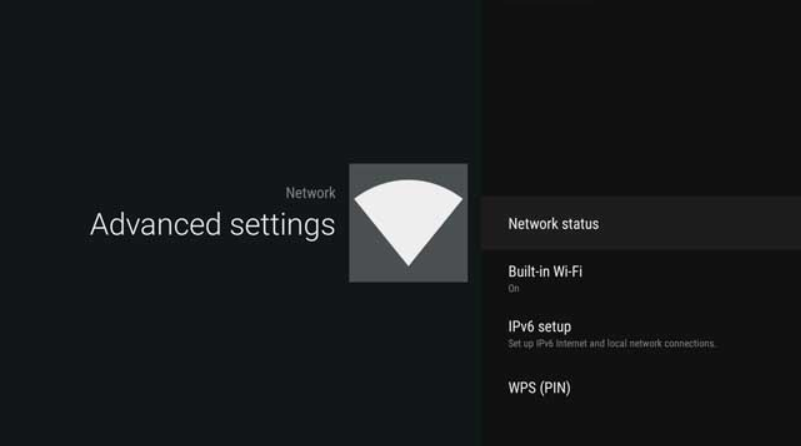
- Connect to Wi-Fi: Select your network and enter the password. The TV supports 2.4 GHz and 5 GHz.
- Sign in: Sign in with your Google account to access Google TV features, and with your Sony account (optional) for BRAVIA CORE.
- Run initial setup: Select your region, language, and TV usage preferences. The TV will scan for channels if an antenna is connected.
Google TV Navigation
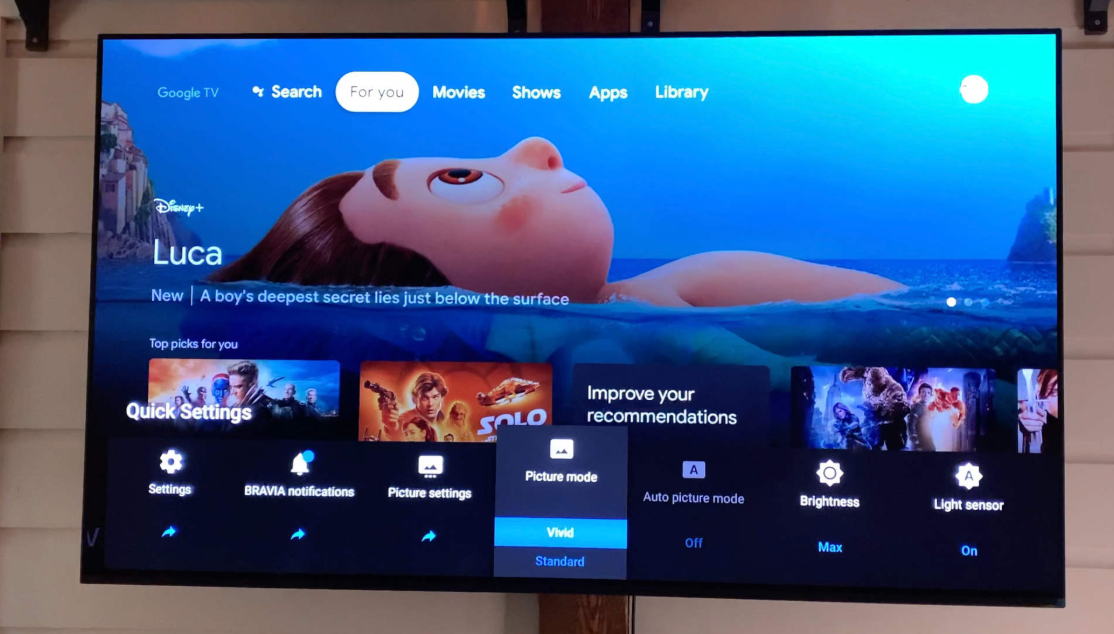
- Home Screen: Press the HOME button. The top row shows your apps; below are personalized recommendations.
- Google Assistant: Press the MIC button and speak. Ask “What’s the weather?” or “Play Stranger Things on Netflix.”
- Quick Settings: Press the Quick Settings button (gear icon) to access picture, sound, and system settings without leaving what you’re watching.
- Input: Press the Input button to switch between HDMI sources, the built-in tuner, and apps.
Picture Settings & Calibration
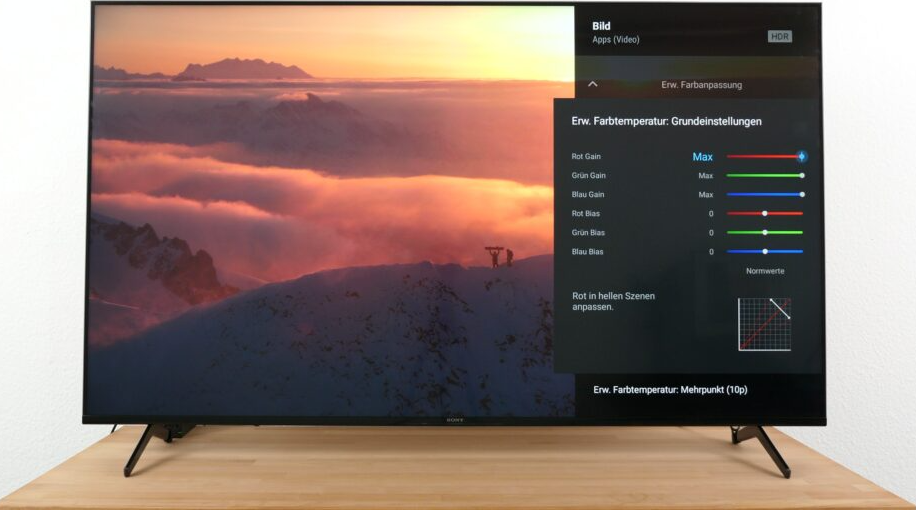
Access picture settings via Quick Settings > Picture or Settings > Display & Sound > Picture.
- Picture Mode: Choose Standard, Cinema, IMAX Enhanced, Game, Vivid, or Custom. For movies, Cinema is recommended. For gaming, Game mode reduces input lag.
- Brightness: Adjust the backlight/OLED luminance. For SDR content, 30–40 is comfortable in a dark room; for HDR, set to Max.
- Contrast: Leave at 90–100 for HDR, 80–90 for SDR.
- Colour: Default is usually fine. Adjust only if skin tones look unnatural.
- Motion: Set Motionflow to True Cinema for movies or Off for gaming. For sports, Smooth reduces blur.
- HDR Tone Mapping: For HDR content, set to Gradation Preferred for a more natural look.
- Calibration: For advanced users, use a calibration disc or the built-in CalMAN pattern generator (available in some regions).
HDMI 2. 1 & Gaming Setup
For PlayStation5, Xbox Series X, or high-end PC gaming:
- Connect your console/PC to an HDMI 2.1 port (HDMI 3 or 4 on most BRAVIA XR models).
- Go to Settings > Channels & Inputs > External inputs > HDMI signal format and set to Enhanced format (4K120, 8K, VRR) .
- Enable VRR (Variable Refresh Rate) in the same menu for smoother frame rates.
- Enable ALLM (Auto Low Latency Mode) — the TV will automatically switch to Game mode when a console is detected.
- For PlayStation 5, enable Auto HDR Tone Mapping and Auto Genre Picture Mode in the PS5 settings.
Audio Setup
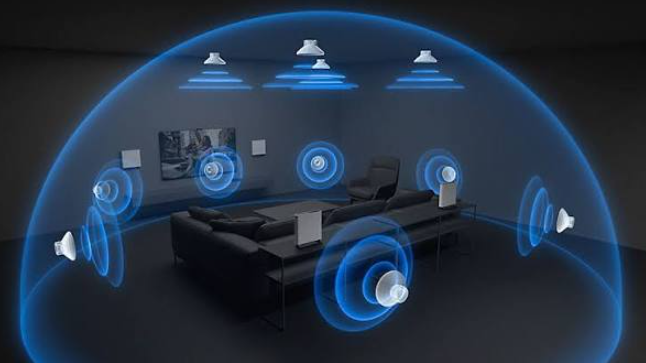
- Acoustic Multi-Audio: On OLED models, actuators behind the screen vibrate to produce sound that matches the on-screen action.
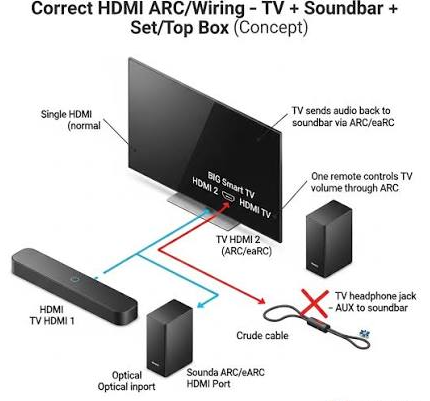
- eARC: Connect a soundbar or AV receiver to the HDMI port labelled eARC/ARC for high-quality audio passthrough.
- Audio Output: Go to Settings > Display & Sound > Audio output to select TV speakers, audio system, or Bluetooth headphones.
- Dolby Atmos: Supported via eARC when connected to a compatible sound system.
Connecting External Devices
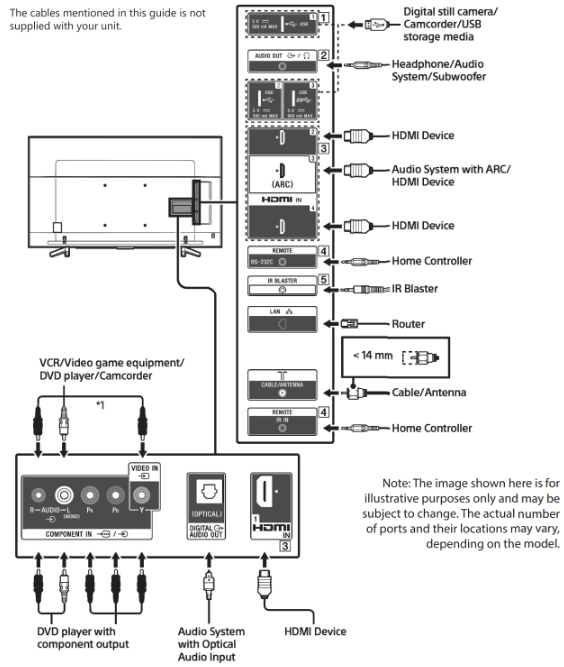
- HDMI: Use HDMI 1–4 for streaming devices, consoles, and Blu-ray players.
- USB: Connect USB drives to play media files or record live TV (USB HDD required).
- Optical Audio: Use the optical out (if equipped) for older soundbars.
- Antenna/Cable: Connect a coaxial cable for live TV. Run Settings > Channels & Inputs > Channels > Channel setup.
Troubleshooting & Common Problems
| Problem | Likely Cause | What to Try |
|---|---|---|
| No picture / No power | Power cord, outlet, or remote issue | Check the power cord is fully inserted. Press the power button on the TV itself. Try a different outlet. |
| LED light blinks red | Internal error | Count the number of blinks. 3 blinks: power supply issue. 4 blinks: backlight issue. 5 blinks: panel issue. Contact Sony support with the blink count. |
| No signal / Black screen | Wrong input or HDMI handshake | Press the Input button and select the correct source. Unplug the HDMI cable and reconnect. Try a different HDMI port. |
| Picture is too dark or too bright | Picture mode or brightness setting | Adjust Picture Mode. For dark rooms, use Cinema or Custom. For bright rooms, use Standard. |
| Remote not working | Bluetooth pairing lost or batteries low | Replace batteries. Re-pair: press and hold MIC + HOME for 3 seconds. |
| Wi-Fi not connecting | 5 GHz band or hidden SSID | Try connecting to the 2.4 GHz band. Restart the router. Forget the network and reconnect. |
| Sound not coming from soundbar | eARC not enabled or wrong HDMI port | Connect soundbar to the HDMI eARC port. Enable eARC in Settings > Display & Sound > Audio output. |
| Apps freeze or crash | Software glitch or low storage | Restart the TV: hold the power button on the remote for 5 seconds. Clear app cache in Settings > Apps. |
| Google TV is slow | Background apps or low memory | Restart the TV. Uninstall unused apps. Check for software updates. |
| HDMI 2.1 features not working | Wrong signal format | Go to Settings > Channels & Inputs > External inputs > HDMI signal format and select Enhanced format. |
Frequently Asked Questions
- Where can I find the full user manual for my BRAVIA XR TV?
The full Help Guide is built into the TV. Press the HELP button on the remote and select Help Guide. You can also access it online at Sony’s support site by entering your model number. - What is the difference between the Reference Guide and the Help Guide?
The Reference Guide (printed) covers safety, remote control, wall-mounting, and specifications. The Help Guide (on-screen) covers settings, functions, internet connection, and troubleshooting. - How do I run a picture calibration on my BRAVIA XR?
Use a calibration disc or the built-in CalMAN pattern generator (available in select regions). For most users, selecting Cinema mode and adjusting brightness to taste is sufficient. - Does the BRAVIA XR support 4K at 120Hz?
Yes, all BRAVIA XR models with HDMI 2.1 (X90L and above) support 4K at 120Hz, VRR, and ALLM for gaming. - How do I enable VRR for gaming?
Go to Settings > Channels & Inputs > External inputs > HDMI signal format and select Enhanced format (VRR) for the HDMI port your console is connected to. - What is BRAVIA CORE?
BRAVIA CORE is Sony’s movie streaming service, offering high-bitrate 4K HDR films. It’s included with select BRAVIA XR TVs and can be accessed via the app. - How do I reset the TV to factory settings?
Go to Settings > System > About > Reset > Factory reset. This erases all accounts, apps, and settings. - Can I use Bluetooth headphones with the TV?
Yes. Go to Settings > Display & Sound > Audio output > Bluetooth devices and pair your headphones. You can also output sound to the TV speakers and Bluetooth simultaneously.
Tips
- Use Cinema mode for movies: It provides the most accurate picture and disables unnecessary processing.
- Enable Auto HDR Tone Mapping for PS5: This optimizes HDR settings specifically for your TV.
- Keep the TV updated: Go to Settings > System > Software update to check for the latest firmware.
- Clean the screen gently: Use a dry microfibre cloth. Do not spray water or cleaner directly on the screen.
- Use the built-in Help Guide: Press the HELP button on the remote for instant access to troubleshooting and settings explanations.
Safety Information
- Power: Use only the supplied power cord. Operate the TV on 100–240 V AC (120 V in USA/Canada). Do not use an extension cord unless the blades can be fully inserted.
- Ventilation: Leave at least 10 cm of space around the TV for airflow. Do not block the vents.
- Wall mounting: Use a compatible Sony wall-mount bracket. Follow the installation instructions in the Setup Guide. Improper mounting can cause injury.
- Stability: If using the table-top stand, ensure it is securely attached. Do not place heavy objects on the TV.
- Heat: Do not place the TV near radiators, heat registers, or in direct sunlight.
- Cleaning: Unplug the TV before cleaning. Use a soft, dry cloth. Do not use liquid cleaners or aerosol sprays.
- Children: Keep the TV and remote out of reach of small children. Do not allow children to climb on the TV.
- Service: Do not attempt to repair the TV yourself. Contact Sony support or an authorized service centre.
Related Manuals
If this guide was helpful, here are a few more popular manuals from productsmanuals.com that you might find useful:
- Samsung Galaxy Watch 7 – Health Sensors, Galaxy AI & Battery Tips
Master ECG, body composition, sleep apnea detection, and more. - Samsung Galaxy S26 Ultra – Privacy Display, 200MP Camera & S Pen
Explore the latest Ultra flagship with hidden features and pro tips. - LG C3 OLED TV Manual – Picture Settings, Game Optimizer & WebOS Guide
Calibrate your LG OLED for movies and gaming with step-by-step instructions. - Honeywell T5 Smart Thermostat Manual – Geofencing, App Setup & Scheduling
Automate your home’s heating and cooling for comfort and savings. - Sony WH-1000XM6 Manual – ANC, Touch Controls & Multipoint Setup
Get the most from Sony’s flagship noise-cancelling headphones.
Browse all guides at productsmanuals.com .
Copyright 2026 productsmanuals.com All rights reserved. This Sony BRAVIA XR TV manual is original content and may not be copied, republished, or redistributed without written permission. Sony, BRAVIA, and the Sony logo are trademarks of Sony Corporation. This guide is unofficial and not affiliated with Sony.
