Why This Companion Is Here
Razer ships the DeathAdder V3 with a USB dongle, a charging cable, a Quick‑Start leaflet, and a set of grip tape. The printed guide shows only basic plug‑in steps. Real‑world questions — “how do I pair the Hyper Speed dongle,” “what is the 30K optical sensor,” “how do I adjust DPI without Synapse,” or “why does my scroll wheel jump” — are what gamers search for every day. This companion answers those questions in plain, practical language.
What’s Inside the Box
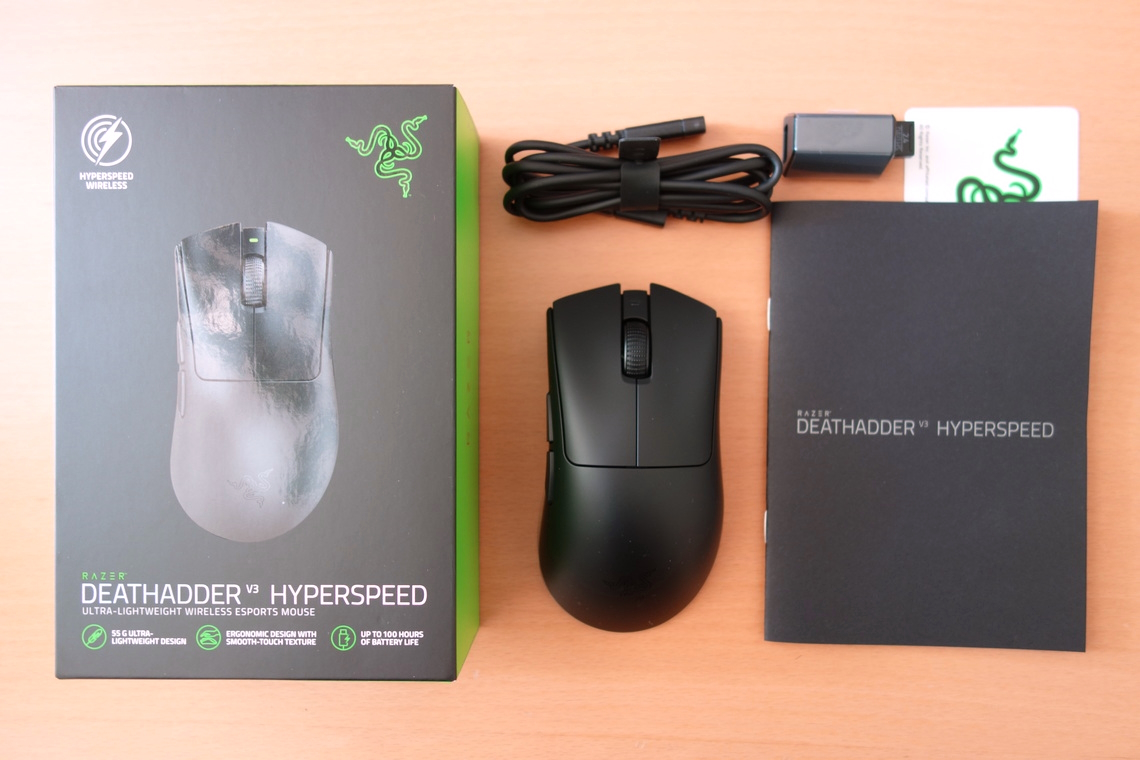
Your package includes:
- The Razer DeathAdder V3 wireless gaming mouse (model RZ01‑04620100) in black or white
- A Razer Hyper Speed 2.4 GHz USB‑A dongle (stored inside the mouse, or in a separate slot)
- A USB‑A to USB‑C Speed flex charging cable
- A set of black grip tape for the sides and main buttons
- A Quick‑Start Guide and warranty card
No charging dock is included; the mouse charges via the USB‑C cable. It can also be used wired while charging.
Physical Tour and Button Layout
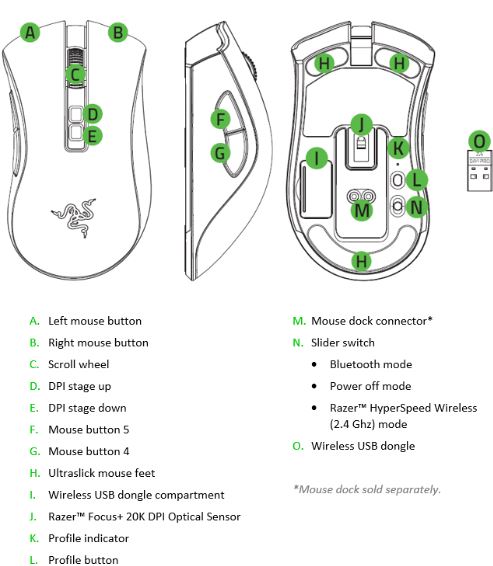
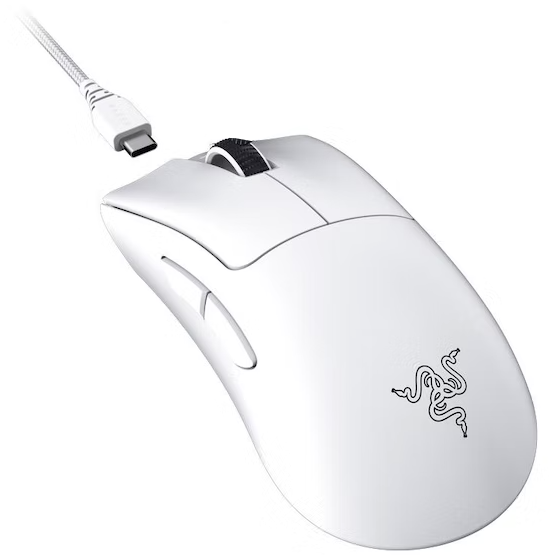
The DeathAdder V3 has a classic, ergonomic shape with a total of 6 programmable buttons.
- Left click / Right click: Razer Optical Switches (Gen 3). Very fast actuation, rated for 90 million clicks.
- Scroll wheel (clickable): Notched, precise scrolling. Press down for middle‑click.
- DPI button (below scroll wheel): Press to cycle through pre‑set DPI levels. The LED colour briefly changes to indicate the active profile.
- Forward / Back thumb buttons (left side): Placed for easy access. Programmable in Razer Synapse.
- Power switch (bottom): Slide to toggle the mouse on/off.
- DPI indicator LED (under the mouse, or behind the scroll wheel, depending on version): Shows battery status and DPI profile.
- USB‑C port (front): For charging and wired mode.
First‑Time Setup and Connection
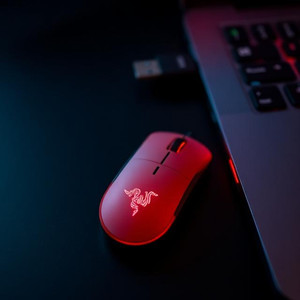
- Wireless (Hyper Speed): Plug the USB‑A dongle into your PC. Turn on the mouse using the bottom switch. It will connect automatically. No pairing steps needed – the dongle is pre‑paired from the factory.
- Wired (charging / gaming): Connect the USB‑C cable to the mouse and the USB‑A end to your PC. The mouse works as a wired mouse and charges simultaneously. You can also use it wirelessly while the cable charges from a separate USB charger.
- Pairing a replacement dongle: If you lose the original dongle, a new one can be paired using the Razer Synapse software under Settings > Pairing Utility.
Adjusting DPI and Onboard Profiles
The DeathAdder V3 uses the Razer Focus Pro 30K optical sensor. It supports DPI from 100 to 30,000, adjustable in increments of 50.
-
Default DPI stages (without Synapse): 400 (green), 800 (blue), 1600 (yellow), 3200 (orange), 6400 (red). The DPI button cycles through these. The LED near the DPI button or on the bottom flashes the corresponding colour.
-
Changing DPI stages with Synapse: Install Razer Synapse (free from Razer’s website). Go to Performance > Sensitivity Stages. You can set up to 5 stages, each with a custom DPI value and assigned colour.
-
Polling rate: In Synapse, you can set the polling rate to 125, 500, 1000, or 4000 Hz (4000 Hz requires the Hyper Speed dongle and may slightly reduce battery life). For most users, 1000 Hz is the best balance.
Razer Synapse Software and Button Mapping
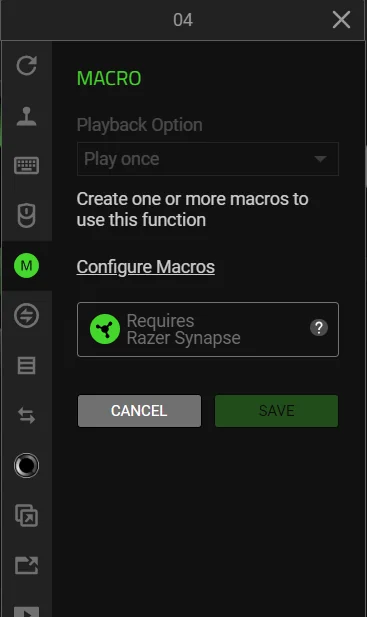
Download and install Razer Synapse from razer.com/synapse. It enables full control.
- Customize buttons: Click on any button in the on‑screen layout and assign a new function: keyboard key, macro, multimedia, or Windows shortcuts.
- Performance: Adjust DPI stages, polling rate, and liftoff distance (asymmetric cut‑off). The Focus Pro sensor can track on clear glass surfaces (some settings may need manual calibration).
- Calibration: Under Calibration, you can add a specific surface or use Smart Tracking to optimise the sensor for your mousepad.
- Lighting: While the DeathAdder V3 has minimal RGB, you can control the DPI indicator LED brightness or turn it off completely under Lighting.
- Onboard Memory: The mouse stores one profile directly. To save a profile to the mouse, go to Synapse > Settings > Onboard Memory, then drag a profile to the slot.
Battery Life and Charging
- Battery life: Up to 90 hours on a full charge (at 1000 Hz polling). At 4000 Hz, battery life drops to about 24 hours.
- Checking battery level: The DPI indicator LED blinks red when battery is below 10%. In Synapse, the dashboard shows exact percentage. You can also set a battery‑level shortcut in the system tray.
- Charging: Plug the USB‑C cable into the mouse and a USB‑A port on your PC. A full charge takes about 2 hours. A quick 15‑minute charge provides several hours of use.
Troubleshooting Common Issues
| Problem | Likely Cause | What to Try |
|---|---|---|
| Mouse not moving | Power switch off or dongle disconnected | Check the bottom switch. Re‑plug the dongle. Try a different USB port. |
| Scroll wheel jumps or scrolls incorrectly | Dust or debris | Blow compressed air around the wheel. In Synapse, check if custom scroll settings are applied. |
| Double‑clicking or miss clicks | Dust in switch or static buildup | Unplug and click rapidly for 30 seconds to discharge static. If persistent, contact Razer (warranty covers switch issues). |
| Wireless lag or stuttering | Interference or low battery | Move the dongle closer (use the included USB extender). Charge the mouse. Switch to 1000 Hz polling. |
| DPI button not cycling | Synapse profile locked | Open Synapse and verify the DPI stages are enabled. The profile may be set to a single DPI stage. |
| Mouse not charging | Cable or port issue | Try a different USB‑C cable and USB port. Ensure the port is free of debris. |
How to Reset the Mouse
Soft reset: Turn the mouse off, wait 5 seconds, and turn it back on. This clears temporary glitches.
Factory reset (clear all profiles and pairings):
- Unplug the dongle.
- Turn the mouse off.
- Press and hold the left click, right click, and scroll wheel click simultaneously while turning the mouse on.
- Keep holding for 5 seconds until the LED blinks. Release. The mouse will be in factory‑fresh state. Re‑pair the dongle if needed via Synapse.
Quick Reference Card
| Task | How |
|---|---|
| Check battery | Look at DPI LED colour (red = low), or check Synapse |
| Change DPI stage | Press DPI button (below scroll wheel) |
| Re‑pair dongle | Synapse > Settings > Pairing Utility |
| Factory reset | Hold left+right+scroll wheel click while turning on |
| Use wired mode | Connect USB‑C cable; mouse switches automatically |
Download the DeathAdder V3 Cheat Sheet
A one‑page PDF with button map, DPI colours, and reset steps. Print it and keep it with your gaming gear.
“Razer DeathAdder V3 Quick Guide (PDF)”
Official Razer Support and Manuals
For warranty, replacement parts, and the official PDF manual, visit: https://support.razer.com
Frequently Asked Questions
- Can I use the DeathAdder V3 on Xbox or PlayStation?
Yes, plug the dongle into the console’s USB port. Basic functions work. Synapse‑level customizations do not transfer to console; the mouse uses its onboard profile. - What is the weight of the mouse?
About 63 grams for the black version, 64 grams for white. It’s one of the lightest ergonomic wireless gaming mice. - Does the mouse support Bluetooth?
No, it uses only the 2.4 GHz Hyper Speed wireless connection via the included dongle. There’s no Bluetooth mode. - How do I clean the mouse?
Wipe with a soft, slightly damp cloth. Do not use alcohol or bleach. Use compressed air around the buttons and scroll wheel. The grip tape can be carefully removed and replaced. - Can I use it on a glass surface?
The Focus Pro sensor can track on at least 4 mm thick clear glass, but optimal tracking is on a high‑quality mousepad. If used on glass, enable Smart Tracking in Synapse. - How do I update the firmware?
Open Razer Synapse. If a firmware update is available, you’ll see a notification at the top. Click it and follow the prompts. Do not unplug the mouse during the update. - Is the USB cable only for charging?
No, the mouse works as a wired mouse when the cable is connected to a PC. The wireless connection is disabled during wired use, and the dongle can remain plugged in. - What is the difference between the DeathAdder V3 and the DeathAdder V3 Pro?
The V3 (non‑Pro) is the wired/wireless model described here. The “Pro” typically adds more premium features like a dedicated charging dock support or higher polling rate out of the box. Check Razer’s website for exact specs. - How do I set up macros?
In Razer Synapse, go to Mouse > Customize, select a button, and choose Macro. Record your keystrokes, then assign the macro to the button. - What is the lifespan of the optical switches?
Rated for 90 million clicks, which is roughly 3–5 times the lifespan of traditional mechanical switches. - Can I turn off the DPI indicator LED?
Yes, in Synapse, under Lighting > DPI Indicator, you can set brightness to 0% or turn off completely when not in use. - What should I do if the dongle is lost?
Purchase a replacement Razer Hyper Speed dongle. Then use the Pairing Utility in Synapse to connect it to your mouse.
A Quick Note Before You Game
Your DeathAdder V3 is built for speed and precision. Keep the sensor lens clean, update Synapse and firmware regularly, and store the dongle safely. With minimal care, this mouse will deliver flawless tracking for years.
Copyright Warning!
Copyright 2026 productsmanuals.com All rights reserved. This Razer DeathAdder V3 RZ01‑0462 manual is original content and may not be copied, republished, or redistributed without written permission. Razer, DeathAdder, Hyper Speed, and the Razer logo are trademarks of Razer Inc. This guide is unofficial and not affiliated with Razer.
