Why This Companion Exists
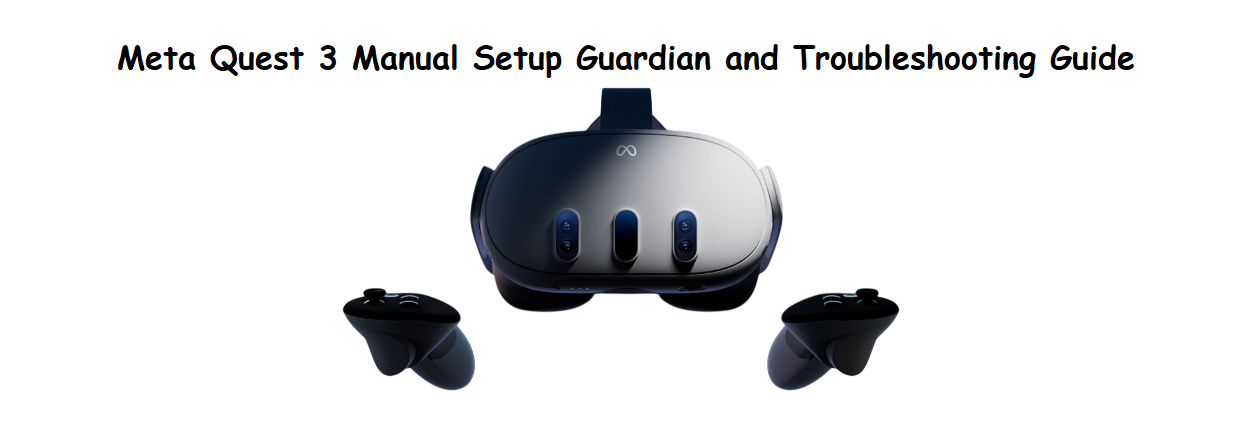
Meta ships the Quest 3 with a headset, two Touch Plus controllers, a charging cable, and a small safety leaflet. The full manual is a digital guide that covers the basics but doesn’t always answer real‑world questions like “why won’t my controller pair,” “how do I reset the guardian,” or “what does the blinking light mean.” Every day, thousands search for a “Meta Quest 3 manual” because they want quick, clear help. This companion gives you exactly that.
What’s Inside the Box
Your package includes:
- The Meta Quest 3 headset (mixed reality, colour passthrough)
- Two Touch Plus controllers (left and right, with wrist straps)
- A USB‑C charging cable and a USB‑C power adapter (18W)
- A glasses spacer (pre‑installed or in a small box)
- A Quick‑Start Guide and safety booklet
No case, no link cable for PC VR, and no rechargeable batteries for the controllers are included. The controllers use one AA battery each (pre‑installed).
Physical Tour: Headset and Controllers
[Image Placeholder 2: Labelled photo of the Quest 3 headset – power button, volume rocker, USB‑C port, IPD wheel, facial interface, speakers. Alt text: “Meta Quest 3 headset controls and ports”]
The headset has minimal physical controls.
- Power button (right side): Press once to wake/sleep. Press and hold to power on or off.
- Volume rocker (right side, below power): Adjusts speaker volume.
- USB‑C port (left side): For charging and linking to a PC (Meta Quest Link cable sold separately).
- IPD adjustment wheel (bottom left): Rotate to adjust the distance between lenses. The on‑screen display shows the IPD number. Adjust until the image is clearest.
- Facial interface: The cushioned foam around the lenses. It’s removable for cleaning.
- Speakers: Built into the strap, near your ears. They deliver spatial audio without headphones. A 3.5 mm headphone jack is located on the bottom of the headset for wired audio.
Controllers: The Touch Plus controllers have thumbsticks, buttons (A/B/X/Y, menu, Meta), triggers, and grip buttons. They are tracked by the headset’s cameras. There’s no external sensor.
First‑Time Setup and Pairing
[Image Placeholder 3: Smartphone screen showing the Meta Horizon app pairing with the Quest 3 headset. Alt text: “Meta Horizon app setup”]
- Charge the headset fully (about 2.5 hours). The LED near the USB‑C port glows green when charged.
- On your smartphone, download the Meta Horizon app (iOS or Android). You’ll need a Facebook or Meta account to set up.
- Power on the headset by pressing and holding the power button. Put on the headset and follow the on‑screen voice instructions.
- The headset will display a pairing code. In the mobile app, tap Devices > Add Device > Quest 3 and enter the code. The app will connect the headset to Wi‑Fi and your account.
- When prompted, pick up the controllers. They should already be paired. If a controller doesn’t respond, remove the battery tab (pull the plastic strip), then press and hold the Meta button (the flat circle on the right controller) and B button on the left controller for 5 seconds. The controller LED will flash and then turn solid when connected.
- Follow the on‑screen steps to set up your guardian boundary (see next section).
Creating and Adjusting the Guardian Boundary
The guardian defines your safe play area. Quest 3 uses its colour cameras for mixed reality, so you can see your real room while setting up.
- When prompted, look around. The headset will scan your walls and furniture using the depth sensor. You can tap the side of the headset twice to switch between passthrough and full VR (this is the “double‑tap for passthrough” feature).
- The headset suggests a boundary. If it’s too small or too large, use the controller to paint a new boundary on the floor. Hold the trigger and draw a line around your clear space. Keep at least 1.5 metres clear of obstacles.
- The boundary appears as a blue grid when you get close in VR. You can also switch to Stationary mode (a small circle, no walking) in Settings > Guardian.
- If the guardian keeps resetting, clean the four front cameras with a dry cloth. Good lighting is essential; the headset won’t track well in a dark room.
Navigating the Interface and Key Settings
- Home screen: The central hub with your apps, friends, and store. Press the Meta button (flat circle) on the right controller to open the universal menu.
- Quick settings: Point at the clock on the left side of the menu bar and pull the trigger. From there, you can adjust brightness, volume, Wi‑Fi, and turn on Do Not Disturb.
- Passthrough toggle: Double‑tap the side of the headset (near your temple) to switch between VR and colour passthrough. This is handy when you need to grab a drink or check your phone.
- Casting: To show what you see on a TV or phone, open the universal menu, select Camera > Cast. Choose a device from the list. The receiving device must support Chromecast or be on the same Wi‑Fi network. You can also cast to the Meta Horizon app.
Charging and Battery Care
- Headset battery: Up to 2.5 hours of general use. Heavy gaming or mixed reality drains it faster.
- Charging: Use the included 18W adapter and USB‑C cable. A full charge takes about 2.5 hours. The LED glows orange while charging, green when full.
- Controllers: Each uses one AA battery. With typical use, batteries last several weeks. To check controller battery levels, go to Settings > Devices > Controllers. Replace batteries when the level drops below 20%.
Troubleshooting Common Issues
How to Restart, Reset, and Factory Reset
Restart: Press and hold the power button for 10 seconds until the headset turns off. Press again to turn on. No data is lost.
Factory reset from the headset: Go to Settings > System > Factory reset. Confirm. This erases all accounts, apps, and data. The headset will restart as if new.
Factory reset using buttons (if the headset won’t boot):
- Power off the headset.
- Press and hold the power button and the volume down button simultaneously until the boot menu appears.
- Use the volume buttons to navigate to Factory reset, then press the power button to select. Confirm.
Remove a paired controller and re‑pair: In the Meta Horizon app, go to Devices > Controllers > Unpair. Then press and hold the Meta button and B button on the affected controller until the LED flashes white. Follow the in‑app pairing instructions.
Quick Reference Card
Download the Meta Quest 3 Cheat Sheet
A one‑page PDF with button shortcuts, guardian tips, battery care, and troubleshooting. Print it and keep it near your play area for quick reference.
“Meta Quest 3 Quick Guide (PDF)”
Official Meta Support and Manuals
For warranty, replacement parts, and the official PDF manual, visit: https://www.meta.com/help/quest
Frequently Asked Questions
- Do I need a Facebook account to use Quest 3?
A Meta account is required. You can create a Meta account without a Facebook profile, but you’ll need a valid email address. Some features (like messaging) may require a Facebook or Instagram connection.
- Can I use Quest 3 while it’s charging?
Yes, but the charging cable may tangle. Use a long USB‑C cable and route it behind your back. Some aftermarket head straps include a built‑in battery for longer play.
- Why does the guardian keep popping up even when I’m inside it?
The headset may have lost tracking due to low light or a dirty camera lens. Clean the cameras and turn on more lights. You can also increase the boundary sensitivity in Settings > Guardian to “Low” (warning appears closer).
- Can I wear glasses inside the headset?
Yes. The Quest 3 includes a glasses spacer that creates extra room. If your glasses are large, consider prescription lens inserts (sold separately) for the best experience and to avoid scratching the lenses.
- How do I connect Quest 3 to a PC for PC VR games?
You need a USB‑C cable that supports USB 3.0 (or Meta’s official Link cable). Connect the headset to your PC, put on the headset, and select Allow when the prompt asks for data access. Download the Meta Quest PC app and enable Quest Link.
Before You Step into VR
Keep the lenses away from direct sunlight at all times. Even a few seconds of sunlight through the lenses can permanently damage the display. When not in use, store the headset with the lenses facing away from windows. Clean the facial interface and lenses regularly, and your Quest 3 will deliver countless hours of immersive fun.
Copyright Warning!
Copyright 2026 productsmanuals.com All rights reserved. This Meta Quest 3 manual is original content and may not be copied, republished, or redistributed without written permission. Meta, Quest, and the Meta logo are trademarks of Meta Platforms, Inc. This guide is unofficial and not affiliated with Meta.