
Garmin Dash Cam Mini 2 Manual Setup App and Troubleshooting Guide
Why This Companion Is Here
Garmin packs the Dash Cam Mini 2 with a small mount, a power cable, and a tiny Quick‑Start leaflet. There’s no printed guide that explains how to format the memory card, what the spoken alerts mean, how to use voice commands, or what to do when the camera stops recording. Thousands of drivers search for a “Garmin Dash Cam Mini 2 manual” because they want fast, plain‑language answers. This companion provides exactly that.
What Comes in the Box

Your package includes:
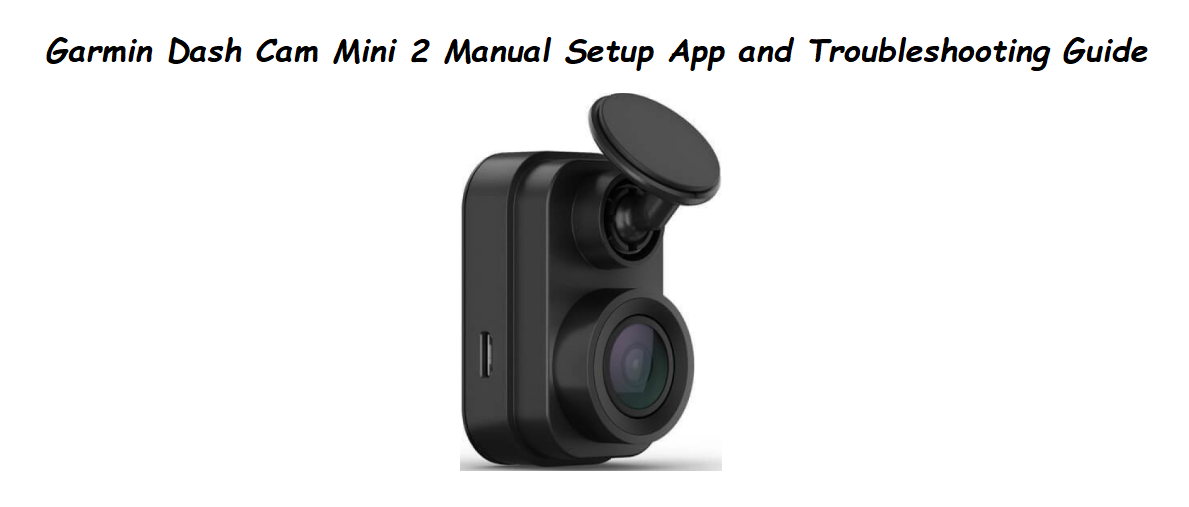
- The Dash Cam Mini 2 (key‑fob‑sized, matte black)
- A magnetic mounting bracket with an adhesive pad
- A vehicle power cable (plugs into the 12V accessory socket)
- A USB‑C cable (for connecting to a computer to transfer videos)
- A replacement adhesive pad
- A Quick‑Start Guide and safety booklet
No microSD card is included. You’ll need a Class 10 microSD card (8–512 GB, UHS‑I) to record. Garmin recommends their own card, but most high‑speed cards work fine.
Physical Layout
Physical Layout and What the Lights Mean
The camera has almost no buttons.
- Lens: The wide‑angle camera on the front. It records 1080p at 30fps with HDR.
- Button/Mute key: The only physical control. Press once to save a video clip (event recording). Press and hold for about 3 seconds to mute or unmute the microphone. The LED changes to solid red when muted.
- LED light (above the button):
- Solid green: Powered on and recording normally.
- Flashing green: The camera is in “Parking Mode” and monitoring for motion.
- Solid red: Recording stopped due to an error (usually memory card).
- Flashing red: Firmware update in progress, or the memory card is full/not formatted.
- Alternating green and red: The camera is starting up, or the memory card is being formatted.
- microSD slot (side): Insert the card label‑side up until it clicks.
- USB‑C port (side): For power (via the car power cable) or for connecting to a computer.
Installing the Camera in Your Car
- Clean the windshield glass thoroughly with an alcohol wipe and let it dry.
- Peel the backing from the adhesive pad on the magnetic mount. Firmly press the mount onto the glass, ideally behind the rear‑view mirror (passenger side) so it doesn’t block your view. Hold for 30 seconds.
- Let the adhesive cure for at least 24 hours before attaching the camera. This prevents the mount from falling off, especially in hot weather.
- Attach the camera magnetically to the mount. The lens should point straight ahead.
- Plug the vehicle power cable into the USB‑C port on the camera. Route the cable along the headliner, down the A‑pillar, and into the 12V accessory socket. Use a plastic trim tool to push the cable behind panels; never block airbags.
- When you start your car, the camera automatically turns on and begins recording. When you turn off the car, the camera shuts down after a few seconds.
Setting Up the Garmin Drive App
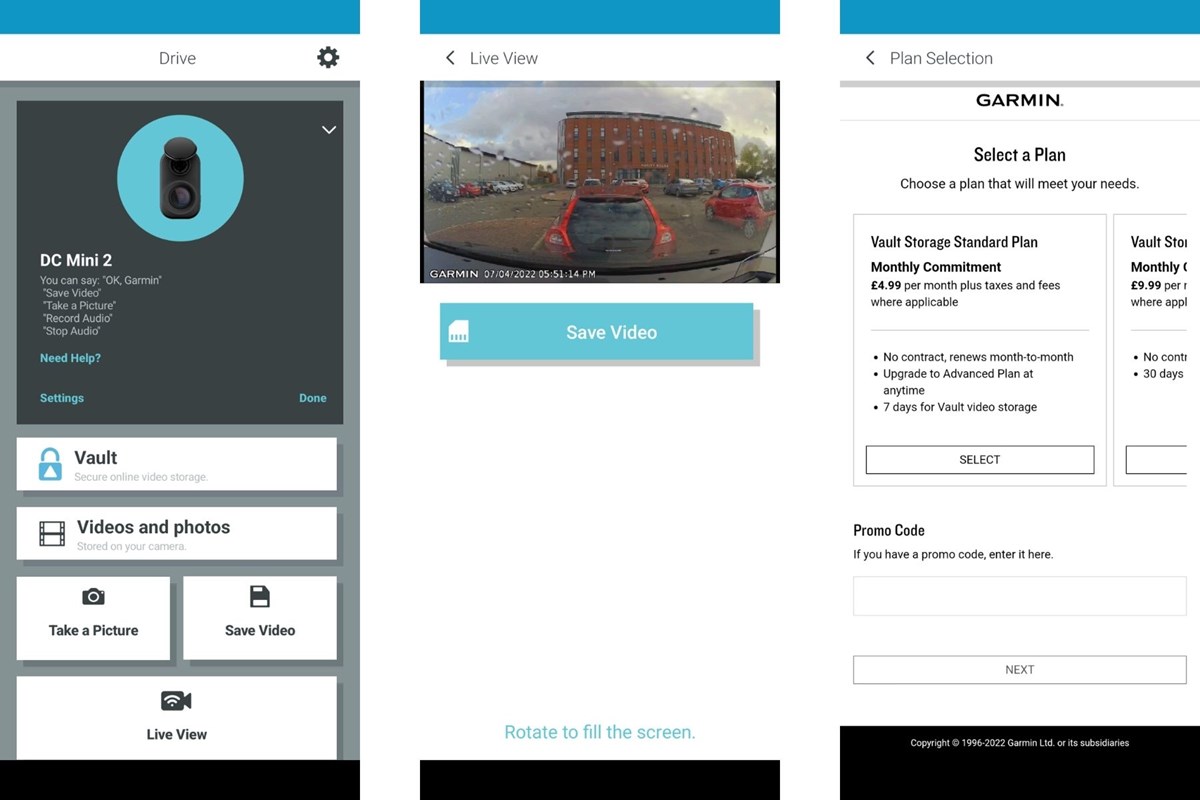
The Garmin Drive app (free on iOS and Android) lets you view video, change settings, and update firmware.
- Download the Garmin Drive app.
- On the camera, when powered on, press and hold the button for about 4 seconds until the LED flashes blue. The camera is now broadcasting its own Wi‑Fi network.
- On your phone, connect to the camera’s Wi‑Fi network (the name will be something like “Garmin Dash Cam Mini 2 #####”). The default password is 12345678. You can change the Wi‑Fi name and password later in the app.
- Open the Garmin Drive app. It will detect the camera and show a live preview. Tap the camera to enter the settings and video gallery.
Key settings to adjust in the app:
- Video Resolution: 1080p (default) is best for most users. 720p saves space but is less detailed.
- Record Audio: Turn on to capture conversations and engine sounds. Turn off for private rides.
- Parking Mode: When enabled (with the optional Parking Mode cable, sold separately), the camera can monitor your parked car for incidents.
- G‑Sensor Sensitivity: Low/Med/High. This determines how easily the camera triggers a saved event clip when it detects a collision. Start with “Medium.”
- Memory Card Formatting: Tap Camera Settings > Format SD Card to quickly wipe the card. You’ll need to do this periodically.
Voice Commands
The Dash Cam Mini 2 responds to spoken commands in English, French, German, and Spanish. You don’t need to press anything. Just speak clearly.
- “OK Garmin, save video” – saves the current clip so it won’t be overwritten.
- “OK Garmin, start recording” – resumes recording if it was paused.
- “OK Garmin, stop audio” – mutes the microphone.
- “OK Garmin, start audio” – unmutes the microphone.
Voice commands are disabled when the microphone is manually muted (solid red LED). If commands aren’t recognised, check the language setting in the app and speak at a normal volume — the cabin microphone is sensitive.
Troubleshooting Common Problems
| Problem | Likely Cause | What to Try |
|---|---|---|
| Camera won’t turn on | Loose power connection | Check that the USB‑C plug is fully inserted and the 12V socket is live (turn ignition on). Try a different USB power adapter. |
| LED flashing red | Memory card not formatted or full | Format the card in the Garmin Drive app. If it still blinks, try a different high‑speed microSD card (Class 10/UHS‑I). |
| Video is choppy or blurry | Low‑quality card or dirty lens | Use a card with a write speed of at least 10 MB/s. Clean the lens with a microfiber cloth. |
| App can’t connect to camera | Phone not on camera’s Wi‑Fi | Ensure the phone is connected to the camera’s Wi‑Fi network, not home Wi‑Fi. The password is 12345678 (default). Press and hold the camera button to re‑enable Wi‑Fi if it times out. |
| “Memory card full” alert | Loop recording overwriting not working | Check that loop recording is enabled in the app. It’s on by default; if turned off, old files are never erased. Format the card. |
| Camera gets very hot | Normal operation | The Mini 2 runs warm, especially in hot weather. If it shuts down from overheat, it will restart when it cools. Park in shade when possible. |
How to Reset Memory CardHow to Format the Memory Card and Reset
- Format the card (quick method): With the camera powered on, press and hold the button for 8 seconds. The LED will flash green and red, then turn solid green when formatting is complete. This erases all footage and clears most card errors.
- Factory reset via the app: Open Garmin Drive, go to Camera Settings > Factory Reset. This restores all settings, including Wi‑Fi name and password, to default.
- Factory reset without the app (hard reset): There is no physical reset button, but you can force a reset by removing the memory card and power cable. Wait 1 minute. Reinsert the card, reconnect power, and the camera will reboot with default settings.
Quick Reference Card
| Action | How |
|---|---|
| Save a clip manually | Press the button once |
| Mute/unmute microphone | Hold the button for 3 seconds |
| Format memory card | Hold the button for 8 seconds |
| Enable Wi‑Fi for app | Press and hold button until LED flashes blue |
| Trigger a manual event | Speak “OK Garmin, save video” |
| Factory reset | Garmin Drive app > Camera Settings > Factory Reset |
Official Garmin Support and Manuals
For warranty, firmware updates, and the full PDF manual, visit: https://support.garmin.com
Frequently Asked Questions
- Do I need a special memory card?
A Class 10 microSD card (up to 512 GB, UHS‑I) is required. Avoid using cheap “no‑name” cards, as they often have slow write speeds and cause recording errors. Garmin sells branded cards, but a high‑quality SanDisk or Samsung card works just as well. - Does the camera record when the car is off?
Not with the included power cable. The camera turns off when the ignition is off. To use Parking Mode (which records when motion or an impact is detected while parked), you must buy the Garmin Parking Mode Cable (sold separately) and hardwire it. - How do I view recorded videos?
Open the Garmin Drive app, connect to the camera’s Wi‑Fi, and browse the gallery. You can also remove the memory card, insert it into a computer with a card reader, and open the “Garmin” folder. Videos are saved in MP4 format. - Why is the video upside down when I mount the camera?
In the Garmin Drive app, you can rotate the video 180 degrees. This is useful if you need to mount the camera “upside down” due to the angle of your windshield. - Can I use the camera without the app?
Yes. The camera records automatically when powered on. You won’t be able to change settings or view videos without the app (or a computer), but basic operation works out of the box.
Before You Drive
Secure the power cable so it doesn’t dangle in your line of sight. Check the memory card every month: reformat it in the camera (hold the button for 8 seconds) to keep the card healthy and prevent write errors. If the camera ever stops recording unexpectedly, a quick format usually brings it back to life.
Copyright Warning!
Copyright 2026 productsmanuals.com All rights reserved. This Garmin Dash Cam Mini 2 manual is original content and may not be copied, republished, or redistributed without written permission. Garmin and the Garmin logo are trademarks of Garmin Ltd. This guide is unofficial and not affiliated with Garmin.
