
Introduction
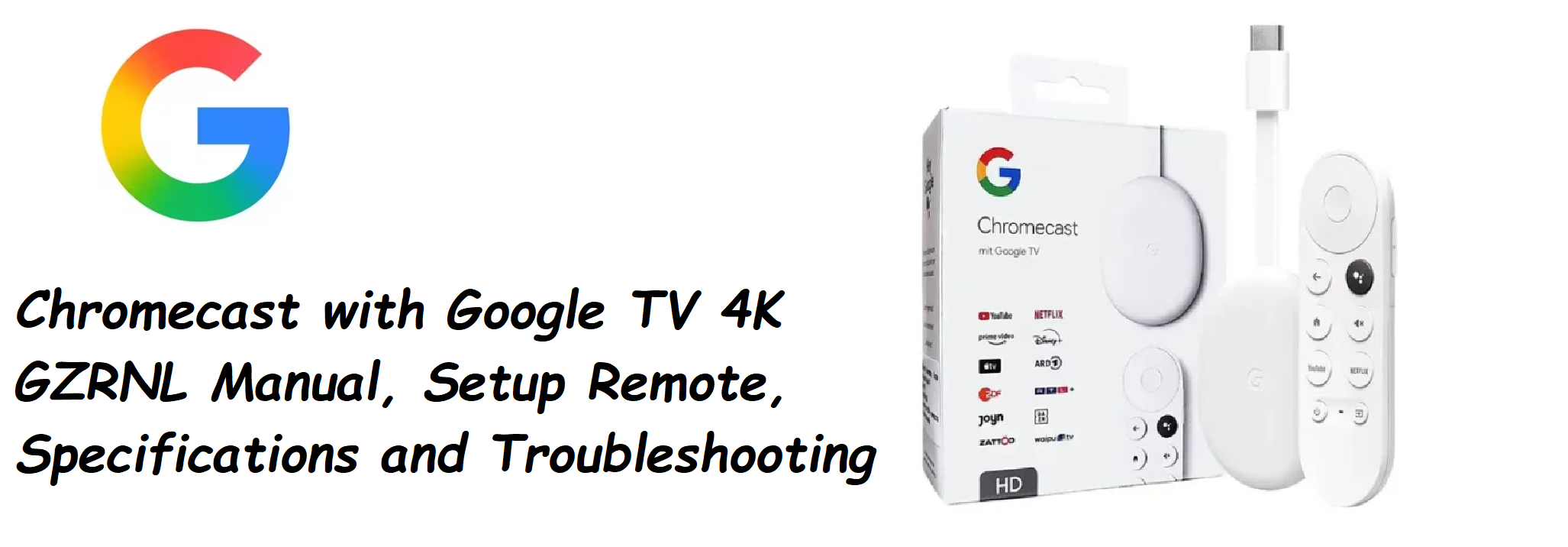
Google ships the Chromecast with Google TV (4K) with the streaming dongle, a voice remote, a USB‑C power cable, and a small Quick‑Start leaflet. The printed guide only shows basic plug‑in steps. Real‑world questions — “how do I pair the remote,” “why won’t my 4K display work,” “how do I install apps outside the Play Store,” or “what does the blinking orange light mean” — are what people search for every day. This companion gives you all of that in clear, everyday language.
What’s Inside the Box

Your package includes:
- The Chromecast with Google TV (4K) streaming device (model GZRNL, elliptical shape, available in three colours)
- A voice remote with dedicated YouTube and Netflix buttons (two AAA batteries pre‑installed)
- A USB‑C power cable with a wall adapter
- A Quick‑Start Guide and safety booklet
An HDMI cable is not included; the dongle plugs directly into your TV’s HDMI port. If your TV’s ports are tight, you may need an HDMI extender (not included).
Physical Setup and HDMI Connection

- Plug the Chromecast directly into an open HDMI port on your TV. The oval device should fit snugly; if it blocks adjacent ports, use a short HDMI extender (sold separately).
- Connect the USB‑C power cable to the Chromecast and the other end to the included wall adapter. Plug the adapter into a power outlet. Avoid using the TV’s USB port, as it may not supply enough power, causing random reboots.
- Turn on your TV and switch to the correct HDMI input. You should see the Google logo and the setup screen.
First‑Time Setup and Wi‑Fi Connection

- The remote should pair automatically. If it doesn’t, press and hold the Home and Back buttons together for 3 seconds until the LED blinks.
- Follow the on‑screen prompts: select your language, region, and connect to Wi‑Fi. The Chromecast supports 2.4 GHz and 5 GHz networks. For 4K streaming, a 5 GHz connection is strongly recommended.
- Sign in with your Google account. You can use your phone to speed this up via the Google Home app or by scanning the QR code on screen.
- After sign‑in, you’ll be asked to set up Google Assistant and choose streaming services. You can customize which apps appear on the home screen.
- The device will download updates and restart. Once the home screen loads, you’re ready to go.
Understanding the Voice Remote
The included remote is more than a simple pointer.
- Directional pad (D‑pad): Navigate menus and tiles.
- Select button (centre of D‑pad): Confirm selection.
- Home button: Returns to the Google TV home screen. Long‑press to quickly adjust settings like sleep, restart, or screenshot.
- Back button: Goes back one screen.
- Google Assistant button (colourful dots): Press and hold to speak a voice command: “Open Netflix,” “Show me sci‑fi movies,” “What’s the weather?”
- YouTube and Netflix buttons: Launch those apps instantly. Cannot be remapped.
- Volume buttons (side): Control TV volume. If this doesn’t work during setup, go to Settings > Remote & Accessories > Set up remote buttons and follow the prompts to configure your TV’s IR profile.
Pairing the remote: The remote auto‑connects. If it ever disconnects, remove and reinsert the batteries. Press and hold the Home button for about 5 seconds until the LED blinks, and it will re‑pair.
Installing Apps and Managing Storage
- Install apps: From the home screen, go to the Apps tab or use the Search function. Select an app and choose Install. Apps include Netflix, Disney+, Prime Video, YouTube, and thousands more via the Play Store.
- Sideload apps (from outside the Play Store): Go to Settings > System > About > Android TV OS build and click several times until you see “You are now a developer.” Then go back to Settings > Apps > Security & restrictions > Unknown sources and enable for your file manager. Install a file manager app (like “File Commander”) and download APKs via the built‑in web browser or a USB‑C hub.
- Storage management: Go to Settings > System > Storage to see free space. The device has 8 GB internal storage. You can plug in a USB‑C hub with a flash drive for extra storage (needs to be formatted as internal storage).
Getting the Best 4K HDR Picture
[Image Placeholder 4: Google TV display settings screen showing 4K resolution and HDR format options. Alt text: “Chromecast with Google TV display settings”]
The Chromecast supports 4K HDR (HDR10, HDR10+, and Dolby Vision). To ensure the best picture:
- Go to Settings > Display & Sound > Display.
- Set Resolution to 4K (60 Hz) if available, or Auto.
- Under Dynamic range & colour format, enable Dolby Vision if your TV supports it. For HDR10, set to Auto.
- Match content colour space and Match content frame rate should be enabled for the smoothest playback.
- If you see screen flicker, try a different HDMI port, or a premium high‑speed HDMI extender. Poor‑quality extenders can cause HDCP errors.
Voice Commands and Google Assistant
The Chromecast has Google Assistant built in. Use the remote’s microphone button:
- “Open Netflix”
- “Play Stranger Things”
- “Search for action movies”
- “What’s the weather tomorrow?”
- “Turn off the TV after 30 minutes” (if your TV supports CEC)
- “Show me the front door camera” (if you have a Nest doorbell linked)
Voice commands can also control smart home devices linked to your Google account.
Casting from Your Phone or Computer
The “Cast” function is built into many apps. Tap the Cast icon in YouTube, Netflix, or your browser, and select your Chromecast from the list. Casting is separate from the Google TV interface; you don’t need the remote to cast.
Screen mirroring (Android): Use the Google Home app, select your Chromecast, and tap Cast my screen. For Windows/Mac, use the Chrome browser’s “Cast…” option in the menu.
Apple AirPlay: Not natively supported on this model.
Troubleshooting Common Issues
| Problem | Likely Cause | What to Try |
|---|---|---|
| No picture or black screen | HDMI input issue or power | Switch TV to correct HDMI. Ensure the USB‑C power is using the wall adapter. Try a different HDMI port. |
| Remote not working | Batteries or pairing | Replace AAA batteries. Press and hold Home + Back for 3 seconds to re‑pair. |
| HDCP error (screen flashes) | HDMI handshake failure | Use a shorter HDMI extender or try a different HDMI port. Restart the Chromecast and TV. |
| Apps crash or freeze | Low storage or software bug | Go to Settings > System > Restart. Clear app cache: Settings > Apps > [app] > Clear cache. |
| Wi‑Fi keeps disconnecting | Weak signal | Move the Chromecast away from metal objects. Use a 5 GHz network for stability. |
| Volume buttons not controlling TV | IR setup incomplete | Go to Settings > Remote & Accessories > Set up remote buttons and re‑run the TV configuration. |
| Overheating (warm to touch) | Normal during 4K | The dongle runs warm. Ensure it’s in open air, not stuffed behind the TV. |
How to Restart and Factory Reset
Restart: Press and hold the Home button on the remote, then select Restart from the quick menu. Or go to Settings > System > Restart.
Factory reset (menu): Settings > System > About > Factory reset. This erases all accounts and data.
Factory reset (physical button): The button is on the back of the dongle, near the USB‑C port. Press and hold it for about 10 seconds while the device is powered on, until the LED blinks yellow/orange and the TV screen goes black. The device will restart into setup mode.
Quick Reference Card
| Task | How |
|---|---|
| Pair remote | Home + Back buttons, 3 seconds |
| Restart | Home button long‑press > Restart |
| Factory reset (button) | Hold button on dongle for 10 seconds |
| Screenshot | Home button long‑press > Screenshot |
| Switch user profile | Home screen, top‑right profile icon |
| Enable developer mode | Settings > System > About > click “Android TV OS build” 7 times |
Download the Chromecast with Google TV Cheat Sheet
A one‑page PDF with remote shortcuts, troubleshooting, and setup tips. Print it and keep it near your TV.
“Chromecast with Google TV 4K Quick Guide (PDF)”
Looking for other Manuals? Click the link below:https://productsmanuals.com/playstation-vr2-cfi-zvr1-manual-setup-play-area-and-troubleshooting-guide/
Frequently Asked Questions
- Can I use the Chromecast without a Google account?
No, a Google account is required to set up and use the device. - Does the Chromecast support Bluetooth headphones?
Yes, go to Settings > Remote & Accessories > Pair accessory and put your Bluetooth headphones in pairing mode. Audio sync is generally good, but may lag slightly with some apps. - Can I connect a USB drive directly?
Yes, using a USB‑C hub with power passthrough. Connect the USB‑C power to the hub, and plug a flash drive into the hub. The drive can be used to play local media files via apps like VLC. - How do I take a screenshot?
Press and hold the Home button, then select Screenshot from the quick menu. Screenshots are saved to the device and can be shared. - Why is the storage so low?
The device has 8 GB of internal storage, but the system uses about 4–5 GB. Use a USB‑C hub with a flash drive formatted as internal storage to expand. - Can I change the launcher/home screen?
You can install custom launchers like “Projectivy Launcher” from the Play Store, but the default Google TV launcher cannot be completely replaced without developer workarounds. - Does the Chromecast work with Apple devices?
Yes, you can cast from apps like YouTube and Netflix from your iPhone or iPad via the in‑app Cast button. Screen mirroring from iOS is not supported, only from Android. - How do I set up a child profile?
Go to Settings > Accounts & Sign‑In > Add a kid. You can manage content restrictions and screen time via the Family Link app. - Why does the remote have a Google Assistant button but no microphone in the box?
The microphone is built into the remote; you press and hold the Assistant button and speak into the top of the remote. - Can I use an external webcam with the Chromecast?
Not natively. The device supports USB webcams for apps that specifically allow it (e.g., Duo, but Duo has been merged into Meet), but compatibility is limited. - Does the Chromecast support 120Hz refresh rate?
No, the maximum output is 4K at 60Hz. It does not support high‑refresh‑rate gaming or content. - How do I stop the device from going to sleep?
Go to Settings > System > Power & Energy > Screen saver and adjust the idle time, or set to Never. The device will still go into ambient mode after inactivity.
A Quick Note Before You Stream
Your Chromecast with Google TV turns any TV into a smart hub. Keep the remote handy, enable automatic app updates, and restart it occasionally for the smoothest experience. It’s a compact device, but it’s powerful enough to handle 4K HDR streaming without breaking a sweat.
Copyright Warning!
Copyright 2026 productsmanuals.com All rights reserved. This Chromecast with Google TV 4K GZRNL manual is original content and may not be copied, republished, or redistributed without written permission. Google, Chromecast, Google TV, and the Google logo are trademarks of Google LLC. This guide is unofficial and not affiliated with Google.

[…] Chromecast with Google TV 4K Manual – Setup, Remote & Voice Search Set up your Google TV streamer and cast from any device. […]
[…] 3: You will be directed to a page with a Google AdSense sign up button. Click on it to sign up for your AdSense […]