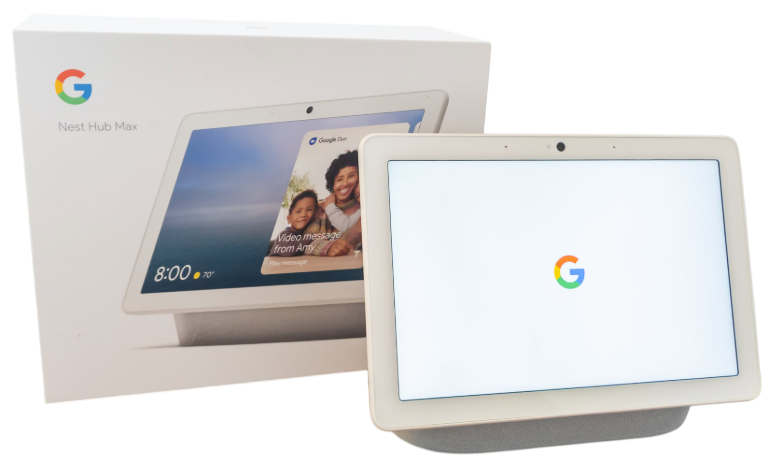
The Nest Hub Max combines a 10‑inch smart display, a built‑in Nest Cam, and a stereo speaker in one device. Google includes a Quick‑Start pamphlet and a safety sheet, but there is no printed manual that explains how to set up Voice Match, use the camera for video calls, or troubleshoot connectivity problems. Thousands of people search for a “Nest Hub Max manual” every month because they need straightforward answers. This guide covers every major feature, provides the complete specs, and walks you through common fixes — from factory resetting to adjusting the camera settings — in clear, practical language.
Full Specifications
Key Features at a Glance
- Nest Cam Built‑In: Acts as a full‑featured Nest Camera; you can stream live video, get motion alerts, and use familiar face detection (with Nest Aware subscription).
- Face Match: The camera recognizes different household members and shows personalized content (calendar, commute) when they look at the screen.
- Voice Match: The microphones can distinguish up to six voices, so each person hears their own schedule, music, and reminders.
- Thread Border Router: Supports Thread smart home devices (Matter) for faster, more reliable connectivity.
- Ambient EQ: The light sensor adjusts screen brightness and colour temperature to match the room.
- Ultrasound Sensing: The device can detect when you’re nearby and show a clock or switch to a larger clock face; it can also trigger Home/Away routines automatically.
- Stereo Sound: Much louder and fuller than the Nest Hub (2nd Gen), suitable for background music in a kitchen or bedroom.
- Photo Frame: When idle, the display turns into a digital picture frame showing your Google Photos library.
What’s Inside the Box
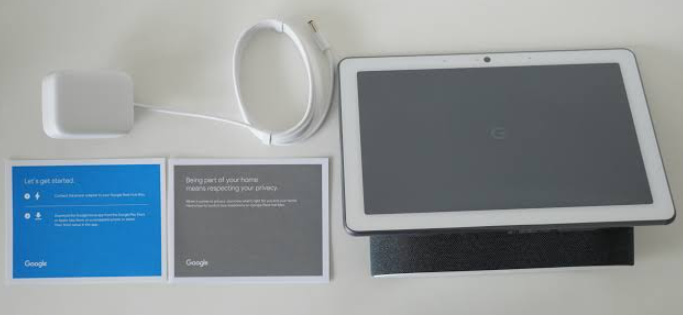
- Nest Hub Max device (with stand pre‑attached, can be tilted up/down)
- 30 W DC power adapter with integrated cable
- Quick‑Start Guide and safety booklet
No wall mount is included; the device sits on a flat surface. The camera can be physically disabled via a switch on the back.
Setting Up the Device and Google Home App
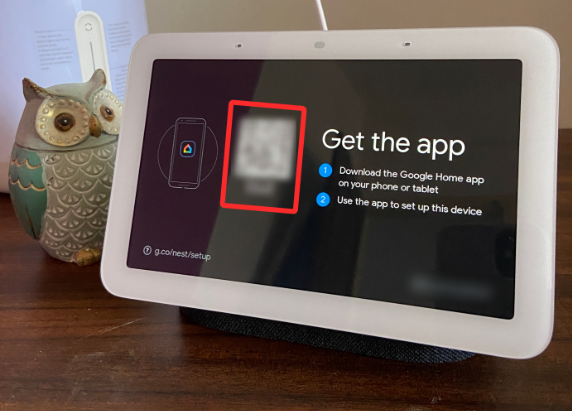
- Place the Hub Max on a level surface at least 15 cm from the edge. Plug in the power adapter. The screen will light up and the device will speak.
- On your phone or tablet, download the Google Home app (iOS or Android). Make sure you’re signed in with your Google account.
- The app will automatically detect a new device. Tap “Set up Nest Hub Max” and follow the prompts.
- The device will connect to your Wi‑Fi (both 2.4 GHz and 5 GHz are supported). Enter your password if requested.
- Choose a room location (Kitchen, Bedroom, etc.) and link music services if desired.
- The app will ask you to set up Voice Match and Face Match. Speak the phrases when prompted; the camera will scan your face. You can skip these and set them up later.
- After setup, the screen will show a tutorial. Swipe from the left edge to go back, swipe from the right to open quick settings.
Using the Camera, Privacy, and Face Match
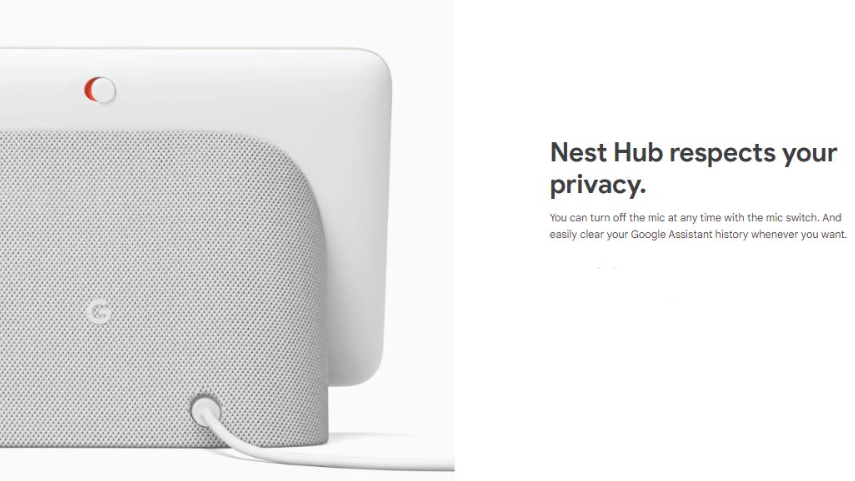
- Physical camera switch: On the back, you’ll find a slider. Slide it to cover the camera lens. The screen will display a “Camera off” message. This also disables the microphone and Face Match for complete privacy. Slide it back to enable.
- Face Match: When enabled, the camera recognizes up to six faces. When you walk up, the display shows your personal information (calendar, reminders). To turn on, open the Google Home app, tap the device, go to Recognition & sharing > Face Match, and follow the instructions.
- Nest Cam live view: You can view the camera feed from the Google Home app even when you’re not home. The device emits a green LED when the camera is actively streaming. You can turn on motion and sound alerts in the app under Camera.
- Auto‑framing during video calls: When using Duo (now Meet), the camera automatically pans and zooms to keep you in frame. This feature works only in video calls and respects the camera switch.
Everyday Use and Voice Commands
- Wake word: “Hey Google” or “OK Google” triggers the Assistant. You can also swipe up from the bottom of the screen to type a query.
- Common commands:
- “Hey Google, what’s the weather today?”
- “Hey Google, play relaxing music” (uses default music service).
- “Hey Google, show me the front door” (if you have a compatible doorbell).
- “Hey Google, turn off the lights” (if smart lights are linked).
- “Hey Google, set a timer for 20 minutes.”
-
Gestures:
- Swipe from the left edge: back.
- Swipe from the right edge: quick settings (brightness, volume, Do Not Disturb).
- Tap the screen: wake it.
- Cover the camera: Face Match and camera functions stop temporarily; the screen shows a privacy indicator.
Troubleshooting Common Issues
| Problem |
Likely Cause |
What to Try |
| Device not responding to “Hey Google” |
Microphone muted or too far away |
Check the physical microphone switch on the back (orange tab = muted). Also ensure the device isn’t in Do Not Disturb mode. |
| Camera feed is black or “Camera off” |
Physical shutter closed |
Slide the camera switch on the back to the open position. The screen will confirm camera is on. |
| Wi‑Fi keeps disconnecting |
Router band steering or weak signal |
Restart the router and the Hub Max (unplug power for 30 seconds). If using dual‑band, try connecting manually to the 2.4 GHz network in the Home app. |
| Face Match not recognizing you |
Lighting or camera dirty |
Ensure the room is well‑lit. Wipe the camera lens with a dry microfiber cloth. Re‑train Face Match in the Home app. |
| Screen flickers or shows weird colours |
Software glitch or hardware |
Force a restart: unplug power for 60 seconds, then plug back in. If the problem persists, perform a factory reset. |
| Casting audio but no picture |
Connection issue |
Restart the device you’re casting from and the Hub Max. Ensure both are on the same Wi‑Fi network. |
| Ultrasound presence not working |
Obstruction or feature off |
The ultrasound sensor is on the bottom edge. Ensure nothing is blocking it. Check in Home app under Recognition & sharing that “Ultrasound sensing” is enabled. |
How to Factory Reset and Restart
- Restart: Unplug the power adapter for 30 seconds, then plug back in. No settings are lost.
- Factory reset via the screen:
- Swipe up from the bottom of the screen, tap Settings (gear icon).
- Scroll down and select About device.
- Tap Factory reset and confirm. The device will erase all data and restart to the setup screen.
- Factory reset via physical button (if the screen is frozen):
- Unplug the device.
- Press and hold both the volume up and volume down buttons on the back (the only two physical buttons).
- While holding the buttons, plug the power back in.
- Continue holding until the screen goes blank and you see the Google logo with a small arrow. Release the buttons. The device will reset.
Quick Reference Card
| Task |
How |
| Restart |
Unplug for 30 seconds, plug back in |
| Disable camera/mic |
Slide the physical switch on the back |
| Open quick settings |
Swipe from the right edge of the screen |
| Cast screen to TV |
“Hey Google, cast to [Chromecast device]” |
| Factory reset (menu) |
Settings > About device > Factory reset |
| Factory reset (buttons) |
Hold Volume Up + Down while plugging in |
Official Google Support and Manuals
For warranty, software updates, and the official manual, visit: https://support.google.com/nesthubmax
Frequently Asked Questions
- Can I use the Nest Hub Max without a Google account?
No, a Google account is required to set up the device and use most features.
- Does the camera work in the dark?
The Nest Cam has infrared night vision, so you can see a clear live feed even in complete darkness.
- Can I view the camera on my TV?
Yes, if you have a Chromecast or Chromecast‑enabled TV, say “Hey Google, show me the [room name] camera on [TV name].”
- Is the Nest Hub Max a Zigbee hub?
It does not have a Zigbee radio, but it is a Thread border router, which works with Matter‑compatible devices.
- Can I make Zoom calls on it?
Zoom is not natively supported; you can use Google Meet for video calls. Third‑party workarounds exist via a Chromecast, but they’re not official.
- How do I stop the screen from showing my photos?
Open the Home app, tap the device, go to Photo Frame, and choose to show artwork or a clock instead.
- Why does the device feel warm?
The speaker and processor generate heat. This is normal, but ensure the ventilation grille on the back isn’t covered.
- What is the “Quick Gesture” feature?
You can raise your hand (palm facing the screen) to pause/resume media without touching the display. Enable it in Settings > Gestures.
- Can I use it as a Bluetooth speaker?
Yes, you can pair your phone via Bluetooth and stream audio directly. However, the Assistant features still require Wi‑Fi.
- Does the Hub Max support Netflix?
Yes, you can link your Netflix account in the Home app and cast Netflix videos from your phone, or use the on‑screen display after linking.
- Can I turn off the always‑listening microphone permanently?
The physical microphone switch on the back cuts all microphone power. The device will show a persistent orange light at the bottom until you turn it back on.
- What should I do if the screen develops image retention?
This is rare on LCD panels. Unplug the device for a few hours. If the retention remains, contact Google support.
Camera and Privacy
Camera and Privacy: Additional NotesThe green LED on the front of the device lights up whenever the camera is actively streaming or recording. You’ll also see an on‑screen notification. For added peace of mind, you can set up a routine to automatically disable the camera at night, or use the physical switch when you don’t need the camera functions. Nest Aware subscriptions add intelligent alerts (familiar face, package detection), but the basic camera live view works without a subscription.
Copyright Warning!
Copyright 2026 productsmanuals.com All rights reserved. This Nest Hub Max H2A manual is original content and may not be copied, republished, or redistributed without written permission. Google, Nest, and the Google logo are trademarks of Google LLC. This guide is unofficial and not affiliated with Google.