Why This Companion Is Here
Ultimate Ears ships the BOOM 3 with a charging cable, a small Quick‑Start leaflet, and nothing else. There’s no printed manual that explains the Magic Button, how to pair multiple speakers, what the sound means when you turn it on, or how to fix a speaker that won’t charge. Thousands of people search for a “UE BOOM 3 manual” every day. This companion gives you all the answers in clear, practical language.
What Comes in the Box
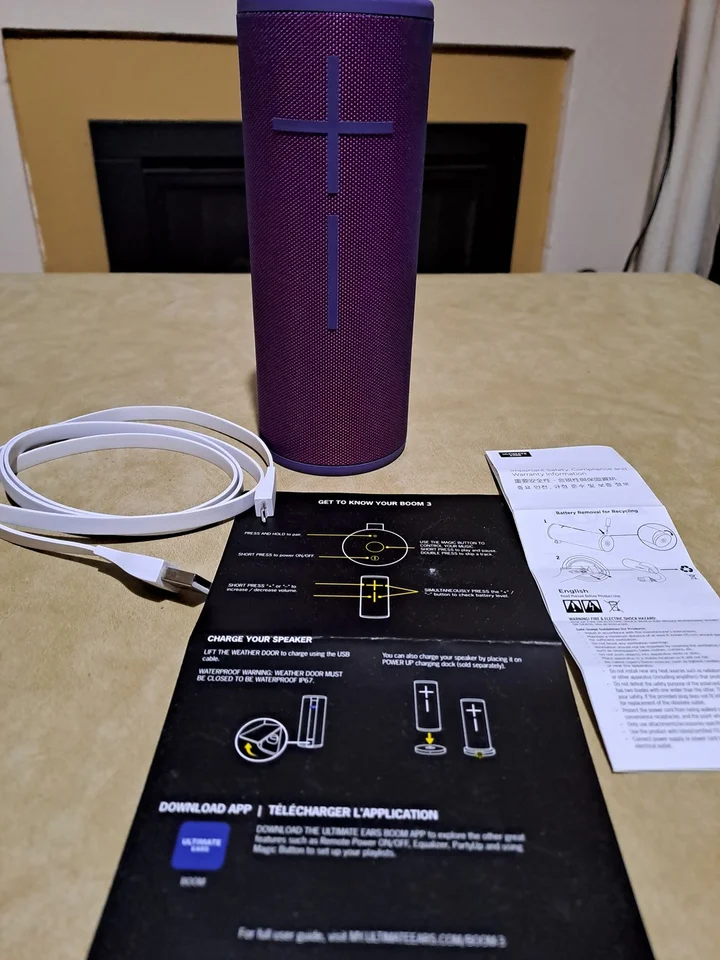
Your box includes:
- The Ultimate Ears BOOM 3 portable Bluetooth speaker (model 984-001369)
- A micro‑USB charging cable (flat, bright yellow)
- A Quick‑Start Guide and warranty information
No power adapter is included. Use any standard USB‑A charger (5V/1A minimum).
Physical Tour and Magic Button

The BOOM 3 is a cylindrical speaker with 360‑degree sound. All controls are on the top and front.
- Power button (top, small circle): Press once to turn on. Press again to turn off. The speaker plays a distinctive guitar riff when powering on and bongo drums when powering off.
- Bluetooth button (top, next to power): Press once to put the speaker in pairing mode. The LED blinks white.
- Magic Button (large central button on the top):
- Press once: Play/Pause.
- Double‑press: Skip to the next track.
- Triple‑press: Go back to the previous track.
- Long press (3 seconds): Access your playlists (Apple Music on iOS, Deezer on Android, or Spotify) without touching your phone. You can set up which playlist it triggers in the BOOM app.
- Volume buttons (large “+” and “–” on the front): Press to adjust volume. They are integrated into the fabric and are very visible.
First‑Time Pairing and Bluetooth Setup
[Image Placeholder 3: A smartphone showing the Bluetooth settings list with “UE BOOM 3” visible. Alt text: “UE BOOM 3 Bluetooth pairing”]
- Turn on the speaker by pressing the power button. The first time you turn it on, it automatically enters pairing mode (the Bluetooth LED blinks white rapidly).
- On your phone, open Bluetooth settings and select “UE BOOM 3” from the list.
- Once paired, the speaker plays a confirmation sound, and the LED turns solid white briefly, then off.
- To pair a second phone (the BOOM 3 remembers up to 8 devices, but only connects to one at a time): press the Bluetooth button once until the LED blinks white, then select the speaker from the new phone’s Bluetooth list.
Keeping Your Speaker Updated
Ultimate Ears occasionally releases firmware updates for the BOOM 3. These updates can improve battery life, fix bugs, and add small features. The updates are installed through the Ultimate Ears BOOM app (iOS or Android).
How to check for and install an update:
- Turn on your BOOM 3 and connect it to your phone via Bluetooth.
- Open the UE BOOM app. If the speaker is already paired and recognised, it will appear on the app’s home screen.
- Tap the speaker icon to open its settings.
- If an update is available, you’ll see a banner or a notification at the top of the screen. Tap “Update” or “Firmware Update”.
- The app will download the update and transfer it to the speaker. This can take up to 10 minutes. Do not turn off the speaker or close the app during the update.
- When the update is complete, the speaker will restart automatically. You may hear the power‑on guitar riff, and the speaker will reconnect to your phone.
If the update fails:
- Make sure both the speaker and your phone are sufficiently charged (above 50% recommended).
- Keep the speaker close to your phone (within 1 metre) during the update.
- If the update stops halfway, force‑close the app, turn the speaker off and on, and try again.
- If the speaker becomes unresponsive after a failed update, perform a factory reset (hold Volume Down + Power for 10 seconds) and try the update again.
Why you should update:
Firmware updates often address connectivity issues, improve the PartyUp feature, and fine‑tune the speaker’s sound profile. Even if your speaker is working perfectly, updating it ensures you have the latest performance improvements and security patches.
Using the BOOM App and PartyUp
Download the Ultimate Ears BOOM app (free, iOS and Android). It unlocks several extra features:
- PartyUp: Link two or more BOOM 3 or MEGABOOM 3 speakers together to play the same music. In the app, drag one speaker onto another on the screen, and they’ll sync. You can link up to 150 speakers.
- EQ (Equaliser): Choose from four presets — Standard, Bass Boost, Cramped Spaces, or Voices. You can also create a custom EQ.
- Alarms and Remote Power: Set alarms that wake the speaker. You can also turn the speaker on or off remotely from the app.
- Magic Button Customization: Choose which playlist the Magic Button long‑press triggers. You can set it to Apple Music, Spotify (Android), or Deezer playlists.
Understanding the Speaker Sounds and LED
The BOOM 3 communicates with sounds, not just lights.
- Guitar riff on power‑on: Speaker is turning on.
- Bongo drums on power‑off: Speaker is turning off.
- Two‑tone chime: Connected to Bluetooth successfully.
- Short descending notes: Disconnected from Bluetooth.
- Battery low: A different, slightly urgent series of notes, and the LED near the power button blinks red.
The small LED near the Bluetooth button also indicates status:
- Blinking white: Pairing mode.
- Solid white for a moment: Just connected.
- Blinking red: Battery critically low (below 10%).
Battery Life and Charging
- Battery life: Up to 15 hours of continuous playback at moderate volume. At maximum volume, expect 8–10 hours.
- Charging port (micro‑USB): On the side, under a waterproof flap. The flap must be closed tightly after charging to maintain waterproofness.
- Charging time: About 2.5 hours for a full charge using a 5V/1A charger.
- Low battery warning: The speaker plays a sound and the LED blinks red every few seconds.
- Battery care: Avoid fully draining the battery for long periods. If you store the speaker for months, charge it to about 50% and turn it off.
Waterproof and Floatable
The BOOM 3 is IP67 rated: it’s fully dust‑tight and can be submerged in fresh water up to 1 metre for 30 minutes. It also floats, so you can use it in a pool or a lake. After saltwater or chlorinated water exposure, rinse the speaker with fresh water and let it dry with the charging port flap open.
Troubleshooting Common Issues
How to Factory Reset
- Turn on the speaker.
- Press and hold the volume down button and the power button simultaneously for about 10 seconds.
- The speaker will turn off. When you turn it back on, it will be in factory‑fresh pairing mode. All previously paired devices are forgotten.
Soft restart: Turn the speaker off and on again. This clears temporary glitches without erasing pairings.
Quick Reference Card
Download the UE BOOM 3 Cheat Sheet
A one‑page PDF with Magic Button shortcuts, PartyUp steps, and troubleshooting. Print it and keep it in your beach bag.
“UE BOOM 3 Quick Guide (PDF)“
Official Ultimate Ears Support and Manuals
For warranty and the official PDF manual, visit: https://www.ultimateears.com/support
Frequently Asked Questions
- Can I use the BOOM 3 while it’s charging?
Yes, but keep the charging port flap open slightly, and avoid using it near water while charging, as the waterproof seal is compromised.
- Does the BOOM 3 have a microphone for phone calls?
Yes, there’s a built‑in microphone. When a call comes in, press the Magic Button once to answer, and press it again to hang up. The mic quality is good for indoor calls, but wind can affect it outdoors.
- Can I pair two BOOM 3s in stereo?
Yes, using PartyUp. Once two speakers are linked, tap the stereo icon in the app to assign one as left and one as right. They must be the same model (two BOOM 3s, or a BOOM 3 and a MEGABOOM 3).
- Is the BOOM 3 waterproof?
- Yes. The UE BOOM 3 has an IP67 rating, meaning it’s fully dust‑tight and can be submerged in fresh water up to 1 metre deep for up to 30 minutes. It also floats, so it won’t sink if you drop it in the pool or lake. After exposure to salt water or chlorinated water, rinse the speaker with fresh water and leave the micro‑USB flap open to dry completely before charging again.
- How do I know when the battery is fully charged?
The small LED near the power button stops blinking red and turns off. There’s no persistent green light on this model. You can also check the battery level in the BOOM app or by pressing the volume buttons together (the speaker announces “Battery full”).
- What’s the difference between the BOOM 3 and the MEGABOOM 3?
The MEGABOOM 3 is larger, has deeper bass, and gets louder. The BOOM 3 is more portable. Both are waterproof, float, and work with PartyUp.
- Why does my BOOM 3 sometimes play a sound even when nothing is connected?
That’s the speaker reconnecting to a previously paired device. It will automatically connect to the last device if it’s in range and Bluetooth is on.
A Quick Note Before You Crank It Up
The BOOM 3 thrives outdoors. Rinse it after beach or pool use, and make sure the micro‑USB flap is completely closed before it touches water. With the PartyUp feature, you can easily scale your sound — one speaker for the campfire, two for the deck, four for the whole backyard. Keep the app updated; UE occasionally releases firmware updates that improve stability.
Copyright Warning!
Copyright 2026 productsmanuals.com All rights reserved. This Ultimate Ears BOOM 3 984-001369 manual is original content and may not be copied, republished, or redistributed without written permission. Ultimate Ears, UE, BOOM, and the UE logo are trademarks of Logitech International S.A. This guide is unofficial and not affiliated with Ultimate Ears or Logitech.