 Why This Companion Is Here
Logitech ships the G502 HERO with the mouse, a set of optional weights, and a tiny Quick‑Start leaflet. There’s no printed guide that explains how to use the 11 programmable buttons, what the onboard memory does, how to adjust the DPI on the fly, or how to fix a scroll wheel that skips. Thousands of gamers search for a “Logitech G502 HERO manual” every day. This companion gives you all those answers in plain language.
What Comes in the Box
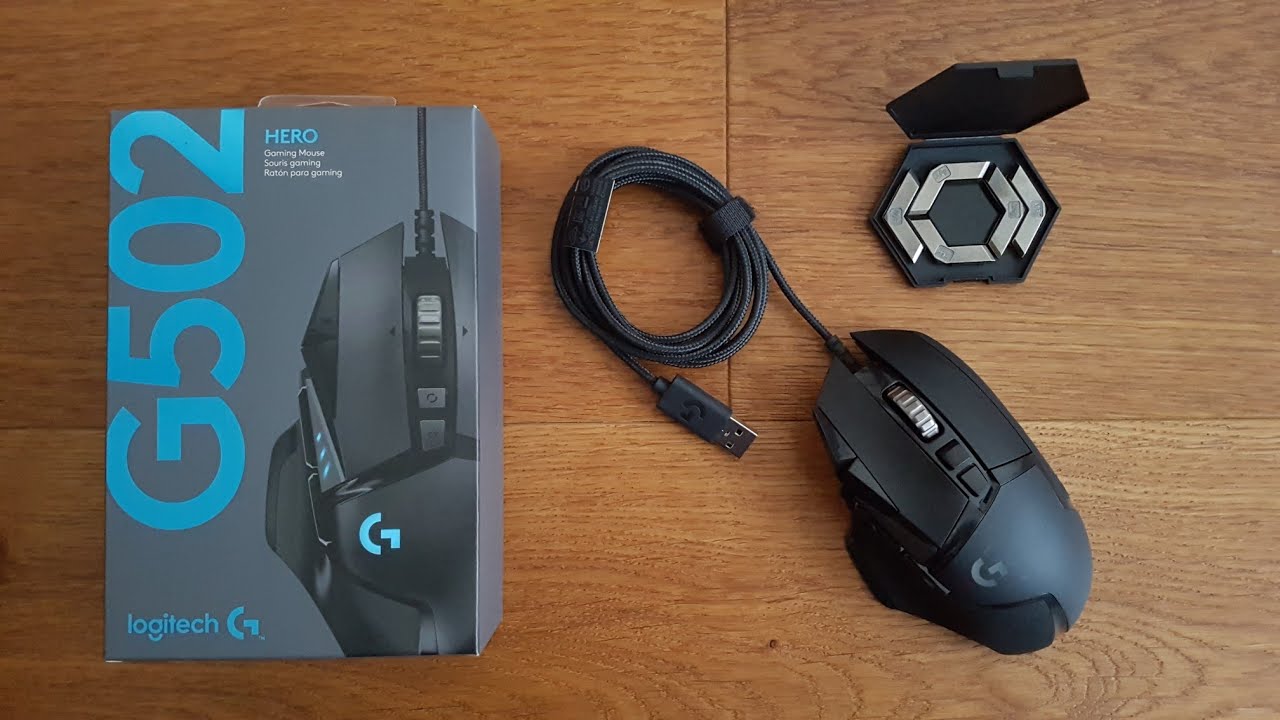
Your package includes:
- The Logitech G502 HERO gaming mouse (model 910‑005469)
- A small black case containing five 3.6‑gram tuning weights
- A Quick‑Start Guide and warranty card
No software CD is included; you must download Logitech G Hub from Logitech’s website.
Physical Tour and Button Layout
[Image Placeholder 2: Top and left‑side view of the G502 HERO with labels for the left/right click, scroll wheel, DPI shift button, DPI up/down buttons, thumb buttons, and the hyper‑scroll toggle. Alt text: “Logitech G502 HERO button layout”]
The G502 HERO has 11 programmable buttons. The most important ones are:
- Left click / Right click: Standard mouse buttons.
- Clickable scroll wheel: Scrolls vertically, and can be clicked as a middle button.
- Hyper‑scroll toggle (just behind the scroll wheel): Push it forward to unlock the wheel, which spins freely (hyper‑fast scrolling). Push it back to lock the wheel into notched, precise scrolling.
- DPI up / DPI down (two small buttons next to the left click): Increase or decrease the sensor sensitivity on the fly. There are four default DPI presets (see below).
- DPI Shift (large rectangular button on the left side, below the thumb buttons): Hold this button down to temporarily lower the DPI to a very low preset. Release to return to the normal DPI. This is great for sniping.
- Forward / Back (two thumb buttons on the left side): For web browsing or custom game actions.
- G‑Shift (optional): Any button can be assigned as a G‑Shift modifier, which doubles the functions of all other buttons. Set it up in G Hub.
The bottom of the mouse has a removable cover plate that holds the tuning weights.
Adjusting the Weight and Feel

The G502 HERO includes five 3.6‑gram hexagonal weights. You can place them in different spots inside the bottom cavity to adjust the mouse’s centre of gravity and overall weight.
- Turn the mouse over. Pinch the small indent on the weight cover and lift it off.
- Insert the weights into the hexagonal slots. You can place them in the centre for a balanced feel, at the front for a nose‑heavy feel, or at the back for a heavier rear.
- Press the cover back on until it clicks. The mouse weighs 121 grams without any extra weights, and up to about 139 grams with all five installed.
DPI Settings and On‑the‑Fly Adjustment
The HERO sensor supports a range of 100 to 25,600 DPI. The default DPI presets (without G Hub) are: 400 (red), 800 (orange), 1600 (yellow), and 3200 (green). The colour of the small LED on the left side of the mouse changes to indicate which preset is active.
- To cycle through DPI presets: Press the DPI Up or DPI Down button. The LED colour changes immediately.
- To use the sniper button (DPI Shift): Hold the large thumb button on the left. The DPI temporarily drops to a low preset (default 400 DPI). Release to go back to your normal DPI. You can change the shift DPI in G Hub.
In Logitech G Hub, you can create custom DPI profiles, set the number of DPI presets (up to 5), and choose which colours correspond to which DPI.
Installing Logitech G Hub and Customizing Buttons
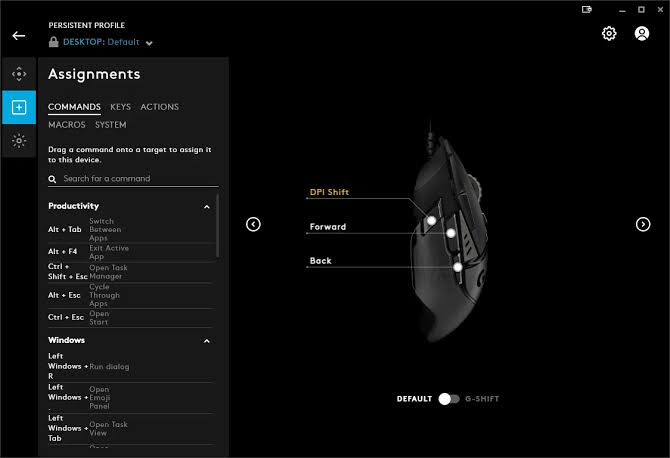
- Download and install Logitech G Hub from https://www.logitechg.com/innovation/g-hub.html (available for Windows and macOS).
- Connect the mouse via the included USB cable, or use the wireless version (if you have the G502 Lightspeed; the HERO model is wired). The wired version uses a braided USB cable.
- G Hub will automatically detect the G502 HERO and show its interface.
- To remap a button: Click on any button on the on‑screen mouse, then choose from the list of commands: keystrokes, macros, media controls, or system actions. You can also assign a button to a specific game profile.
- To adjust DPI: Click the DPI sensitivity tile. Drag the points on the graph or enter exact numbers. You can set up to 5 presets.
- To create macros: Go to the Assignments tab, click Macros, and record a sequence of keystrokes. Assign it to a button.
- Onboard memory: The mouse has onboard memory that stores your settings directly. In G Hub, go to the gear icon (Settings), and under Onboard Memory Mode, enable it. You can store one profile onboard. Without G Hub running, the mouse uses the onboard profile.
Troubleshooting Common Issues
Software reset: In Logitech G Hub, click the gear icon, then click Restore Defaults under the mouse’s settings. This resets all button assignments and DPI to factory presets.
Hardware reset (onboard): Unplug the mouse. While holding the left click, right click, and scroll wheel click (middle button) simultaneously, plug the mouse back in. Hold the buttons for 5 seconds, then release. The mouse will reset to its factory profile.
Quick Reference Card
A one‑page PDF with button map, DPI colour guide, reset steps, and G Hub tips. Print it and keep it with your gaming gear.
“Logitech G502 HERO Quick Guide (PDF)”
Official Logitech Support and Manuals
For warranty, downloads, and the full PDF manual, visit: https://support.logi.com
Frequently Asked Questions
- Is the G502 HERO compatible with macOS?
Yes, basic functionality works out of the box. For full button customization and DPI settings, install Logitech G Hub for macOS.
- Does the mouse work without G Hub?
Yes, the default button assignments and DPI presets work without the software, but you won’t be able to remap buttons or change the DPI presets beyond the defaults.
- Can I use the mouse on a console (Xbox, PlayStation)?
The G502 HERO is a USB wired mouse. It works on consoles that support USB mice and keyboards in their interfaces or games (e.g., Fortnite, Call of Duty). However, console‑specific features may be limited.
- How many profiles can I store onboard?
The onboard memory holds one profile. With G Hub running, you can have unlimited profiles saved on your computer, which switch automatically with your games.
- Why is my scroll wheel so loud?
The G502 HERO has a metal scroll wheel with a notched mode. It is intentionally tactile and slightly noisy. If it’s excessively loud, the wheel bearing may need a tiny amount of lubricant, but this should only be done if the mouse is out of warranty.
- Can I replace the mouse feet?
Yes, Logitech sells replacement mouse feet for the G502, and third‑party options are available. Simply peel off the old feet and apply new ones.
A Quick Note Before You Game
Keep the mouse feet clean and free of debris; a smooth glide makes a surprising difference in accuracy. The braided cable is durable, but avoid sharp kinks. With regular profile updates and occasional cleaning, your G502 HERO will stay responsive for years of heavy gaming.
Copyright Warning!
Copyright 2026 productsmanuals.com All rights reserved. This Logitech G502 HERO 910‑005469 manual is original content and may not be copied, republished, or redistributed without written permission. Logitech, G502, G Hub, and the Logitech logo are trademarks of Logitech International S.A. This guide is unofficial and not affiliated with Logitech


very helpful guide, Thank you!