
 Why This Companion Exists
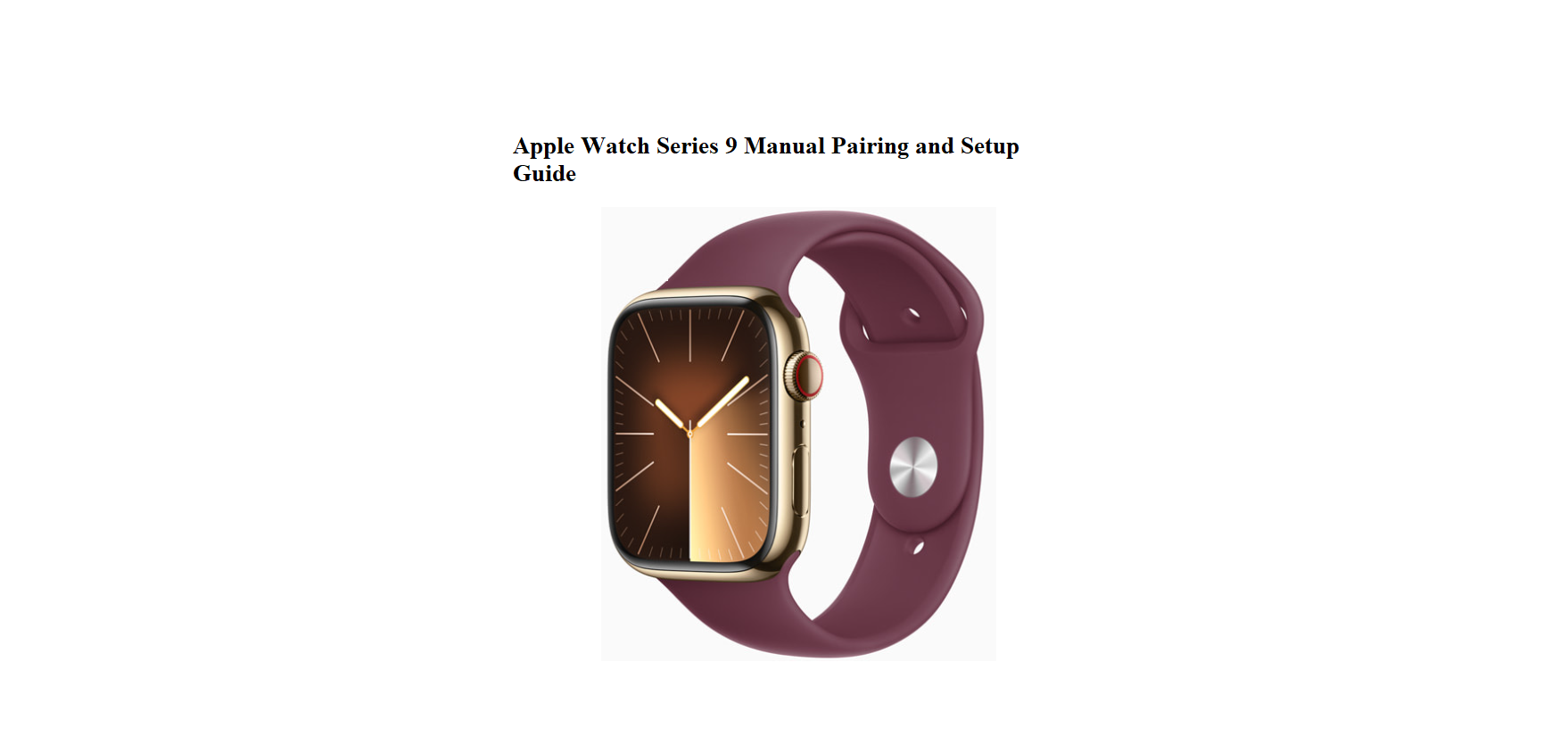
Apple ships the Apple Watch Series 9 with a magnetic charger, a band, and a tiny safety booklet. The official online guide is a thorough but dense document that many owners never read. Every day, thousands search for an “Apple Watch Series 9 manual” because they need quick, clear help with pairing, the Action button, health tracking, or unpairing. This companion provides exactly that – practical guidance from power‑on to reset.
What’s Inside the Box

Your box includes:
- The Apple Watch Series 9 (aluminum or stainless steel)
- A magnetic fast‑charging USB‑C cable (braided)
- A sport band (Solo Loop, Sport Band, or Braided Solo Loop, depending on configuration)
- Quick Start guide and safety pamphlet
No USB‑C power adapter is included. Use any 20W USB‑C charger or plug it into a computer port.
Physical Tour: Buttons, Digital Crown, and Sensors
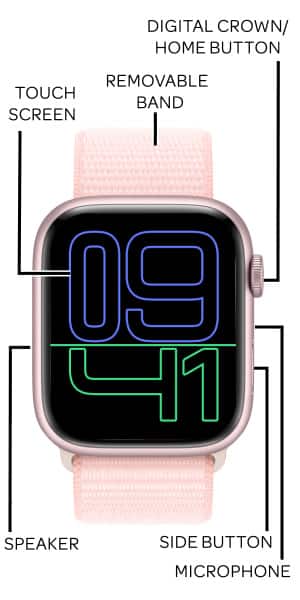
- Digital Crown: Rotate to scroll, zoom, or navigate lists. Press once to see the watch face or home screen. Press twice for the last app. Press and hold for Siri.
- Side button: Press once for Control Center. Press twice for Apple Pay. Press and hold for Emergency SOS / Medical ID.
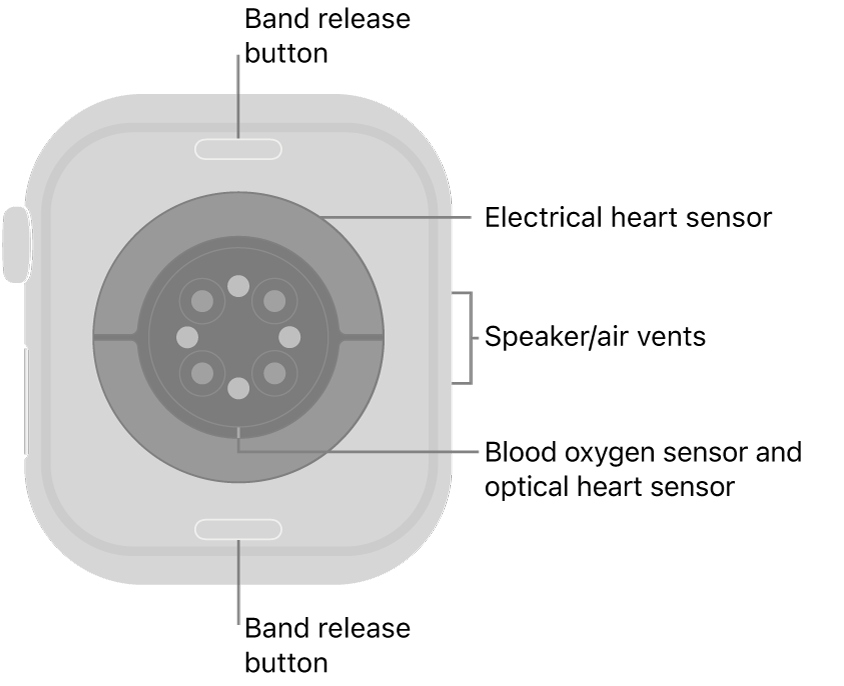
- Back sensors: Heart rate, blood oxygen, and temperature sensors. Keep them clean for accurate readings.
- Band release buttons: Small oval buttons on the back where the band connects. Press to slide bands out.
Pairing Your Watch with iPhone

- Put the watch on and press and hold the side button until the Apple logo appears.
- Bring your iPhone near the watch. A pairing pop‑up appears – tap Continue. If it doesn’t, open the Apple Watch app on your iPhone, tap All Watches > Add Watch.
- Follow the on‑screen steps: choose the wrist, accept terms, sign in with your Apple ID, and set up a passcode.
- Choose whether to restore from a backup or set up as new.
- Let the watch sync. The time it takes depends on how much data is transferred.
- If pairing fails: Ensure both devices have Bluetooth and Wi‑Fi enabled. Restart both devices and try again. If the watch shows a “Unpair” screen, you’ll need to reset it first (see the reset section).
Understanding the Home Screen and Gestures
- Press the Digital Crown once to go from watch face to app list (grid or list view, adjustable in Settings > App View).
- Swipe up from the bottom for the Smart Stack (widgets). Customise it by long‑pressing and tapping the “+” icon.
- Swipe down from the top for notifications.
- Double‑press the Digital Crown to switch between the last two apps.
- Press the side button to open Control Center (battery, ping iPhone, silent mode, etc.).
Key watchOS Features Worth Knowing
- Double Tap gesture (Series 9 only): Tap your index finger and thumb together twice to answer calls, stop timers, or scroll through widgets. Enable in Settings > Gestures.
- Find My iPhone: Swipe up from the watch face (or press side button for Control Center) and tap the phone icon to ping your iPhone.
- Siri: Raise your wrist and speak, or press and hold the Digital Crown. Siri can set timers, send messages, or open apps directly on the watch.
- Water Lock: Swipe up to Control Center, tap the water drop icon, then turn the Digital Crown to unlock after exposure. The speaker ejects water.
- Always‑On Display: The watch face dims but stays visible. Disable in Settings > Display & Brightness > Always On to save battery.
Health and Fitness Tracking Essentials
- Heart rate: Automatically measured throughout the day. View in the Heart Rate app or the Health app on iPhone.
- ECG (electrocardiogram): Open the ECG app, rest a finger on the Digital Crown, and wait 30 seconds. Results classify your rhythm as sinus, AFib, or inconclusive.
- Blood oxygen: The watch measures SpO2 in the background. Take a manual reading in the Blood Oxygen app.
- Workouts: Open the Workout app, select an activity, and swipe to see music controls, splits, or segments. The Action button on the Ultra is not present on the Series 9, but the Digital Crown and side button can be pressed simultaneously to pause a workout.
- Sleep tracking: Wear the watch overnight. Sleep data appears in the Health app. Use Focus > Sleep to reduce distractions.
Battery, Charging and Power Saving
- Battery life: Up to 18 hours of normal use. Low Power Mode extends this to 36 hours by turning off the always‑on display and background health measurements.
- Fast charging: The included magnetic charger charges to 80% in about 45 minutes.
- Low Power Mode: Swipe up for Control Center, tap the battery percentage, and toggle Low Power Mode. You can also enable it in Settings > Battery.
- Optimized Charge Limit: The watch learns your routine and waits to finish charging past 80% until you need it. Disable in Settings > Battery > Battery Health if you want a full charge immediately.
Troubleshooting Common Issues
| Problem | Likely Cause | What to Try |
|---|---|---|
| Watch won’t charge | Dirty contacts or wrong adapter | Clean the back of the watch and the charger with a soft, dry cloth. Use a 20W USB‑C adapter. |
| Icons on the screen but no response | Frozen app or system | Force restart: press and hold the Digital Crown and side button together until the Apple logo appears. |
| Watch unpairs itself or won’t connect | Software glitch | Restart both iPhone and watch. If needed, unpair the watch (Watch app > All Watches > info button > Unpair Apple Watch) and pair again. |
| Heart rate readings seem wrong | Loose band or dirty sensors | Tighten the band so the watch sits snugly. Clean the back sensors with a microfiber cloth. |
| Storage full | Apps, music, or photos | Open the Watch app on iPhone, go to General > Storage. Remove unused apps or media. |
| Battery drains quickly | Always‑On Display or background refresh | Turn off Always‑On Display in Settings. In the Watch app, go to General > Background App Refresh and disable for non‑essential apps. |
How to Reset, Restart
How to Unpair, Reset, and Restart
- Force restart (watch frozen): Press and hold both the Digital Crown and side button for about 10 seconds until the Apple logo appears. No data is lost.
- Unpair and factory reset (normal): Open the Watch app on your iPhone, tap All Watches, tap the “i” next to your watch, and choose Unpair Apple Watch. This backs up the watch, erases it, and removes Activation Lock.
- Factory reset without iPhone: On the watch, go to Settings > General > Reset > Erase All Content and Settings. You’ll need your Apple ID password to remove Activation Lock.
- If you forgot your passcode: Place the watch on its charger. Press and hold the side button until the power off slider appears. Press and hold the Digital Crown until “Erase all content and settings” appears. Tap to reset.
Quick Reference Card
| Action | How |
|---|---|
| Force restart | Hold Digital Crown + side button until Apple logo |
| Ping iPhone | Swipe up Control Center, tap phone icon |
| Water Lock | Control Center > water drop icon, then turn Digital Crown to unlock |
| Take screenshot | Press Digital Crown + side button simultaneously |
| Use Emergency SOS | Hold side button until sliders appear |
| Activate Siri | Raise wrist and speak, or hold Digital Crown |
Download the Apple Watch Series 9 Cheat Sheet
A one‑page PDF with gesture shortcuts, health features, battery tips, and reset steps. Keep it on your phone for quick reference.
“Apple Watch Series 9 Quick Guide (PDF)”
Official Apple Support and ManualsFor warranty, service, and the official user guide, visit: https://support.apple.com/watch
Frequently Asked Questions
- Does the Series 9 work without an iPhone?
A paired iPhone is required for initial setup and full functionality. Once set up, the watch can connect to Wi‑Fi networks for some features (like iMessage and Siri), but you’ll still need your iPhone for most tasks. - Is the watch waterproof for swimming?
It is water‑resistant to 50 metres (WR50). You can wear it while swimming in a pool or ocean, but avoid high‑velocity water (water skiing, diving). Rinse with fresh water after exposure to salt or chlorine. - How do I add music to the watch?
In the Watch app on iPhone, go to Music > Add Music. You can sync playlists or albums that will play directly from the watch when it’s not connected to your phone. - Can I use the watch with an Android phone?
No. Apple Watch requires an iPhone 8 or later running the latest iOS. - What should I do if my watch keeps disconnecting from Bluetooth?
Toggle Bluetooth off and on in the iPhone’s Control Center. Restart both devices. If the problem persists, unpair and re‑pair the watch.
A Quick Check Before You Go
Keep your watch software updated (Watch app > General > Software Update) for the latest features and security. Clean the back sensors and the Digital Crown regularly. If the Digital Crown feels sticky, rinse it under running water for 10–15 seconds with the watch off. With a small amount of care, your Series 9 will stay fast, accurate, and comfortable every day.
Copyright Warning!
Copyright 2026 productsmanuals.com All rights reserved. This Apple Watch Series 9 manual is original content and may not be copied, republished, or redistributed without written permission. Apple, Apple Watch, Digital Crown, and the Apple logo are trademarks of Apple Inc. This guide is unofficial and not affiliated with Apple.
