Introduction
Sony ships the PS4 Slim with a Dual Shock 4 controller, a power cord, an HDMI cable, a mono earbud headset, and a brief safety guide. The official manual is a series of online help pages that don’t always answer real‑world questions like “how do I upgrade to an SSD,” “why won’t my controller sync,” “what does the blinking blue light mean,” or “how do I clean the fan.” Thousands of people still search for a “PS4 Slim manual” every day. This companion gives you all of that in clear, practical language.
What’s in the Box

Your box includes:
- The PlayStation 4 Slim console (model CUH‑2015A, 500 GB or 1 TB)
- One DualShock 4 wireless controller
- A power cord (figure‑8 style)
- An HDMI cable (high‑speed)
- A micro‑USB cable (for charging the controller)
- A mono wired earbud headset (plugs into the controller)
- A Quick‑Start Guide and safety booklet
No stand, no camera, and no Move controllers are included.
Physical Tour and Ports
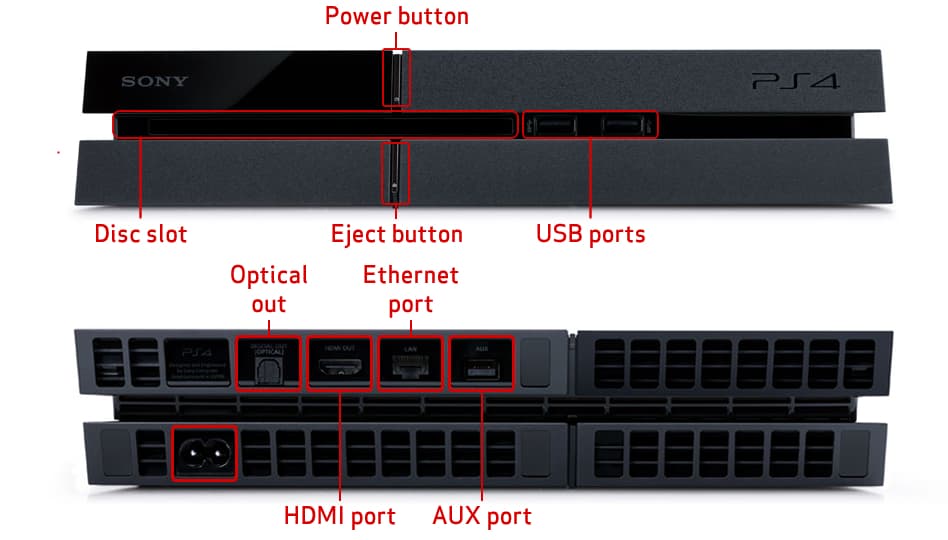
The PS4 Slim is smaller and quieter than the original PS4. Key controls:
- Power button (front left, touch‑sensitive): Tap once to turn on. Press and hold for about 7 seconds until you hear two beeps to turn off. The light bar on the console glows white when on, orange in rest mode.
- Eject button (front right, touch‑sensitive): Tap to eject a disc. The disc slot is between the two buttons.
- Two USB‑A 3.1 ports (front): For controller charging, external drives, and the PlayStation Camera (if you have one). The Slim has no rear USB ports.
- HDMI out (back): Connect to your TV or monitor.
- Ethernet port (back): For wired internet.
- Power port (back): For the included power cord.
First‑Time Setup and TV Connection
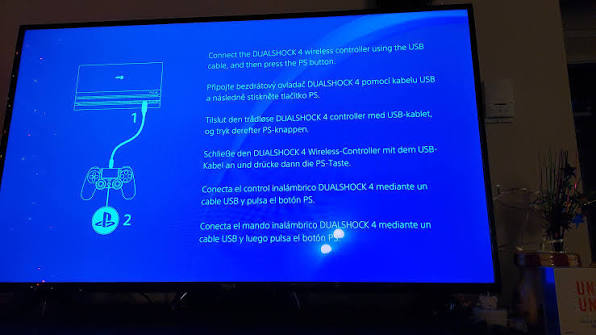
- Connect the HDMI cable from the PS4 to your TV. Plug in the power cord. Press the power button (top‑left touch sensor). The console light will pulse blue, then turn white.
- On your TV, switch to the correct HDMI input.
- Connect the DualShock 4 controller to the PS4 using the micro‑USB cable. Press the PS button (round button in the middle) to pair. Once paired, you can unplug the cable and use it wirelessly.
- Follow the on‑screen setup: language, date/time, internet connection (Wi‑Fi or wired), and sign in with your PlayStation Network (PSN) account (or create a new one).
- The system may check for updates. Install any available system software updates.
Dual Shock 4 Controller: Buttons, Light Bar, and Audio
- PS button: Opens the quick menu (long press) or goes home (short press).
- Share button (left of touchpad): Press to take a screenshot. Hold to record video. You can change this behaviour in Settings > Sharing and Broadcasts.
- Options button (right of touchpad): Opens in‑game menus.
- Light bar: Glows different colours depending on player number or game events. You can dim it in Settings > Devices > Controllers > Brightness of DUALSHOCK 4 Light Bar.
- Headphone jack: The 3.5mm port at the bottom of the controller accepts the included earbud or any standard headphones. Go to Settings > Devices > Audio Devices to route all audio to the headphones.
Installing an External Hard Drive or Upgrading Internal Storage
External USB drive (easiest):
- Plug a USB 3.0 external hard drive (minimum 250 GB, maximum 8 TB) into one of the front USB ports.
- Go to Settings > Devices > USB Storage Devices. Select the drive, choose Format as Extended Storage. The drive will be dedicated to PS4 games and apps. You can set it as the default install location.
Internal HDD upgrade (to SSD for faster loading):
- The PS4 Slim uses a 2.5‑inch SATA HDD (up to 9.5mm thick). You can replace it with a compatible SSD.
- Power off the console completely. Slide the glossy top panel to the left to remove it. Unscrew the single screw holding the drive bracket. Slide out the old drive, unscrew the four side screws, and swap in the new SSD. Slide back, tighten the screw, and replace the panel.
- Reinstall the system software from a USB drive using the PS4 system software file downloaded from Sony’s website (about 1 GB). Boot the console in Safe Mode (hold the power button for 7 seconds until two beeps), then choose Initialize PS4 (Reinstall System Software) .
Rest Mode and Power Settings
- Rest Mode (orange light): The console enters a low‑power state. It can charge controllers, download updates, and stay connected to the internet. Press and hold the PS button, then select Enter Rest Mode from the Power menu.
- Set functions available in Rest Mode: Go to Settings > Power Save Settings > Set Functions Available in Rest Mode. Enable “Stay Connected to the Internet” and “Enable Turning On PS4 from Network” for Remote Play.
- Auto‑power off: You can set the console and controllers to turn off after a period of inactivity in Settings > Power Save Settings.
Remote Play and Second Screen
- Remote Play: Download the PS Remote Play app on your PC, Mac, iPhone, or Android. Enable Remote Play on the PS4: Settings > Remote Play Connection Settings > Enable Remote Play. You can stream your PS4 screen over Wi‑Fi and even use the DualShock 4 via Bluetooth.
- Second Screen: Some games support a second screen via the PlayStation App or specific companion apps.
Troubleshooting Common Issues
How to Enter Safe Mode and Common Options
- Turn off the PS4 completely (not rest mode).
- Press and hold the power button on the console. You’ll hear the first beep, and after about 7 seconds, a second beep. Release.
- Connect the controller via USB and press the PS button. The Safe Mode menu appears.
Useful Safe Mode options:
- Option 5: Rebuild Database – Scans the drive and creates a fresh file index. Does not delete data. Fixes many UI and performance issues.
- Option 6: Initialize PS4 – Factory reset, wipes all user data.
- Option 7: Initialize PS4 (Reinstall System Software) – Complete wipe and OS reinstall via USB.
Quick Reference Card
Download the PS4 Slim Cheat Sheet
A one‑page PDF with button shortcuts, Safe Mode options, and troubleshooting. Print it and keep it near your console.
“PS4 Slim Quick Guide (PDF)”
Official Sony Support and Manuals
For warranty, system software, and the official manual, visit: https://www.playstation.com/support/hardware/ps4/
Frequently Asked Questions
- Can I play PS5 games on the PS4 Slim?
No, the PS4 Slim cannot play PS5 games. However, you can stream PS5 games to your PS4 via Remote Play if you own a PS5 and have a good internet connection.
- Does the PS4 Slim support 4K?
It does not support 4K gaming or 4K Blu‑ray playback. It can stream 4K content from Netflix and YouTube if your TV supports it.
- How do I connect Bluetooth headphones directly to the PS4?
The PS4 does not support direct Bluetooth audio devices (except certain Sony headsets). Use a USB Bluetooth dongle or wired headphones via the controller’s audio jack.
- Can I use a keyboard and mouse?
Yes, plug a USB keyboard and mouse into the front ports. Many games support them, and you can use them for web browsing and text entry.
- What is the maximum external hard drive size?
Up to 8 TB via USB 3.0.
- How do I clear the cache without a full factory reset?
Turn off the console, unplug the power cord for 2–3 minutes, then plug back in and turn on. This clears temporary system cache.
- Why does my controller lose charge so quickly?
Dim the light bar (Settings > Devices > Controllers), reduce speaker volume, and set auto‑turnoff to 10 minutes.
- Can I use the PS4 without a TV?
Yes, with Remote Play on your phone or PC. You’ll need to enable Remote Play on the console first.
- How do I update the system software manually?
Download the update file from Sony’s website, put it on a USB drive (PS4 > UPDATE folder), and install via Settings > System Software Update.
- What should I do if I forget my parental control passcode?
You’ll need to initialize the console (factory reset) if you can’t recover it. For PSN account issues, visit Sony’s account recovery page.
- Can I replace the internal HDD with an SSD?
Yes, any 2.5‑inch SATA SSD up to 9.5mm thick works. It significantly reduces load times.
- Is the PS4 Slim still supported with new games?
Yes, many new games are still released for PS4, and online services remain active.
A Quiet Note Before You Play
Your PS4 Slim is a reliable workhorse. Keep it dust‑free, rebuild the database every few months, and don’t block the vents. With a little care, it will deliver countless hours of entertainment for years to come.
Copyright warning!
Copyright 2026 productsmanuals.com All rights reserved. This PS4 Slim CUH‑2015A manual is original content and may not be copied, republished, or redistributed without written permission. PlayStation, PS4, DualShock, and the PlayStation logo are trademarks of Sony Interactive Entertainment. This guide is unofficial and not affiliated with Sony.


[…] Grand Theft Auto VI officially releases on November 19, 2026 for PlayStation 5 and Xbox Series X|S. […]