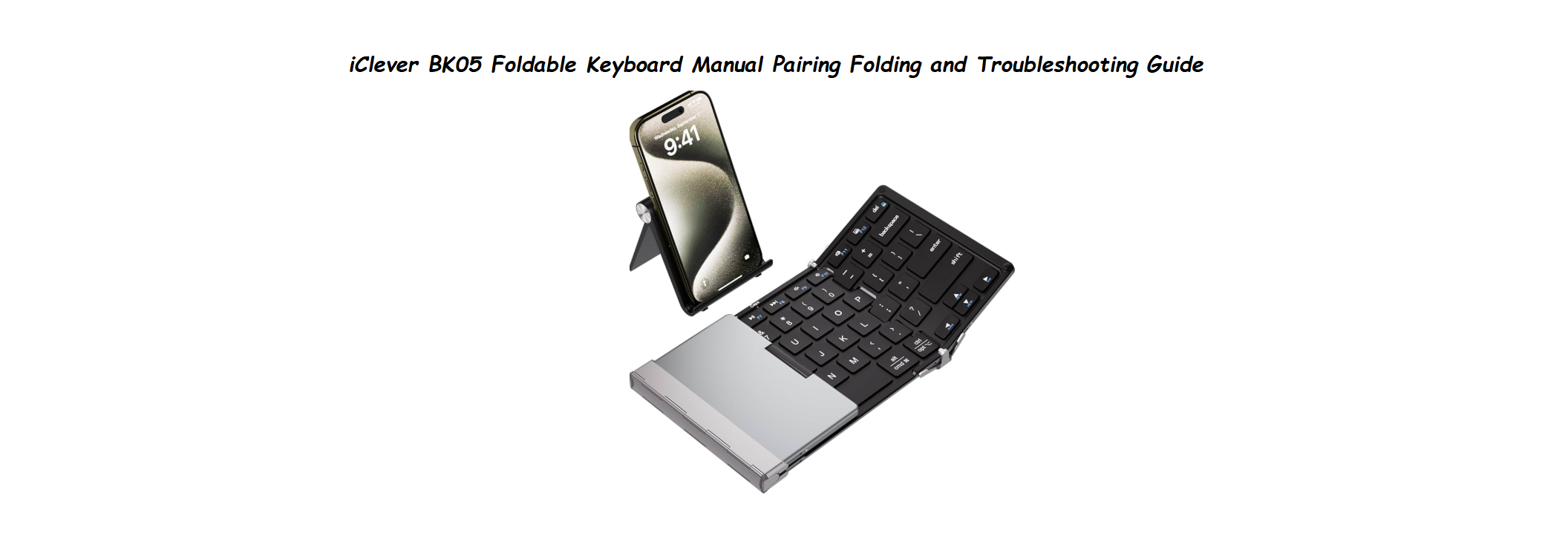

Why This Companion Is Handy
The iClever BK05 comes with a USB charging cable, a small carrying pouch, and a tiny instruction card that doesn’t answer real‑world questions like how to pair with three devices, how the folding mechanism locks, or what to do when the keys stop responding. Thousands of people search for an “iClever BK05 manual” every day. This companion gives you clear, practical help.
What’s in the Box
 iClever BK0
Your package includes:
- The iClever BK05 foldable keyboard (when folded, it’s about the size of a thick wallet)
- A USB‑C to USB‑A charging cable
- A soft carrying pouch
- A quick‑start card
Unfolding and Physical Layout
To open, simply unfold the two side panels outward until they lie flat. The hinges are stiff; they lock into place when fully opened. To close, fold the left and right sections back over the centre.
- On/Off switch (on the rear edge): Slide to turn on (green LED flashes). Slide back to turn off.
- USB‑C port (rear edge): For charging.
- Indicator LEDs: One for power/charging status, one for Bluetooth connection.
- Bluetooth keys (1, 2, 3): The top‑right keys labelled with a Bluetooth icon and numbers 1/2/3. Each can be paired with a different device. Press Fn + the number key to select which device you want to type on.
Charging and Power
- Charge the keyboard fully before first use (about 2 hours). The red LED glows solid while charging and turns off when full.
- The keyboard enters sleep mode after a few minutes of inactivity. Press any key to wake it; it reconnects automatically.
- Battery life is about 40–50 hours of continuous typing. With typical use, it lasts weeks on a single charge.
Pairing with a Phone, Tablet, or Computer
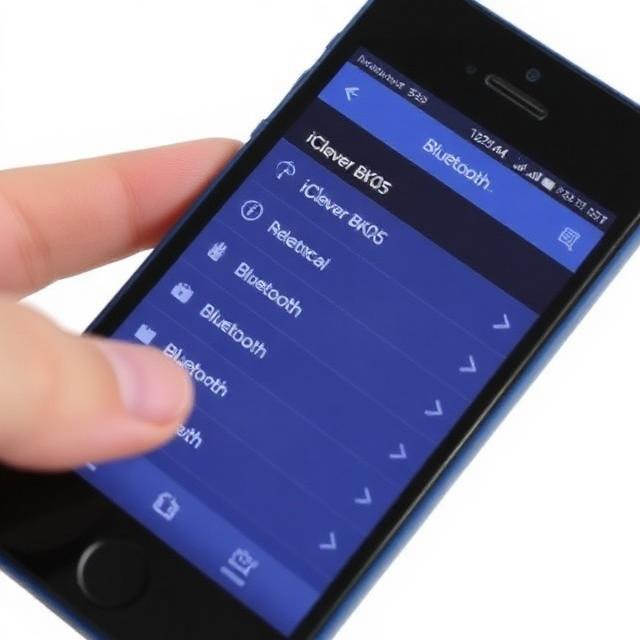
- Turn on the keyboard by sliding the power switch. The Bluetooth LED will blink blue.
- Press and hold Fn + Bluetooth key 1 (or 2, or 3) for 3 seconds. The LED blinks rapidly – it’s now in pairing mode.
- On your phone or tablet, go to Bluetooth settings and select “iClever BK05” from the list.
- Once paired, the LED will turn solid for a moment, then turn off. Type on the keyboard to test.
- To pair a second device, repeat the process using a different Bluetooth key (e.g., Fn + 2). You can switch between paired devices by tapping Fn + 1 or Fn + 2 or Fn + 3.
Function Keys and Special Shortcuts
The keyboard has a full row of multimedia and function keys accessible by holding the Fn key. Common shortcuts:
- Fn + Esc: Switch between Android/iOS/Windows layout (the default works for most).
- Fn + Brightness keys: Adjust screen brightness on a tablet/phone.
- Fn + Volume keys: Control volume.
- Fn + Media keys: Play/Pause, Previous, Next.
- Fn + Search: Opens search or browser.
- Fn + Home: Goes to home screen on mobile.
The specific layout may differ slightly; refer to the printed shortcut legend on the keyboard box or test each Fn combination.
Troubleshooting Common Issues
| Problem | Likely Cause | What to Try |
|---|---|---|
| Keyboard won’t pair | Not in pairing mode or already paired | Turn off, then hold Fn + desired Bluetooth key for 5 seconds until LED blinks rapidly. On phone, forget existing “iClever BK05” entry if it shows up but won’t connect, then re‑pair. |
| Keys type wrong characters | Incorrect OS layout | Press Fn + Esc to toggle between iOS/Android/Windows. On Android, also check Settings > System > Languages & input > Physical keyboard. |
| One side of the keyboard doesn’t respond | Loose ribbon cable inside hinge | Turn off, fold and unfold a few times to reseat internal connections. If that fails, the ribbon cable may be damaged; contact support. |
| Won’t charge | Cable or adapter issue | Try a different USB‑C cable and USB adapter. Ensure the charger outputs 5V/1A (fast chargers are fine). |
| Frequent disconnections | Low battery or interference | Charge fully. Move the keyboard closer to the device. Remove other Bluetooth devices that could interfere. |
| Sticky keys | Debris or wear | Blow compressed air around the keys. Clean with a slightly damp microfiber cloth. Do not use liquid cleaners. |
How to Reset and Re‑Pair
Soft reset: Turn the keyboard off, wait 10 seconds, and turn it back on. This clears minor glitches.
Clear Bluetooth pairings: With the keyboard on, press and hold Fn + Esc for 5 seconds. The Bluetooth LED will blink rapidly, indicating all pairings are erased. You can then pair as a new device.
Factory reset: If the keyboard is completely unresponsive, plug it into a USB charger for 15 minutes, then try the soft reset. There is no physical reset button.
Quick Reference Card
| Task | How |
|---|---|
| Pair a new device | Turn on, hold Fn + 1/2/3 for 3 seconds, select on phone |
| Switch between paired devices | Tap Fn + 1 or Fn + 2 or Fn + 3 |
| Toggle OS layout | Press Fn + Esc |
| Charge | USB‑C port, red LED while charging |
| Clear pairings | Hold Fn + Esc for 5 seconds |
| Wake from sleep | Press any key |
Download the iClever BK05 Cheat Sheet
A one‑page PDF with pairing steps, Fn shortcuts, and troubleshooting. Print it and keep it in the carrying pouch.
“iClever BK05 Quick Guide (PDF)”
Official iClever Support and Manuals
For warranty and the official PDF manual, visit: https://www.iclever.com/support
FAQs
- Can I use this keyboard with an iPhone and an Android phone at the same time?
Yes, pair one device on Fn+1 and the other on Fn+2. Tap Fn+1 or Fn+2 to switch between them instantly. The keyboard remembers up to three devices. - Will it work with a smart TV or gaming console?
Yes, if the TV or console supports Bluetooth keyboards (most smart TVs and Xbox/PlayStation consoles do). Pair it like any Bluetooth device. - Is the keyboard spill‑proof?
No, it is not waterproof. Keep liquids away from the keys. - How do I turn off the keyboard completely?
Slide the power switch to Off. It will also auto‑sleep after inactivity, but sliding the switch off saves battery for long storage. - Why do the hinges feel tight?
They are designed that way to prevent the keyboard from flopping open or closed. They will loosen slightly with use but remain firm.
A Quick Word Before You Fold
When storing, ensure the keyboard is completely dry and clean. The hinges are durable, but avoid putting heavy pressure on the folded keyboard in a bag. With care, this compact keyboard will make typing on your phone or tablet far more comfortable.
Copyright Warning!
Copyright 2026 productsmanuals.com All rights reserved. This iClever BK05 manual is original content and may not be copied, republished, or redistributed without written permission. iClever and the iClever logo are trademarks of iClever. This guide is unofficial and not affiliated with iClever.
