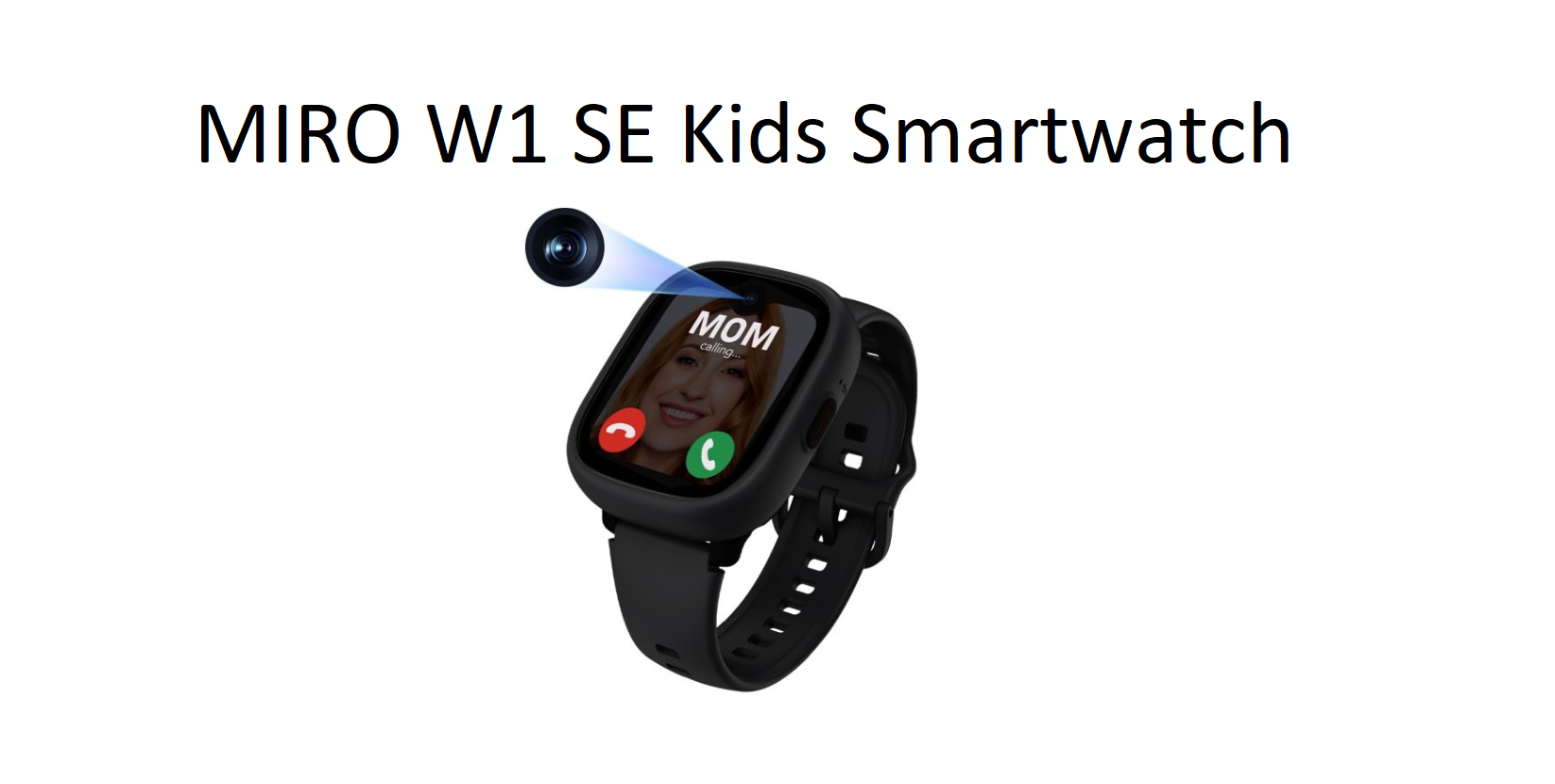

MIRO W1 SE Kids Smartwatch
Introduction
The MIRO W1 SE Kids Smartwatch is a powerful safety companion designed for modern families. Built with advanced 4G connectivity and intelligent GPS tracking, it keeps your child connected while giving parents complete peace of mind. Whether your child is at school, playing outdoors, or traveling, this smartwatch ensures you’re always just a call away. With a lightweight, kid-friendly design and durable waterproof build, it’s made to handle everyday adventures without compromise.
Specifications
- Brand: MIRO
- Model: W1 SE
- Display: 1.7” (240 × 280 resolution)
- Storage: 128MB
- Connectivity: 4G LTE, Bluetooth
- Compatibility: Android
- Battery: 770mAh (up to 2–3 days)
- Waterproof Rating: IP68
- Material: TPU + PC body, silicone strap
- Dimensions: 51.2 × 42.8 × 15.5 mm
- Weight: 52g
What’s in the Box
When you purchase the MIRO W1 SE Kids Smartwatch, you typically receive:

- 1× MIRO W1 SE Kids Smartwatch (main device)
- 1× Magnetic Charging Cable
- 1× User Manual / Setup Guide
- 1× Retail Packaging Box
Everything you need to quickly set up the watch and get started with calling, GPS tracking, and safety features is included in the box.
Key Features
- Global 4G Connectivity: Supports multiple bands for use in 200+ countries
- HD Video & Voice Calling: Stay visually connected anytime
- Real-Time GPS Tracking: Accurate location with route history
- Geo-Fencing Alerts: Instant notifications if your child leaves safe zones
- IP68 Waterproof: Handles rain, splashes, and active play
- Class Mode: Distraction-free learning during school hours
- Long Battery Life: Up to 3 days with magnetic charging
- Safe Social System: Controlled contacts and family chat
Activate Your Watch in 3 Steps
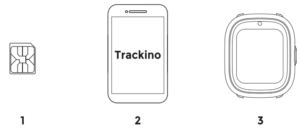
- Activate your SIM
- Install the Trackino
- App on your phone connect your watch with Trackino App
Kids Watch Phone Display
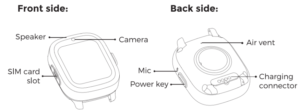
Front side:
- Speaker
- SIM card slot
- Camera
Back side:
- Mic
- Power key
- Air vent
- Charging Connector
Reminder: Do not poke the mic and air vent with sharp objects such as card removal pins.
Choosing correct SIM card
- Operator: Choosing operator who supports 2C/3C/4C network
- SIM card type: Nano SIM card only
- Data packet: Before you use the watch, please make sure the SIM card is active and able to use 2C/3C/4C data
Disassemble and Assemble the Case
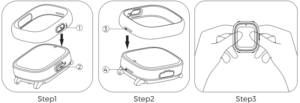
Steps to install the case:
- Align the O hole at the right side of the case with the button at the body at the @ position.
- Align the ($) hole at the top of the case with the speaker hole at the @ position.
- Put the case down and cover the body until it is tight.
Sim Card Installation
Please read carefully before turn on watch to avoid any abnormal caused by wrong card installation.
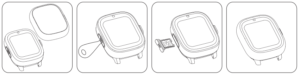
- Take the silicone case out of the watch.
- Pull out SIM card slot via card picker.
- Put the SIM card into card slot, chip upside, and insert to watch.
- Put the silicone case back on the watch.
Note: For new SIM card, do not install the SIM card until activation is done; When installing the silicone case, please align the speaker hole.
Function Button Operation
Function Button
- Long press to turn on (If watch can’t turn on, please confirm whether watch is out of power)
- Short press to turn off/on screen
- One-tap SOS
- Long press for 5s to send emergency call (Need to set emergency contact person in App)
Reminder: If the new watch cannot be turned on, it is likely that the watch is out of power.
Please plug in the charging cable until the watch shows the charging interface.
Video call
Click “Video call”, Select contact and select Video Since two-way Video call will use data , you may connect Wi-Fi for Video call.
Reminder: Long video calls will cause the watch to heat up.
Please do not make video calls more than 4 minutes. Please do not wear the watch when the high temperature alarm pops up, Wear the watch after the temperature drops to avoid high temperature scald.
Add Friends
Make sure both watches have SIM cards inserted and connected to Trackino apps. Open “Add Friend” on both watches. click “Add friend”: then click “Start to make friends”, then “Search for friends”. Once the names of other watches are shown on the screens, the watches are added each other as friends. You can exchange messages, make voice calls or video calls among friends.
You can only add friends among the same brand and same model kids watches.
Uses
- Keep track of your child’s real-time location
- Enable safe communication without giving a smartphone
- Monitor school routines and outdoor activities
- Provide children with independence while staying protected
Or If your MIRO W1 SE Kids Smartwatch is not working properly, you’re not alone (we tested). Many users face setup and connectivity issues, especially during first-time use. Below are the most common problems and simple solutions.
MIRO W1 SE Not Connecting to App
This is one of the most reported issues.
Possible Reasons:
- SIM card has no internet data
- App permissions are disabled
- QR code scanned incorrectly
How to Fix:
- Make sure the SIM card has active mobile data
- Restart both the watch and your smartphone
- Delete and reinstall the app
- Scan the QR code directly from the watch screen
- Enable Location + Camera permissions in your phone
Tip: Always use the latest version of the app for better compatibility.
GPS Location Not Working or Inaccurate
Sometimes the location shown in the app is wrong or delayed.
Possible Reasons:
- Weak GPS signal indoors
- First-time GPS setup delay
- Poor network connection
How to Fix:
- Take the watch outside in an open area
- Wait 5–10 minutes for GPS to stabilize
- Refresh location in the app
- Ensure mobile data is active on the SIM
Note: GPS accuracy improves after a few uses.
SIM Card Not Working / No Network
If your watch shows no signal, the SIM setup may be the issue.
Possible Reasons:
- Unsupported SIM card
- SIM inserted incorrectly
- SIM PIN lock enabled
How to Fix:
- Use a compatible SIM (check local network support)
- Insert SIM properly with the watch powered off
- Disable SIM PIN using another phone before inserting
- Restart the watch after inserting SIM
Calling Feature Not Working
The watch may fail to make or receive calls.
Possible Reasons:
- No balance in SIM
- Contacts not saved correctly
- Network issues
How to Fix:
- Recharge SIM with calling balance
- Add contacts via the app correctly
- Restart the device
- Check signal strength
Battery Draining Quickly
Fast battery drain is a common complaint.
Possible Reasons:
- Continuous GPS tracking
- Background syncing
- Overuse of features
How to Fix:
- Reduce GPS tracking frequency in the app
- Turn off unused features
- Fully charge using the original cable
- Avoid keeping it on charge overnight
App Not Syncing with Watch
The app may not update data or show errors.
Possible Reasons:
- Wrong server/region selected
- App glitch
- Weak internet connection
How to Fix:
- Select the correct region during setup
- Log out and log back in
- Clear app cache or reinstall it
- Ensure stable internet on both devices
SOS Button Not Working
Emergency feature not responding properly.
Possible Reasons:
- SOS contacts not added
- App not synced
How to Fix:
- Add emergency contacts in the app
- Press and hold SOS button for 3–5 seconds
- Ensure the watch has network connectivity
Pro Tips for Smooth Performance
- Restart the watch regularly
- Keep the app updated
- Use a reliable mobile network
- Avoid water exposure unless officially supported
Troubleshooting
| Issue | Possible Cause | Solution |
|---|---|---|
| No network / SIM not working | SIM not inserted properly or not supported | Reinsert SIM, ensure 4G SIM is activated and supported |
| GPS not accurate | Weak satellite signal or indoor usage | Use outdoors for better GPS accuracy |
| Watch not turning on | Low or drained battery | Charge the watch using magnetic charger for at least 30 minutes |
| App not connecting | Incorrect QR pairing or app issue | Restart watch and rebind using the parent app |
| Battery draining fast | High usage or brightness | Reduce screen brightness and limit frequent tracking updates |
| Charging not working | Dirty magnetic pins or loose connection | Clean charging pins and ensure proper alignment |
FAQs
How does the MIRO W1 SE Kids Smartwatch help keep children safe?
- It uses real-time GPS tracking, geo-fencing alerts, and secure calling features so parents can monitor their child’s location and stay connected anytime.
What type of SIM card is required for the smartwatch?
- A 4G nano SIM card is required to enable calling, GPS tracking, and data services on the watch.
How can parents track their child’s location?
- Parents can track the child through a mobile app that shows live location, movement history, and safety zones.
What makes the smartwatch suitable for school use?
- It includes a Class Mode that disables distractions during school hours while allowing time and emergency functions.
How is the smartwatch charged and how long does it last?
- It uses a magnetic charging cable and provides up to 2–3 days of battery life depending on usage.
About the Author
This guide is created by a tech writer focused on kids smart devices and wearable gadgets. Our goal is to provide simple, practical, and real-world setup instructions to help parents use smartwatches without confusion.
We test devices in real conditions and share troubleshooting steps based on actual user experience.
Still having issues with your MIRO W1 SE Kids Smartwatch? Comment below and we’ll help you fix it step-by-step.
 Download PDF Manual
MIRO W1SE Kids Smartwatch User Manual Guide. productsmanuals.com

It’s very informative, I found solution With detail regarding the problem, I was facing in my product. Very helping material here.. Appreciated😊
Very helpful details😍
[…] Click on this link […]