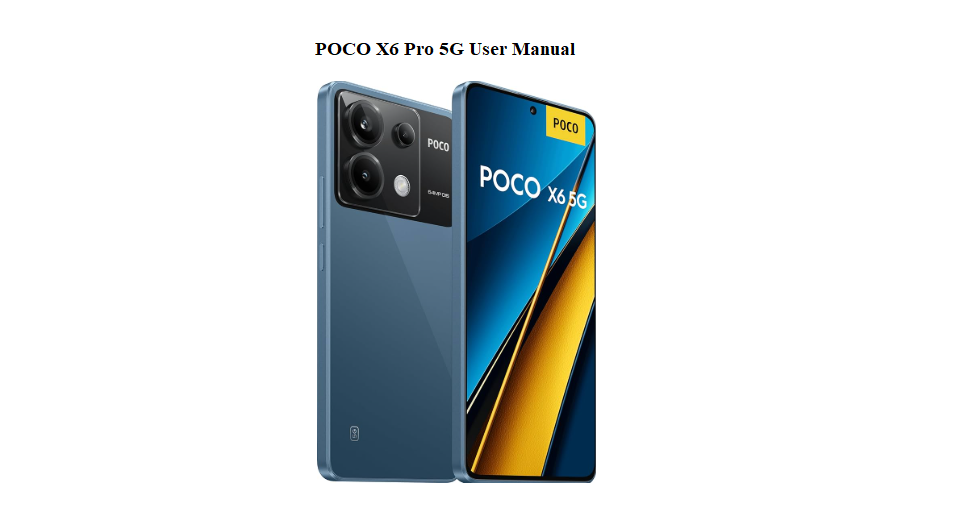
Getting Acquainted with Your Device
The POCO X6 Pro 5G ships with a USB‑C cable, a SIM ejector tool, a protective case, and a brief safety booklet. There’s no bulky printed manual, so everyday questions — how to set up the side‑mounted fingerprint sensor, what the various camera modes actually do, how to extend battery life, or where to find hidden HyperOS settings — often go unanswered. This companion fills those gaps. It’s written for real‑world use, so you can get the most out of your phone without scrolling through forums.
What in the Box
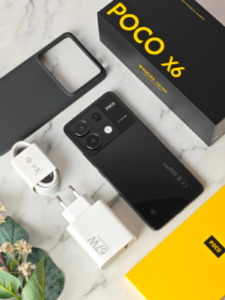
Your box contains:
- The POCO X6 Pro 5G smartphone (with a pre‑applied screen protector)
- A USB‑C to USB‑A charging cable
- A SIM ejector tool
- A transparent silicone protective case
- A quick‑start guide and warranty card
No charging brick is included. You’ll need a compatible USB‑C power adapter (the phone supports 67W turbo charging, so a 67W or higher PD charger is recommended for fastest top‑ups).
Understanding Buttons, Ports, and the Fingerprint Sensor
The phone uses a flat‑frame design with all physical controls easily reachable.
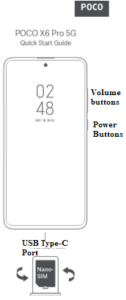
- Power button / Fingerprint sensor: The button on the right edge doubles as a fingerprint scanner. Rest your thumb on it to unlock instantly. You can register up to five fingerprints in Settings > Passwords & security > Fingerprint unlock.
- Volume rocker: Above the power button. Press to adjust media or ringer volume.
- USB‑C port: At the bottom centre. Used for charging, data transfer, and wired headphones (if using a USB‑C adapter).
- IR blaster: A small dot on the top edge. It lets the phone act as a universal remote for TVs, ACs, and other appliances via the Mi Remote app.
- SIM tray: On the left side. It holds two nano‑SIM cards (no microSD slot on this model).
First‑Time Setup
First‑Time Setup and Key Settings to Adjust
- Press and hold the power button until the POCO logo appears.
- Follow the on‑screen instructions to select your language, region, and connect to Wi‑Fi. Sign in to your Google account and, optionally, your Mi Account for Find Device and Mi Cloud.
- When you reach the Home Screen, go to Settings > About phone > HyperOS version and check for any software updates. Install them immediately.
Settings to change right away:
- Display refresh rate: Go to Settings > Display & brightness > Refresh rate and select Custom (120Hz). The screen will feel much smoother.
- Always‑on display: Settings > Always‑on display & Lock screen > Always‑on display — you can set it to show for 10 seconds after tapping, or keep it on all day (uses more battery).
- Navigation style: Settings > Home screen > System navigation. Choose between gesture‑based navigation or on‑screen buttons.
- Battery protection: Settings > Battery > Battery protection — enable Optimized charging to slow battery ageing.
Camera Features or Settings
Camera Features and How to Use Them
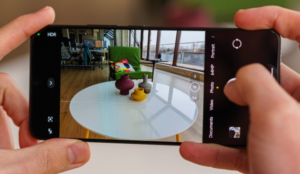
The rear camera system includes a 64MP main sensor with OIS, an 8MP ultra‑wide lens, and a 2MP macro camera. The front punch‑hole camera is 16MP.
Main modes explained:
- Photo: Default mode. The AI scene detection (icon at the top) adjusts colours and contrast based on what you’re shooting. You can toggle it off if you prefer a more natural look.
- 64MP mode: Tap the “64MP” icon at the top to capture full‑resolution images. Best in good lighting; file sizes are larger.
- Portrait: Creates a background blur effect (bokeh). Use the slider to adjust the intensity.
- Night mode: Automatically brightens low‑light scenes. Keep the phone steady for the few seconds it takes to capture.
- Pro mode: Manually control ISO, shutter speed, white balance, and focus. The focus peaking feature highlights sharp edges in red, which helps with manual focus.
- Video: The phone records up to 4K at 30fps. Steady video EIS (electronic image stabilization) is on by default; you can also enable Ultra Steady mode for more active scenes.
Hidden camera shortcuts:
- Double‑press the volume down button while the phone is locked to instantly launch the camera.
- In the camera app, swipe left or right to switch between modes.
- Long‑press the shutter button to take a burst of photos.
Battery Life, Charging, and Power Management
- Battery capacity: 5000 mAh, enough for a full day of heavy use.
- Charging speed: 67W turbo charging. Using a compatible charger, you can get from 0 to 100% in about 45 minutes.
- Wireless charging: Not supported.
Power‑saving features:
- Battery saver: Toggle it on from the Quick Settings panel or set it to activate automatically at 20% or 50% in Settings > Battery > Battery saver.
- Ultra battery saver: Limits the phone to a handful of essential apps, extending standby dramatically. Activate from the Battery menu.
- App battery management: Settings > Apps > Manage apps — tap on individual apps and select Battery saver to restrict background activity for apps you don’t use often.
Charging habits for long battery life:
- Avoid exposing the phone to extreme heat while charging (like direct sunlight).
- If you charge overnight, enable Optimized charging in Battery settings. The phone learns your sleep schedule and pauses charging at 80%, finishing just before you wake up.
- Use the official or a high‑quality third‑party USB‑C PD charger.
HyperOS Hidden Features and Productivity Tips
The POCO X6 Pro 5G runs HyperOS (based on Android), which packs several useful but tucked‑away tools.
Game Turbo:
When you launch a game, Game Turbo automatically optimizes performance. Swipe from the top corner in a game to access voice changer, screen recorder, and performance settings. You can also block notifications and calls during gameplay.
Second Space:
Settings > Second Space lets you create a completely separate user profile with its own apps, photos, and accounts. It’s like having a second phone inside your device, useful for separating work and personal life.
Floating windows:
Open the recent apps screen, long‑press an app icon, and tap “Floating window.” The app will open in a small resizable window on top of what you’re doing. Perfect for quickly replying to a message while watching a video.
IR remote (Mi Remote):
Open the pre‑installed Mi Remote app, choose the device type (TV, AC, set‑top box), select the brand, and follow the prompts to configure. The top‑edge IR blaster will send the signal. You can control devices without ever touching the original remote.
Sidebar:
Swipe inward from the right edge of the screen (if enabled in Settings > Special features > Sidebar) to reveal a tray of your favorite apps. You can open them in a floating window directly from the sidebar.
Privacy, Security, and Safety Settings
- App permissions: Settings > Privacy protection gives a clear overview of which apps accessed the camera, microphone, or location recently. Revoke any suspicious permissions.
- Microphone and camera indicators: A green dot appears in the status bar whenever an app uses the camera or mic. You can tap it to see which app is active.
- Find Device: Make sure your Mi Account is signed in and Find Device is on. This lets you locate, lock, or erase the phone if it’s lost. It’s under Settings > Mi Account > Find Device.
- Send SOS alerts: Settings > Safety & emergency > Emergency SOS. You can set up the power button (press 3 or 5 times) to automatically send an alert with your location to designated contacts.
Troubleshooting Common Issues
How to Restart or Reset The POCO X6
How to Restart, Reset, and Enter Recovery Mode
Soft restart (power cycle):
Press and hold the power button, then tap “Restart.” This solves minor glitches without erasing anything.
Force restart (if the screen is frozen):
Press and hold the power button and the volume down button simultaneously for about 10–12 seconds. The phone will vibrate and reboot. Release when the POCO logo appears.
Factory reset (from the Settings menu):
Settings > About phone > Factory reset > Erase all data (factory reset). You’ll need to enter your lock screen password and Mi Account password. This wipes everything and returns the phone to its out‑of‑the‑box state.
Factory reset via Recovery Mode (if the phone won’t boot):
- Turn off the phone.
- Press and hold the volume up button and the power button simultaneously.
- When the POCO logo appears, release the power button but keep holding the volume up button until the Recovery menu appears.
- Use the volume buttons to navigate to Wipe data, then press the power button to select.
- Confirm by selecting Wipe data again. After the reset, select Reboot system now.
Quick Reference Card
More Informations
Download the POCO X6 Pro 5G Cheat Sheet
A one‑page PDF with button shortcuts, camera tips, HyperOS hidden features, and reset instructions. Keep it on your phone or print it for quick reference when something goes sideways.
“POCO X6 Pro 5G Quick Guide (PDF)”
Official POCO Support and Manuals
For warranty, service, and the official PDF user guide, visit: https://www.poco.net/support
Before You Put the Phone Down
This guide was written to help your POCO X6 Pro 5G feel less like a piece of glass and metal and more like a tool that genuinely makes your day easier. May your battery always last until bedtime, your photos always come out sharp, and the IR blaster always find the TV signal on the first try. If a friend buys the same phone and can’t figure out Game Turbo, share this page — it might just save their high score.
Copyright Warning!
Copyright 2026 productsmanuals.com All rights reserved. This POCO X6 Pro 5G manual is original content and may not be copied, republished, or redistributed without written permission. POCO, HyperOS, and the POCO logo are trademarks of Xiaomi Corporation. This guide is unofficial and not affiliated with POCO or Xiaomi.