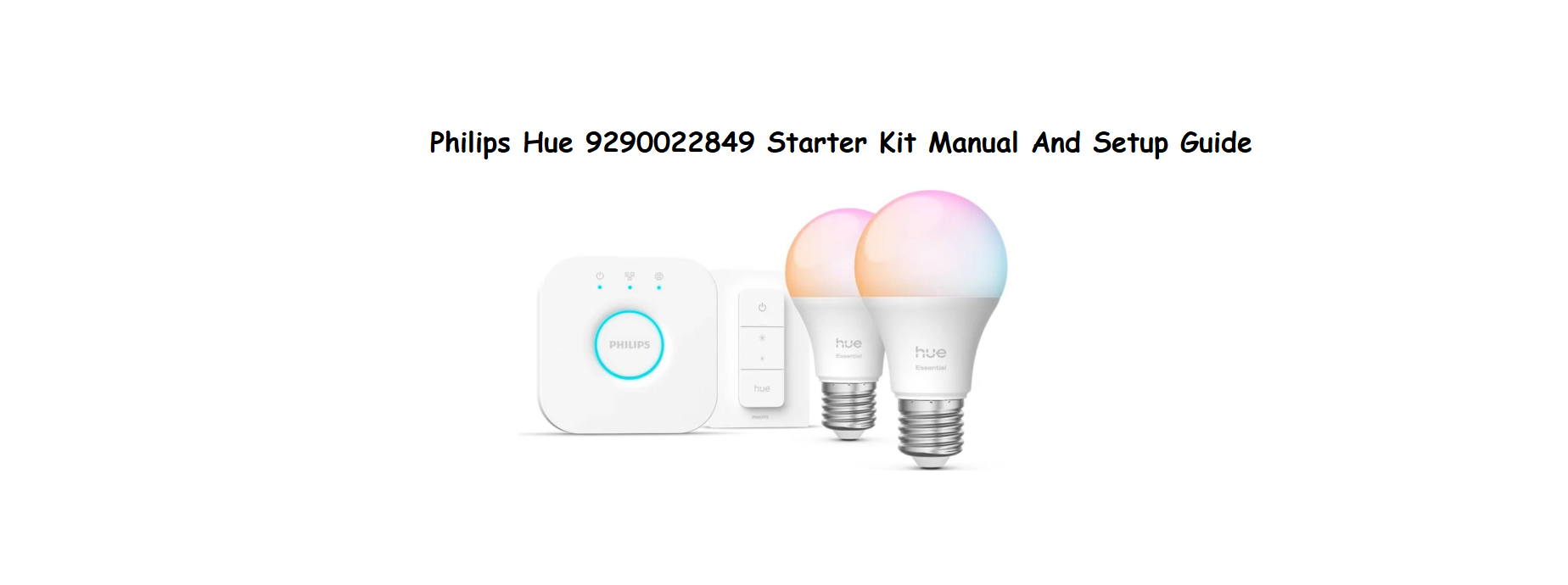

Philips Hue 9290022849 Starter Kit Manual And Setup Guide
Why This Companion Exists
Philips ships the Hue White and Color Ambiance Starter Kit with a Hue Bridge, bulbs, an Ethernet cable, and a small safety leaflet. The official app walks you through basic setup, but there’s no printed guide that explains what to do when the bridge won’t connect, how to manually add a bulb, or how to fix unresponsive lights. Every day, people search for a “Philips Hue manual” because they want straightforward, human‑friendly help. This companion gives you exactly that.
What Comes in the Box

Your kit includes:
- A Philips Hue Bridge (square, white, with three LED indicators)
- A power adapter for the bridge (region‑specific plug)
- An Ethernet cable (short, yellow tips)
- Two or three Philips Hue White and Color Ambiance bulbs (E26/E27, depending on region)
- A Quick‑Start guide and safety information
No physical remote is included; everything is controlled via the app or a compatible voice assistant.
Connecting to Wi‑Fi
Setting Up the Hue Bridge and Connecting to Wi‑Fi
- Connect the Hue Bridge to power using the included adapter. Wait for the Power LED to turn solid blue (it may take a minute).
- Use the included Ethernet cable to connect the bridge to an available LAN port on your home router. Do not connect it directly to a modem without a router. The Internet LED will glow solid blue once it has a connection.
- Once the Internet LED is solid, the bridge is ready. On your phone, download the Philips Hue app (iOS or Android). Ensure your phone is on the same Wi‑Fi network as the router.
- Open the app. It will automatically search for the bridge. Tap “Set up” when it appears. If it doesn’t find the bridge, tap “Help” and follow the manual connection steps.
- Press the large button on the top of the bridge when prompted by the app. This links the bridge to your account. The app will then ask you to name your home and create a room for your first lights.
Adding Bulbs and Creating Rooms
- Screw the included Hue bulbs into your light fixtures and turn the wall switches on.
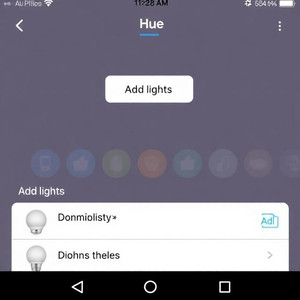
- In the Hue app, tap “Settings” (the gear icon) > “Lights” > “Add light” (the plus icon). The bridge will automatically search for new bulbs.
- The app will discover the bulbs within a few seconds. They may flash once or twice to confirm. Tap each bulb to name it (e.g., “Living Room Lamp,” “Bedroom Ceiling”).
- Once named, go to the “Home” tab and tap the three dots in a room to “Create room.” Assign bulbs to rooms. This makes voice control and scenes work correctly.
Using the Hue App and Essential Features
- Home tab: Quick access to all rooms. Tap a room to turn lights on/off or adjust brightness.
- Colors and scenes: Select a room, then drag your finger around the color wheel to change the light color. Tap “Scenes” to choose from pre‑set moods like “Arctic Aurora,” “Savanna Sunset,” or “Nightlight.”
- Automations: Tap the “Automations” tab to set schedules, timers, and wake‑up routines. The “Wake up” automation gradually brightens lights before your alarm.
- Out of home control: Go to Settings > Out of home control. Sign into your Philips Hue account to control lights from anywhere. If it’s not working, ensure the bridge is online and the app is logged in.
- Voice assistants: In Settings > Voice assistants, you can link Amazon Alexa, Google Assistant, or Apple Home. Once linked, you can say “Alexa, dim the living room” or “Hey Google, turn on nightlight.”
Manual Bulb Addition
Manual Bulb Addition and Troubleshooting the Bridge
If the app can’t find a new bulb:
- Turn the light switch off, wait 5 seconds, and turn it back on. The bulb should blink twice to indicate it’s in pairing mode.
- In the app, go to Settings > Lights > Add light. If it still doesn’t appear, you can enter the bulb’s serial number (printed on the bulb itself) manually.
- Another method: Use a Hue Dimmer Switch (sold separately) to reset the bulb by holding it close and pressing the On and Off buttons simultaneously for 10 seconds. Then try adding again.
If the bridge’s Internet LED is off or blinking:
- Check the Ethernet cable is securely plugged into the router, not a modem.
- Restart the router and the bridge by unplugging power for 10 seconds.
- Try a different Ethernet port on the router.
If the bridge’s Power LED is off: The power adapter may be faulty. Try a different USB‑compatible power adapter with the same voltage.
Troubleshooting Common Issues
| Problem | Likely Cause | What to Try |
|---|---|---|
| Lights won’t respond in the app | Bridge offline or bulbs unpowered | Check the bridge LEDs (both should be solid blue). Ensure wall switches are on. Restart the bridge. |
| Bulb appears “Unreachable” | Distance or interference | The bulb is too far from the bridge or another Hue bulb (Zigbee mesh). Move a working Hue bulb closer to act as a repeater. |
| Colors look different than expected | Bulb type or scene settings | White bulbs cannot produce color. Check you’re using a White and Color Ambiance bulb. Adjust the scene or color wheel. |
| Alexa/Google can’t discover lights | Voice assistant linking expired | In the Hue app, go to Settings > Voice assistants and tap “Re‑link” or “Pair.” Then re‑discover devices in the Alexa/Google app. |
| Light turns on by itself at odd times | Automation or power cycle | Check Automations tab for scheduled routines. If lights turned off and on quickly (power cut), they may return to last state. |
| Bridge internet LED solid but app says “No connection” | Account or server issue | Log out of the Hue app and back in. Check downdetector for Hue server outages. Reboot your phone. |
How to Reset
How to Reset the Bridge and Bulbs
Soft reset (restart the bridge): Unplug the power cable from the bridge, wait 10 seconds, and plug it back in. All settings are retained.
Factory reset the bridge (erase everything): Turn the bridge over. Use a paperclip to press the recessed button next to the “Restore factory settings” label. Hold for 5 seconds until all LEDs flash. This erases all rooms, scenes, automations, and bulb pairings. You’ll need to set up the bridge from scratch.
Reset a single bulb: Turn the light switch on and off 5 times in quick succession (on for 1 second, off for 1 second). The bulb will blink twice when reset. It can now be added again in the app.
Quick Reference Card
| Task | How |
|---|---|
| Add a bulb | App > Settings > Lights > Add light |
| Create a scene | Home tab > tap room > Scenes > tap “+” |
| Set a schedule | Automations tab > “+” > Custom automation |
| Connect voice assistant | App > Settings > Voice assistants |
| Soft reset bridge | Unplug power for 10 seconds, plug back in |
| Factory reset bridge | Press recessed button on bottom for 5 seconds |
| Reset a bulb | Toggle wall switch 5 times quickly |
Download the Philips Hue Cheat Sheet
A one‑page PDF with setup steps, troubleshooting codes, and voice assistant linking instructions. Print it and keep it near your router for quick reference.
“Philips Hue Starter Kit Quick Guide (PDF)”
Official Philips Hue Support and Manual
For warranty, spare bulbs, and the official PDF manual, visit: https://www.philips-hue.com/support
Frequently Asked Questions
- Do I need the Hue Bridge to use the bulbs?
Yes, for the White and Color Ambiance bulbs in this starter kit, the bridge is required for the full Hue experience (scenes, automations, out‑of‑home control). Some basic on/off and dimming can be done with a Bluetooth connection, but the bridge unlocks all features. - Can I use Hue bulbs with a regular dimmer switch?
No. Hue bulbs must be used with a standard on/off wall switch only. Using a physical dimmer can damage the bulb and cause flickering. Use the app or a Hue Dimmer Switch (sold separately) to dim. - How far can the bridge be from a bulb?
The bridge uses Zigbee, which has a range of about 30 feet indoors through walls. Every mains‑powered Hue bulb acts as a repeater, extending the range. If a bulb is too far, add a Hue bulb in between. - Why is my bulb flickering?
Flickering is usually caused by an incompatible dimmer switch, a loose bulb, or a power fluctuation. Ensure the bulb is screwed in firmly and that the switch is a standard on/off type. If flickering persists, try the bulb in a different fixture. - Can I control lights when I’m not home?
Yes, enable Out of home control in the Hue app (Settings > Out of home control) and sign into your Hue account. The bridge must stay powered on and connected to the internet.
A Practical Note Before You Wrap Up
A smart home is only as reliable as its network. If you ever find the bridge frequently going offline, a simple reboot usually fixes it. Keep a spare Ethernet cable handy, and position the bridge in an open area, not buried behind a TV or metal cabinet. With minimal care, your Hue lights will stay responsive and colourful for years.
Copyright Warning!
Copyright 2026 productsmanuals.com All rights reserved. This Philips Hue manual is original content and may not be copied, republished, or redistributed without written permission. Philips, Hue, and the Philips Hue logo are trademarks of Signify Holding. This guide is unofficial and not affiliated with Signify.
