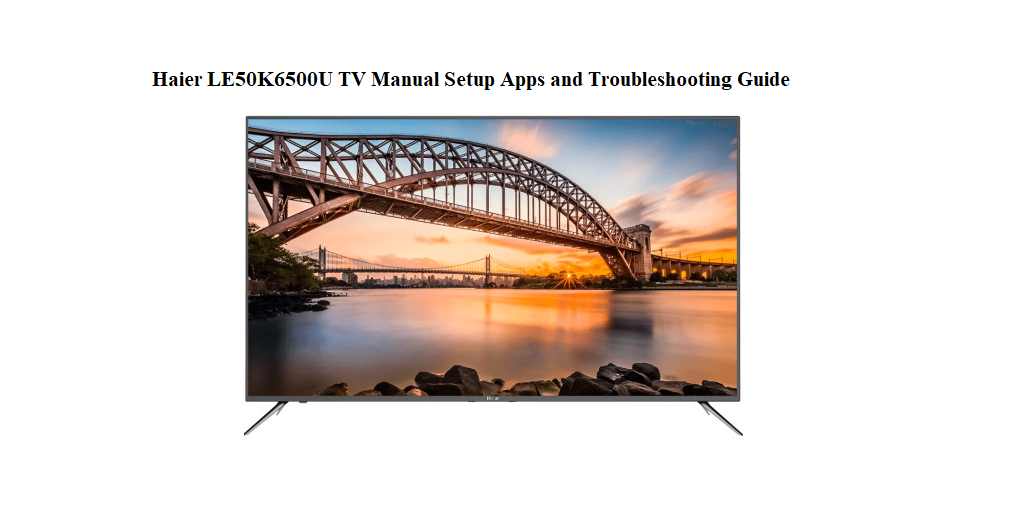

Why This Companion Is Here
Haier ships the LE50K6500U with a stand, a remote, batteries, and a warranty card. The printed manual is a slim quick‑start leaflet that shows you how to plug in cables but doesn’t explain how to calibrate the picture, install apps from the Play Store, clear the cache, or what to do when the screen stays black. Thousands of people search for a “Haier LE50K6500U manual” because they want straightforward answers to everyday TV problems. This companion fills that gap.
What Comes in the Box
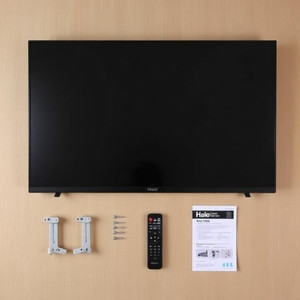
Your package includes:
- The 50‑inch LED TV panel (4K UHD resolution, 3840 x 2160)
- Two plastic stand feet and four screws
- A Bluetooth remote control (uses AAA batteries, included)
- Two AAA batteries
- A Quick‑Start Guide and warranty card
No HDMI cable, no antenna cable, and no wall‑mount bracket are included. The TV supports VESA 200 x 200 mm wall mounts.
Attaching the Stand and Wall Mounting
- Place the TV screen‑down on a soft, flat surface (use the packaging foam to protect the panel).
- Align the stand feet with the screw holes on the bottom edge. They are marked Left and Right.
- Tighten the four screws with a Philips screwdriver. Do not overtighten; just until snug.
- If wall‑mounting, purchase a VESA 200×200 bracket. Remove the stand feet, attach the bracket to the wall and the TV back, and lift the TV carefully onto the bracket. Two people are needed.
Physical Ports and Connections

The TV has a comprehensive set of ports on the rear and side.
- HDMI 1 (ARC) and HDMI 2: Connect your set‑top box, streaming stick, or game console here. HDMI 1 supports ARC (Audio Return Channel) for soundbars.
- HDMI 3 (4K 60Hz): Use this port for 4K devices like a PS5 or Xbox to get the best picture quality.
- USB 2.0 ports (x2): For playing photos, videos, and music from a USB flash drive. Also used for recording live TV (PVR) if a storage device is connected.
- LAN (Ethernet) port: For a wired internet connection.
- Antenna/Cable input: For over‑the‑air or cable TV.
- Optical digital audio output: To connect a soundbar or home theatre system that doesn’t support ARC.
- 3.5 mm headphone jack: For wired headphones or PC speakers.
First‑Time Power‑On and Android TV Setup
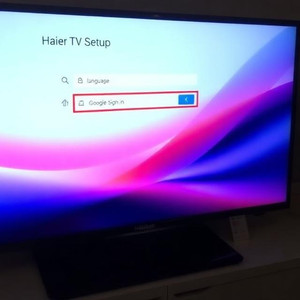
- Plug the TV into a power outlet. The standby light under the screen glows red. Press the power button on the remote.
- Select your language and region. Connect to Wi‑Fi by choosing your network and entering the password. The TV supports 2.4 GHz and 5 GHz Wi‑Fi.
- Sign in to your Google account. This gives you access to the Play Store, Google Assistant, and personalized recommendations. You can skip this step and sign in later, but many apps require a Google account.
- The TV will prompt you to set up the remote buttons for your set‑top box or soundbar. Follow the on‑screen instructions if you want the Haier remote to control other devices.
- After setup, the Home screen appears. Press the Home button (house icon) on the remote to return here anytime.
Picture Settings and Calibration
The default picture settings are often too bright for everyday viewing. Here’s a quick calibration that works well in most rooms.
- Press the Settings button (gear icon) on the remote. Go to Picture.
- Picture Mode: Select Movie or Cinema for the most accurate colors. Standard is brighter; Dynamic oversaturates and is not recommended.
- Backlight: Set to 70–80 for a well‑lit room, 50–60 for a dark room.
- Brightness: Leave at 50. This controls black level, not backlight.
- Contrast: 80–90. Avoid 100, as it can crush white details.
- Color: 50–55. This is already well‑balanced out of the box.
- Sharpness: Set to 10–15. Higher settings add artificial edges and noise.
- Color Temperature: Choose Warm or Warm2. This gives whites a slightly reddish tone, which is the film industry standard.
- Motion smoothing (Motionflow/Soap Opera Effect): Under Advanced Settings, turn Motion Enhancement off, or set it to Low if you prefer smoother motion for sports.
Installing Apps and Managing Storage
The LE50K6500U runs Android TV, so you have access to the Google Play Store.
- From the Home screen, navigate to the Apps row and select Google Play Store.
- Browse or search for apps like Netflix, YouTube, Prime Video, Disney+, and Plex.
- Select an app and choose Install. The app will appear on your Home screen once installed.
- To remove an app, go to Settings > Apps, select the app, and choose Uninstall.
- If the TV runs low on internal storage, connect a USB flash drive and go to Settings > Storage & reset > Removable storage and format it as internal storage. Apps can then be moved to the USB drive.
USB Playback and Recording (PVR)
You can play personal media files directly from a USB drive.
- Insert a USB flash drive (formatted as FAT32 or NTFS) into one of the USB ports.
- The TV will automatically detect the drive and open the Media Player.
- Navigate to Videos, Photos, or Music folders and select a file to play. The built‑in player supports most common formats: MP4, MKV, AVI for video; MP3, AAC for audio; JPEG, PNG for photos.
- For PVR (recording live TV), connect a USB drive (at least 16 GB, formatted as internal storage). While watching a broadcast channel, press the Record button on the remote. The TV will record the current program. You can also schedule recordings from the electronic program guide (EPG).
Troubleshooting Common Problems
| Problem | Likely Cause | What to Try |
|---|---|---|
| TV turns on but no picture (black screen) | Incorrect input or display issue | Press the Source button on the remote and cycle through HDMI inputs. Shine a flashlight on the screen: if you see a faint image, the backlight may have failed—contact Haier support. |
| Apps crash or freeze | Corrupted cache | Go to Settings > Apps, select the app, and choose Clear cache and Clear data. Restart the TV by holding the power button on the remote for 5 seconds and selecting Restart. |
| Wi‑Fi disconnects frequently | Weak signal or router settings | Move the router closer to the TV or use a wired Ethernet connection. In Settings > Network, forget the network and reconnect. Ensure the router is broadcasting on a non‑congested channel. |
| Remote not working | Dead batteries or Bluetooth disconnected | Replace both AAA batteries. If the remote is Bluetooth, go to Settings > Remotes & Accessories and re‑pair it by pressing and holding the Home and Back buttons together for 5 seconds. |
| No sound from external speakers | ARC or optical cable issue | Check that the HDMI cable is connected to the HDMI 1 (ARC) port. Go to Settings > Sound > Audio output and select ARC or Optical. Ensure the soundbar is set to the correct input. |
| TV restarts randomly | Power supply or app conflict | Unplug the TV for 2 minutes, then plug it back in. If the problem persists, boot into Safe Mode by pressing and holding the Volume Down button while turning on the TV, then uninstall recently added apps. |
How to Factory Reset
How to Factory Reset and Enter Recovery Mode
Soft restart: Press and hold the power button on the remote for about 5 seconds and select Restart. This clears temporary glitches without losing data.
Factory reset from Settings: Go to Settings > Storage & reset > Factory data reset. Confirm with your PIN (default is 0000 or 1234 if you haven’t set one). This erases all accounts, apps, and settings, returning the TV to its out‑of‑box state.
Factory reset using the buttons (if the TV won’t boot to the Home screen):
- Unplug the TV from the power outlet.
- Press and hold the Power button on the TV (not the remote, the physical button on the back or bottom edge).
- Keep holding the power button and plug the TV back into the wall.
- Continue holding until the Android recovery menu appears.
- Use the remote’s navigation buttons to select Wipe data/factory reset, then confirm. Select Reboot system now when finished.
Quick Reference Card
| Task | How |
|---|---|
| Change input source | Press the Source button on the remote |
| Open settings | Press the Gear icon on the remote |
| Force restart | Hold power button 5 seconds > Restart |
| Clear app cache | Settings > Apps > select app > Clear cache |
| Factory reset | Settings > Storage & reset > Factory data reset |
| Enter recovery mode | Unplug, hold TV power button, plug in, wait for menu |
