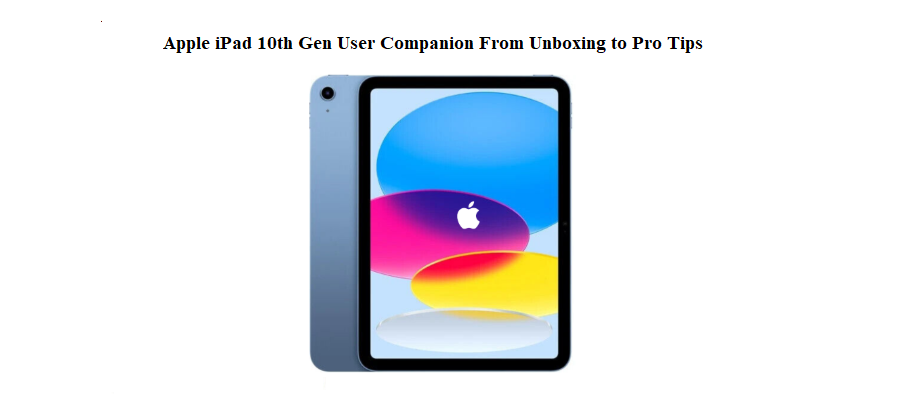

Apple iPad 10th Gen User Companion From Unboxing to Pro Tips
Why This Companion Exists
Apple ships the iPad 10th generation with a USB‑C cable, a power adapter, and a slim safety leaflet. There’s no proper manual inside the box, so thousands of people search for an “iPad 10th generation manual” every single day. They want to know how the new landscape camera works, what the USB‑C port can do beyond charging, how to make the battery last, and where Apple hid the genuinely useful settings.
This iPad 10th gen companion bridges the gap between a blank screen and a tablet that feels like yours. I’ve used every multitasking trick, tested the Apple Pencil (USB‑C), drained the battery on purpose, and uncovered features most owners never notice. Whether you’ve just peeled off the screen protector or you’ve been using the iPad for months, you’ll find practical advice here. Keep this page handy—the next time an app freezes, a gesture stops working, or a setting seems to vanish, you’ll have the fix.
Inside the Package
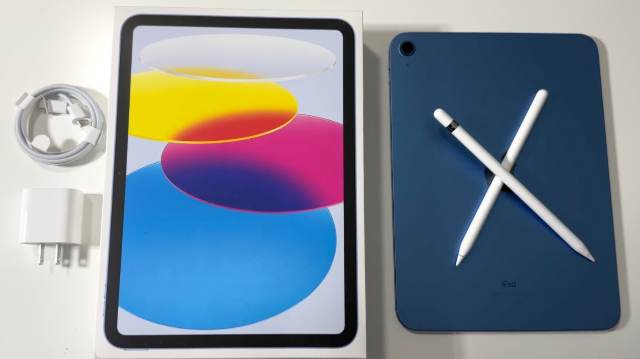
Your iPad 10th generation box holds:
- The iPad itself, with a protective film on the display
- A braided USB‑C charging cable (one meter)
- A 20W USB‑C power adapter
- A tiny Quick Start Guide and warranty sheet
- Two Apple stickers
- You won’t find a headphone jack, an Apple Pencil, or a keyboard. For wired audio, you’ll need USB‑C earbuds or an adapter. The iPad works with the Apple Pencil (USB‑C) and the Magic Keyboard Folio, both sold separately.
Physical Controls and Ports
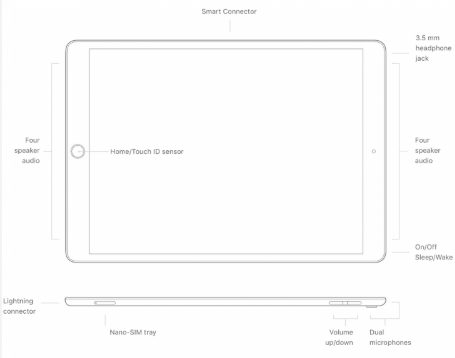
The iPad’s hardware is minimal, but every piece has a purpose.
Top button (Touch ID)
Rest your finger on it to unlock the iPad, approve purchases, and sign into apps. You can register up to five fingerprints. If Touch ID becomes unreliable, wipe the button with a dry, soft cloth and re‑scan your prints.
Volume buttons
Press the top or bottom half of the rocker on the long edge. Holding the Top button and either volume button together for two seconds forces the passcode screen and temporarily disables biometric unlock.
USB‑C port
This single port charges the iPad, connects to external drives and displays, and works with USB‑C hubs. You can plug in a mouse or keyboard directly—no adapter required.
Smart Connector
Three tiny dots on the side edge. They provide power and data to the Magic Keyboard Folio and similar accessories without Bluetooth.
Powering On and the First Ten Minutes
Hold the Top button until the Apple logo glows. The setup assistant will ask for your language, region, Wi‑Fi, and Apple ID. Once you reach the Home Screen, pause and make these adjustments.
iPad OS update
Head to Settings > General > Software Update. If an update is waiting, install it now. Apple often fixes bugs and adds features between major releases.
iCloud and Find My
Settings > [your name] > iCloud. Switch on iCloud Backup, decide whether you want iCloud Photos enabled, and make sure Find My iPad is turned on. Without Find My, a lost iPad is nearly impossible to recover.
Screen and text comfort
Settings > Display & Brightness. Enable True Tone and Night Shift. Under Text Size, drag the slider until reading feels effortless. For larger system‑wide text, visit Settings > Accessibility > Display & Text Size > Larger Text.
Battery percentage visibility
The status bar doesn’t show the battery percentage by default. Swipe down from the top‑right corner to see it in Control Center. You can also add the Batteries widget to your Home Screen for a constant readout.
Widgets and home screen layout
Long‑press the Home Screen, tap the plus icon, and add widgets for weather, calendar, notes, and battery. Drag them into place. Widgets let you absorb information without opening apps.
Gestures You’ll Use Every Day
The iPad’s multi‑touch gestures are the fastest way to get around.
Core gestures
- Go Home: Swipe up from the bottom edge.
- App Switcher: Swipe up and pause.
- Quick app switch: Swipe left or right along the bottom edge.
- Spotlight Search: Swipe down from the middle of the Home Screen. It finds apps, emails, photos, and web results.
Multitasking gestures
- Slide Over: Swipe diagonally from the bottom corner to pull an app into a floating window. Hide it off the right edge and swipe back to bring it forward.
- Split View: Open an app, tap the three‑dot menu at the top centre, pick Split View, then choose a second app. Drag the divider to resize.
- Drag and drop: With two apps side by side, drag images, text, or files between them with your finger.
Apple Pencil gestures (USB‑C model)
- Quick Note: Swipe the Pencil from the bottom‑right corner of the screen. A floating note appears instantly.
- Screenshot markup: Capture a screenshot (Top button + Volume Up), then draw or annotate with the Pencil.
Getting More from the Camera and Apple Pencil
The landscape 12MP ultra‑wide front camera is perfect for video calls, and the rear 12MP shooter handles documents and casual photos well.
Camera tricks
- Tap the screen to set focus and exposure. Slide the sun icon up or down to brighten or darken the shot.
- For scanning documents, the Camera app automatically detects a page and shows a yellow frame; tap the scan button.
- Turn on the Grid (Settings > Camera > Grid) to help with composition.
Using the Apple Pencil (USB‑C)
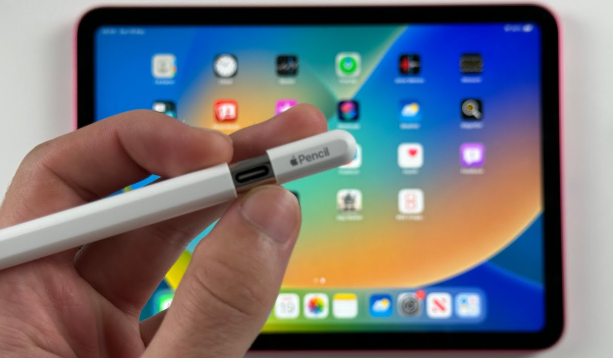
Slide open the Pencil’s end cap and connect it to the iPad using a USB‑C cable. Once paired, start writing or drawing. In Notes, tap the pen icon to begin handwriting, then use the selection tool to convert your scribbles to typed text.
Scribble
Enable Scribble in Settings > Apple Pencil. You can then write directly into any text field—search bars, Safari’s address bar, Messages—and your handwriting becomes typed text automatically.
Charging, Battery Health, and Power Tips
Fast charging
The included 20W adapter and USB‑C cable charge the iPad from 0 to 50% in roughly half an hour. A full charge takes about 2.5 hours.
Optimized Battery Charging
Settings > Battery > Battery Health & Charging. Turn on Optimized Battery Charging. The iPad learns your routine and waits to finish charging past 80% until you need it, which slows battery aging.
Low Power Mode
Open Control Center and tap the battery icon, or go to Settings > Battery. Low Power Mode pauses background tasks, mail fetch, and some visual effects. Use it when an outlet isn’t nearby.
Battery health check
Settings > Battery > Battery Health. A “Normal” reading means the battery is fine. If it says “Service Recommended,” book an appointment with Apple.
Long‑term storage
If you plan to put the iPad away for weeks, charge it to roughly 50% and power it off. Never store it completely drained.
Keyboards, Mice, and External Displays
Bluetooth accessories
Open Settings > Bluetooth, put your keyboard or mouse into pairing mode, and select it from the list. A circular pointer appears on screen when you move the mouse. Adjust tracking speed in Settings > General > Trackpad & Mouse.
USB‑C hubs and drives
Plug a USB‑C hub into the iPad and connect USB drives, SD cards, or wired keyboards. The Files app lets you browse external storage. The iPad reads and writes FAT32, ex FAT, and APFS volumes.
External screens
The iPad 10th generation supports one external display at up to 4K 60Hz via a USB‑C to HDMI cable or a compatible hub. The screen mirrors by default. With a keyboard and mouse, you can use the external display as a secondary monitor for apps like Keynote.
Privacy and Security Settings That Matter
Find My iPad
Settings > [your name] > Find My > Find My iPad. Keep this on. Even offline, the iPad can be located through nearby Apple devices.
App Privacy Report
Settings > Privacy & Security > App Privacy Report. Turn it on and check back later to see which apps access your camera, mic, and location, and which internet domains they contact.
Safari privacy
Settings > Safari. Enable “Prevent Cross‑Site Tracking” and “Hide IP address.” These limit ad tracking as you browse.
Two‑factor authentication
Make sure your Apple ID is protected by two‑factor authentication. Check this at Settings > [your name] > Password & Security.
Lock screen access
Settings > Touch ID & Passcode. Scroll to “Allow Access When Locked.” Turn off anything you don’t want someone to see without unlocking—especially USB Accessories, Today View, and Notification Centre.
Restarting, Resetting, and Recovery
Soft restart
Hold the Top button and either volume button until “slide to power off” appears. Swipe to turn off. Wait half a minute, then hold the Top button to power on.
Force restart (frozen screen)
Press and release Volume Up, press and release Volume Down, then hold the Top button until the Apple logo appears. No data is lost.
Factory reset via Settings
Settings > General > Transfer or Reset iPad > Erase All Content and Settings. You’ll need your Apple ID password. This removes everything and returns the iPad to factory state.
Recovery Mode
Connect the iPad to a Mac or PC with a USB‑C cable. Press Volume Up, then Volume Down, then hold the Top button until the recovery screen shows a cable pointing at a laptop. Use Finder (Mac) or iTunes (PC) to update or restore.
Everyday Issues and Their Fixes
| Problem | Likely Cause | What to Try |
|---|---|---|
| iPad won’t charge | Dirty port or weak adapter | Clean the USB‑C port carefully with a wooden toothpick. Use the included 20W adapter and cable. |
| Apps keep crashing | Software bug or low storage | Update the app. Restart the iPad. Check Settings > General > iPad Storage and free at least 2 GB. |
| Wi‑Fi drops frequently | Router or software glitch | Forget the network (Settings > Wi‑Fi > info icon > Forget This Network), reconnect, and restart your router. |
| Touch screen unresponsive | Screen protector or freeze | Remove thick protectors. Force restart the iPad. If the issue continues, contact Apple. |
| Battery drains overnight | Background activity | Check Settings > Battery for heavy app usage. Disable Background App Refresh for apps you don’t need. |
| Bluetooth accessory won’t pair | Interference or pairing limit | Toggle Bluetooth off and on. Forget the accessory and re‑pair. Confirm the accessory is charged and close. |
Lesser‑Known Features Worth Trying
Back Tap
Settings > Accessibility > Touch > Back Tap. Assign a double‑tap or triple‑tap on the back of the iPad to take a screenshot, open Control Center, or run a custom shortcut. Works with most cases.
Split keyboard
Place two fingers on the on‑screen keyboard and spread them apart to split it into left and right halves—ideal for thumb typing while holding the iPad.
Quick Note
Swipe your finger (or Apple Pencil) from the bottom‑right corner to open a floating note. Jot something down, paste a link, and it’s saved automatically.
Live Text
When an image contains words, tap the text selection icon and you can copy, translate, or look up that text. This works in the Camera app, Photos, and Safari.
Stage Manager (with external display)
When a monitor is connected, Control Center shows a Stage Manager button. Tap it to use windowed multitasking across both screens, with resizable, overlapping windows.
Quick Reference Card
| Action | How |
|---|---|
| Screenshot | Top button + Volume Up |
| Mark up a screenshot | Tap the floating thumbnail after capture |
| Force restart | Volume Up, Volume Down, hold Top button |
| App Switcher | Swipe up from bottom and pause |
| Quick Note | Swipe from bottom‑right corner with finger or Pencil |
| Spotlight Search | Swipe down from middle of Home Screen |
| Low Power Mode | Control Center > Battery icon |
| Control Center | Swipe down from top‑right corner |
Download the iPad 10th Gen Cheat Sheet
A one‑page PDF with gestures, button combinations, battery tips, and troubleshooting steps. Save it offline—perfect when you need a quick reminder.
[ Insert download link: “iPad 10th Gen Quick Guide (PDF)” ]
Official Apple Support Page
For warranty information, service, and Apple’s digital manual, visit:
https://support.apple.com/ipad
Parting Thought
This companion was written to make your iPad feel less like a glass rectangle and more like a trusted tool. I hope you discovered at least three tricks you’ll use tomorrow. If a family member or colleague ever stares at their iPad in confusion, share this page—it might save them an hour of tapping through menus.
Copyright Warning!
Copyright 2026 [Your Name or Site Name]. All rights reserved. This iPad 10th generation manual is original content and may not be copied, republished, or redistributed without written permission. Apple, iPad, Touch ID, and the Apple logo are trademarks of Apple Inc. This guide is unofficial and not affiliated with or endorsed by Apple.
Thanks for visiting this site. Have a nice day.
