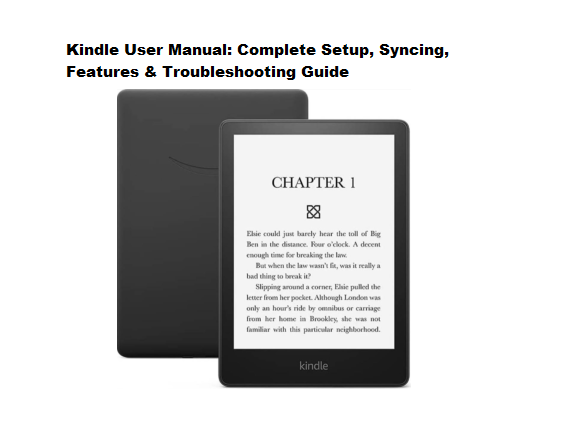

KINDLE USER MANUAL:COMPLETE SETUP,SYNCING,FEATURES AND TROUBLESHOOTING GUIDE.
Introduction
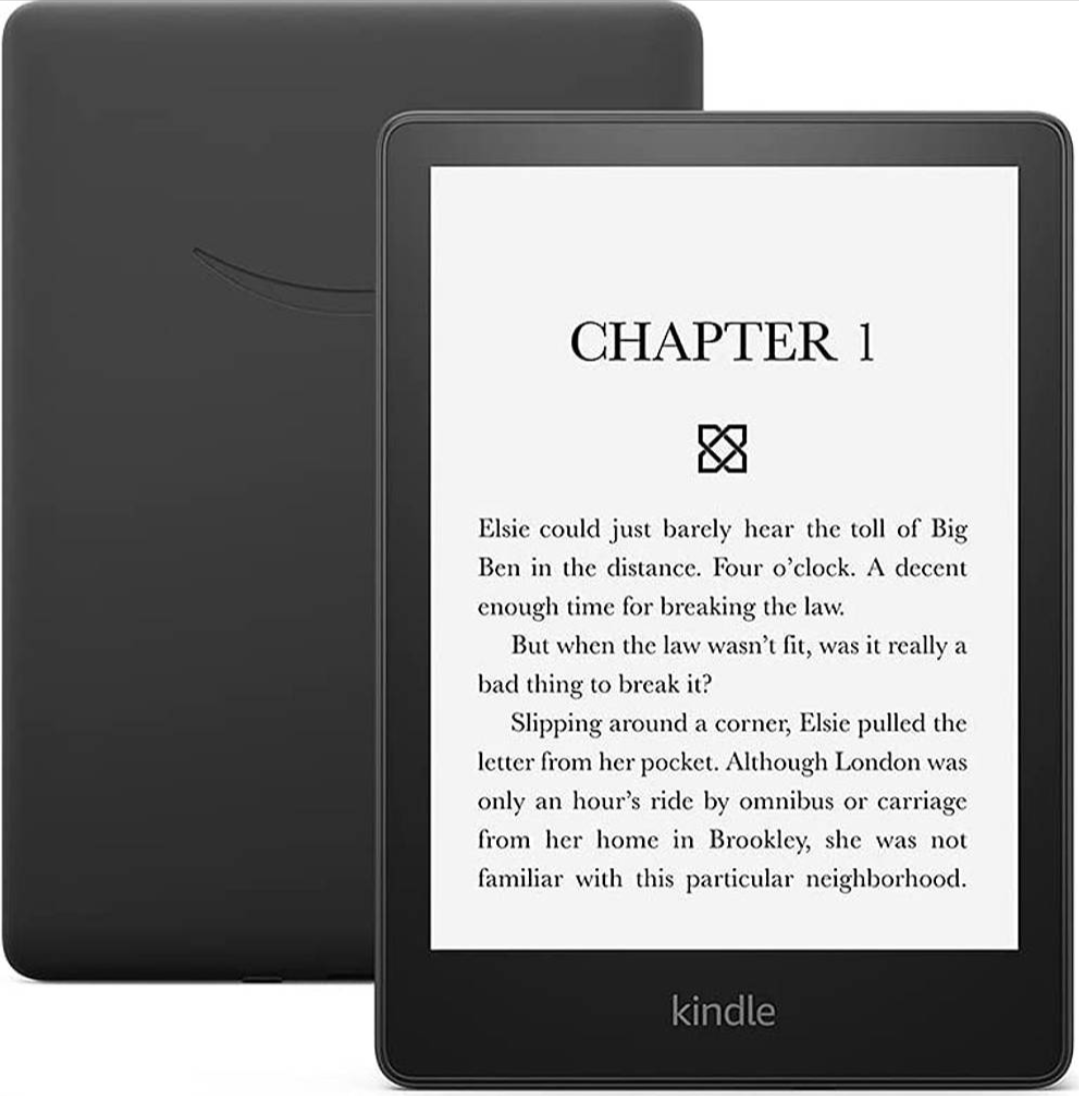
Welcome to the complete user manual for your Amazon Kindle. Whether you unboxed your e-reader today or have owned one for years, this guide covers everything from initial setup to advanced features and maintenance. Kindle transforms how you carry, access, and enjoy books by placing an entire library in your palm. Its glare-free screen reads like real paper, and weeks of battery life keep pages turning without constant charging.
This manual walks you through step‑by‑step setup, smart syncing across devices, hidden tricks to personalize your reading experience, and simple fixes for common problems. Follow each section, and you will master your Kindle in no time.
Which Kindle Model Do You Have?
Amazon offers several Kindle models. Each shares core features but includes unique extras. Identifying your specific device helps you follow the correct instructions. Below is a quick comparison of current models.
| Model | Key Features | Best For |
|---|---|---|
| Kindle (2024) | 6” glare‑free display, 16GB storage, adjustable front light | Budget‑conscious readers, first‑time e‑reader users |
| Kindle Paperwhite (2024) | 6.8” display, warm light, waterproof, up to 10 weeks battery | Most readers overall, bright sunlight reading, poolside use |
| Kindle Paperwhite Signature Edition | All Paperwhite features plus auto‑adjusting light, wireless charging, 32GB | Readers who want every premium feature without a stylus |
| Kindle Colorsoft | First color E Ink display, color highlights, magazine & comic support | Graphic novel fans, cookbook users, students who color‑code notes |
| Kindle Scribe | 10.2” display, includes stylus pen for writing & drawing | Note‑takers, students, professionals who mark up PDFs |
| Kindle Kids Edition | Includes a protective case, 2‑year worry‑free guarantee, Amazon Kids+ subscription | Parents who want a safe, child‑friendly reading device |
How to Set Up Your Kindle for the First Time
Follow these steps to start reading quickly.
Step 1: Charge Your Kindle
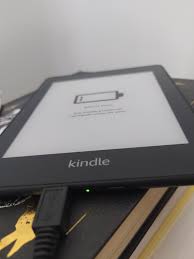
- Plug the included USB‑C cable into your Kindle and connect it to any USB power adapter or a computer’s USB port. The charging indicator light on the bottom edge turns orange while charging and green when fully charged. For the best long‑term battery health, charge your Kindle before its battery runs completely empty.
Step 2: Turn On and Choose Your Language
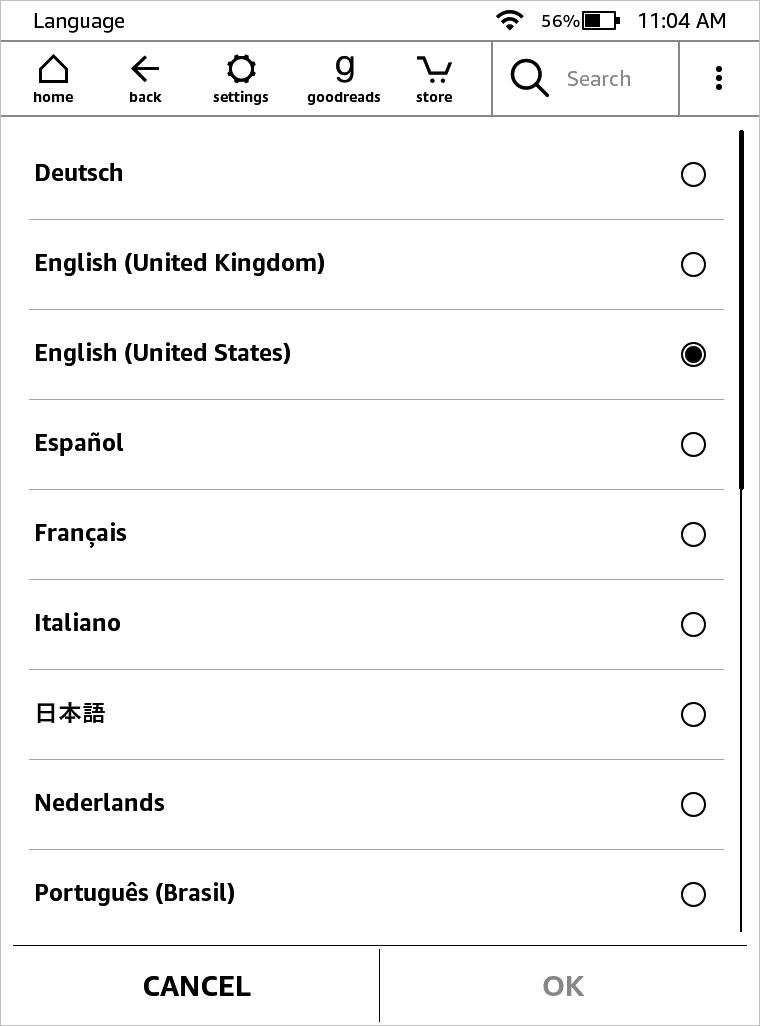
- Press and hold the power button for about two seconds until the screen lights up. Select your preferred language and your current region.
Step 3: Connect to Wi‑Fi
- Your Kindle requires a Wi‑Fi connection to register with Amazon and download books. Select your network from the list, then enter the password. The device automatically checks for and installs any available software updates.
Step 4: Register Your Kindle
- If you already have an Amazon account, sign in using your email and password. If you are new to Amazon, follow the on‑screen instructions to create a new account.
- Registration links your Kindle to your personal library. All books you purchase from Amazon will appear automatically after registration.
Step 5: Alternative: Set Up with Your Phone
- Some newer Kindles offer a “Set up with your phone” option during the initial process. This method uses the Kindle app on your iOS or Android device to transfer Wi‑Fi credentials and your Amazon account without typing passwords on the e‑reader itself.
First Things to Do After Setup
- Open the included Kindle User Guide – Your device comes with a built‑in guide that explains every feature in detail. Find it on your home screen under “Library.”
- Visit the Kindle Store – Tap the shopping cart icon to browse millions of books, including free classics.
- Adjust the front light – Swipe down from the top of the screen to open Quick Actions, then slide the brightness control.
- Set up Amazon Kids – If you share your Kindle with children, go to Settings → Parental Controls → Amazon Kids to create a child profile with a PIN code.
Battery Care and Charging Best Practices
Your Kindle’s battery can last weeks on a single charge if you follow these simple rules.
How to Charge Your Kindle
Always use the cable that came with your device. Connect it to any standard USB power adapter (5 watts minimum) or a computer’s USB port. Avoid charging through USB hubs or keyboards because they may not provide enough power. The charging light turns green when the battery reaches 100%.
Charging Temperature Range
Charge your Kindle only in temperatures between 32°F and 95°F (0°C to 35°C). Extreme cold or heat degrades battery performance and may trigger safety cutoffs.
Tips to Extend Battery Life
- Turn on Airplane Mode when you are reading for long periods without needing to download new books. This stops the Kindle from constantly checking for updates.
- Lower the screen brightness. The front light uses a significant amount of power.
- Shorten the “Screen Off” timer under Settings → Device Options → Screen Off.
- Keep your Kindle updated to the latest software version. Updates often include power management improvements.
How to Sync Your Kindle Across Multiple Devices
Amazon’s Whisper sync technology automatically saves your reading position, highlights, and notes to the cloud. You can start reading on your Kindle, continue on your phone during a commute, and finish on a tablet without ever searching for the right page.
How to Manually Sync
From the home screen, swipe down to open Quick Actions, then tap the Sync icon (two circular arrows). Alternatively, go to Settings → Sync and Check for Items.
How to Enable Sync on the Kindle App
Open the Kindle app on your phone or tablet. Tap More → Settings, then make sure the Sync for Books option is turned on. This ensures your reading position updates across all devices automatically.
What Gets Synced?
Whisper sync saves the following data to your Amazon account:
- The furthest page you have read in each book
- All bookmarks, highlights, and notes
- The last position you reached in any audiobook (if you also listen using Audible)
Important Note About Sideloaded Files
Files you transfer to your Kindle using a USB cable do not sync across devices. Amazon’s cloud cannot track your progress in documents that bypass its system. To enable syncing for personal documents, use Amazon’s Send to Kindle service instead.
How to Transfer Books and Documents to Your Kindle
You can add books to your Kindle in three ways. Choose the method that fits your situation.
Method 1: Buy Directly from Amazon
This is the easiest approach. When you purchase a book on Amazon, tap “Deliver to your Kindle” during checkout. The book appears on your device automatically within seconds.
Method 2: Send to Kindle (Cloud Sync, Recommended for Personal Files)
The Send to Kindle service adds documents to your Amazon cloud library. You can then download them to any Kindle or Kindle app, and Whispersync keeps your reading position across devices.
Supported file formats
- EPUB, PDF, DOC, DOCX, TXT, RTF, HTML, and more.
Note: MOBI and AZW3 files are no longer supported.
How to use Send to Kindle:
- Go to the Send to Kindle page on Amazon’s website.
- Drag and drop your file into the upload area.
- Choose which Kindle device or app to deliver the document to.
- Open your Kindle and sync to download the file.
USB Transfer (No Syncing)
Use this method only when you do not have Wi‑Fi or do not care about syncing your progress.
- Connect your Kindle to a computer using the USB‑C cable.
- On the computer, open “This PC” (Windows) or “Finder” (Mac) and locate your Kindle as a removable drive.
- Drag your ebook files directly into the “Documents” folder on the Kindle.
- Safely eject the Kindle before unplugging the cable.
Advanced Reading Features You Should Know
Beyond basic reading, your Kindle includes hidden tools that improve comprehension and enjoyment.
Vocabulary Builder
Every time you look up a word using the built‑in dictionary, Kindle automatically adds that word to a personal vocabulary list. To review your words, open any book, tap the Menu → Vocabulary Builder. You can quiz yourself using flashcards directly on the device.
Word Wise
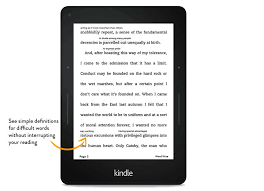
For readers learning a new language or struggling with difficult vocabulary, Word Wise displays short, simple definitions above challenging words automatically. Enable it by tapping Aa → More → Word Wise.
X‑Ray
When reading complex books with many characters or terms, tap the top of the screen, then tap X‑Ray. Kindle displays a list of every character, term, or location mentioned in the book with brief descriptions. This feature works only for books that support it – most popular titles do.
Page Flip
While reading a book, swipe upward from the very bottom of the screen. A horizontal timeline appears showing miniature previews of every page. Glide your finger across the timeline to skim ahead without losing your current spot. Release to return to where you were, or tap a preview to jump to that page permanently.
Ask this Book (AI Feature)
On the Kindle mobile app (and coming to Kindle devices), you can highlight any passage and ask natural‑language questions about the book. For example, highlight a character’s name and ask “Why did this character make that choice?” Amazon’s AI answers without revealing spoilers.
Customizing Your Reading Experience
Change Font and Text Size
Pinch two fingers together on the screen to instantly shrink text, or spread them apart to enlarge text. This gesture works anywhere inside a book and is faster than opening menus. For more options, tap Aa at the top of the screen.
Dark Mode and Warm Light
On Paperwhite, Colorsoft, and later models, enable Dark Mode (white text on a black background) by swiping down and tapping the brightness icon, then selecting Dark Mode. This setting is ideal for reading in total darkness.
To reduce blue light at night, tap Aa → Page Color → Warmth. Slide the control toward the right to make the screen glow amber. You can schedule warm light to turn on automatically after sunset.
Enable the Clock
Do you lose track of time while reading? Go to Aa → More → Reading Progress → Clock On. Your Kindle now shows the current time in the top corner of every page.
Reading Ruler (App Only)
On the Kindle mobile app, enable Reading Ruler under accessibility settings. This feature highlights one line of text at a time and dims the rest. It helps readers with dyslexia, ADHD, or visual stress focus on each sentence.
Kindle for Kids
Kindle for Kids: Parental Controls and Profiles
The Kindle Kids Edition comes pre‑configured with Amazon Kids+, a subscription service that grants access to thousands of children’s books. However, you can set up a child profile on any Kindle model.
How to Create a Child Profile
- From the home screen, tap the Menu icon (three dots).
- Select Parental Controls, then Amazon Kids.
- Tap Add New Profile.
- Enter your parental control PIN (the first time you set this, Kindle asks you to create one).
- Enter your child’s name and birthday. Kindle automatically filters content appropriate for their age.
What You Can Restrict
Within a child profile, you can block:
- Access to the Kindle Store
- Web browsing (if your model supports a browser)
- Goodreads integration
- The ability to delete books
- Access to your adult library content
To adjust these restrictions, go to Settings → Your Account → Parental Controls.
Kindle Accessibility Features
Amazon designed Kindle to serve readers with visual impairments, dyslexia, and other reading challenges.
VoiceView Screen Reader
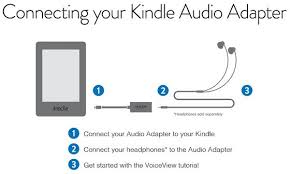
VoiceView reads every menu option, button, and book aloud using spoken feedback. To use VoiceView, you need a Bluetooth headset or speaker because Kindles do not have built‑in speakers.
How to enable VoiceView:
- Pair a Bluetooth audio device with your Kindle (Settings → Bluetooth).
- Go to Settings → Accessibility → VoiceView Screen Reader.
- Toggle the switch to On.
- Follow the audio prompts to navigate your Kindle using taps and swipes.
Text‑to‑Speech for Books
With VoiceView enabled, your Kindle can read any book aloud using text‑to‑speech technology. The feature is available in English only. Not all books support text‑to‑speech; check the product page on Amazon for compatibility.
OpenDyslexic Font
This specialized typeface weights the bottom of each letter to reduce visual distortion. To enable it, open any book, tap Aa → Font → OpenDyslexic [13†L7-L9].
Invert Colors (High Contrast)
Go to Settings → Accessibility → Invert Colors to swap black and white on your screen. This setting helps readers with low vision distinguish interface elements more clearly.
Maintenance and Cleaning
Regular care keeps your Kindle in excellent condition for years.
Cleaning the Screen
Use a soft, dry microfiber cloth to wipe the screen. For stubborn smudges, lightly dampen the cloth with water. Never use glass cleaner, alcohol, or abrasive materials. Those chemicals damage the anti‑glare coating.
Preventing Scratches
Always keep your Kindle inside a protective case when carrying it in a bag or backpack. The case prevents scratches from keys, coins, or other hard objects.
Water Exposure
If your Kindle is waterproof (Paperwhite, Color soft, and Scribe models are), and it gets splashed, simply wipe it dry with a soft cloth and continue reading. If the device falls into water, remove any attached case, disconnect all cables, and let it dry completely before attempting to charge it.
Storage When Not in Use
If you leave your Kindle unused for several months, charge its battery to approximately 50% before storing it. Store the device in a cool, dry place. Extreme heat permanently damages lithium‑ion batteries.
Troubleshooting Common Kindle Problems
| Problem | Likely Cause | How to Fix It |
|---|---|---|
| Screen is frozen or unresponsive | Software glitch | Press and hold the power button for 40 seconds. Do not release early. The Kindle restarts automatically. |
| Kindle will not turn on | Dead battery | Connect to a charger and wait 30 minutes. The screen may stay black until the battery has enough charge to wake up. |
| Battery drains very quickly | A book is stuck indexing | Go to your library and delete recently added books one by one. After each deletion, check if battery performance improves. |
| Wi‑Fi connects but cannot download books | Airplane Mode is on | Swipe down and turn off Airplane Mode. If off, restart your router and sync your Kindle manually. |
| Page turns are slow or laggy | Low storage space | Archive books you have finished. Go to Settings → Device Options → Advanced Options → Storage Management. |
| Cannot download books from library | Insufficient storage | Delete unused dictionaries or samples. If the problem continues, restart your Kindle and re‑register it to your Amazon account. |
How to Update Your Kindle Software
Amazon regularly releases free software updates that add new features and fix bugs. Most Kindles update automatically when connected to Wi‑Fi. If you want to force an update or your device missed the automatic update, follow these steps.
Automatic Update (Recommended)
Your Kindle downloads new software overnight while charging and connected to Wi‑Fi. You do not need to do anything.
Manual Update (Using a Computer)
- On a computer, visit Amazon’s Kindle E‑Reader Software Updates page.
- Find your Kindle model and download the update file (it ends with
.bin). - Connect your Kindle to the computer using a USB cable.
- Copy the
.binfile into the root folder of your Kindle (not into any subfolder). - Safely eject the Kindle from your computer, then unplug the cable.
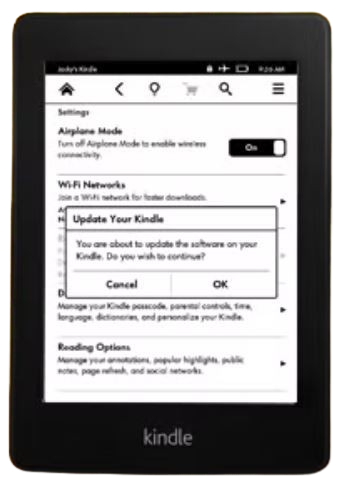
- On your Kindle, go to Settings → Menu → Update Your Kindle.
- Tap OK. The device restarts and installs the update.
Frequently Asked Questions
Q1: My Kindle is frozen. What should I do?
Hold the power button down for 40 seconds. Count slowly. The screen will go blank, then the Kindle logo appears. Release the button only after you see the logo.
Q2: Can I read library books on my Kindle?
Yes. Use the Libby app on your phone or tablet. Borrow a book from your local library, then choose “Read with Kindle” and sign into your Amazon account. Amazon delivers the library book to your Kindle for the loan period. After the loan expires, the book disappears automatically.
Q3: Why do some of my books not show covers on the lock screen?
Go to Settings → Device Options → Display Cover. Turn this setting Off and then On again. If the problem continues, remove the book from your Kindle and re‑download it from your Amazon library.
Q4: How do I delete a book from my Kindle?
On your home screen, press and hold the book cover. A menu appears. Tap Remove from Device. The book remains in your Amazon cloud library, so you can download it again later for free.
Q5: Why does my Kindle keep restarting on its own?
This often indicates a corrupted book file. Remove any books you added recently. If the problem stops, re‑add those books one at a time to find the corrupted one. If the problem continues, perform a factory reset (Settings → Device Options → Reset), but note this erases all content.
Q6: Can I listen to audiobooks on my Kindle?
Yes, if you own the Audible version of a book. Pair Bluetooth headphones or a speaker, then open the book and tap the headphones icon. Kindle plays the audio while highlighting the matching text. This works only with Audible titles linked to a Kindle book.
Q7: How much storage space do I need?
A typical book requires 1‑2 MB of space. A 16GB Kindle holds approximately 6,000‑8,000 books. The 32GB Signature Edition holds roughly 12,000‑16,000 books. The only reason to choose 32GB is for audiobooks (which use far more space) or large PDF/image‑heavy files.
Q8: What file formats does Kindle support?
Kindle reads AZW, AZW3, MOBI, PDF, EPUB (via Send to Kindle), TXT, DOC, DOCX, HTML, and several image formats (JPG, GIF, PNG). Kindle does not play video or music files.
Conclusion
Your Kindle is more than a simple e‑reader. It is a complete reading ecosystem that adapts to your needs. By following this manual, you learned how to set up your device, extend its battery, sync across gadgets, transfer personal documents, use hidden features, and fix common glitches.
Bookmark this page for future reference. Whenever you encounter a problem or forget how to use a feature, return here. And remember: your Kindle contains a full built‑in user guide of its own, accessible at any time from your library.
Enjoy your reading.
Read More About Products Manuals Click Here!

[…] SLEEP again to exit sleep mode. The SLEEP button is also used to set up the WIFI function. See the WIFI SMART CONTROL section for further […]