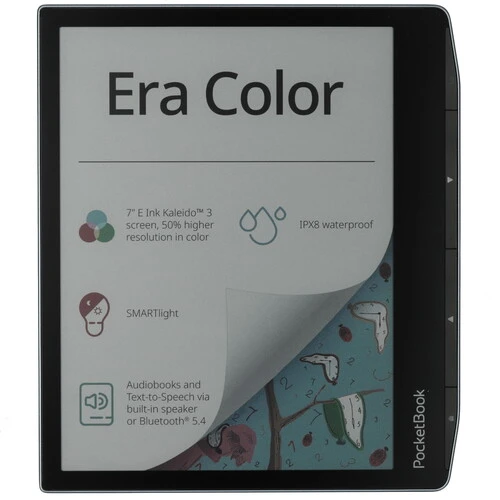

PocketBook Era: One of Our Favorite Pocket-Sized PCs
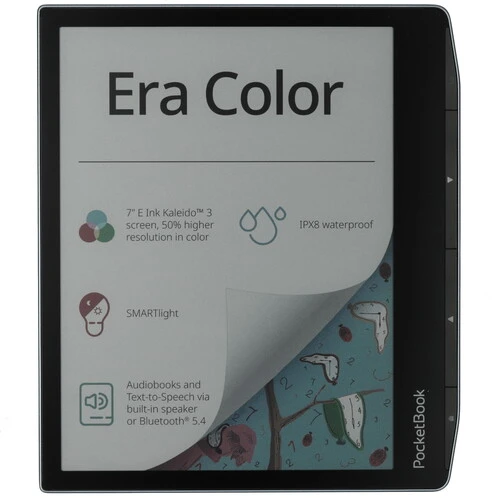
Introduction
So you just got your hands on a PocketBook Era – or you’re thinking about buying one. Either way, you’ve landed on the right guide. This isn’t a copy of the official manual. Instead, I’ve taken the most important bits, added real-world tips, and solved the problems that actually pop up after a few weeks of use.
Whether you need help with first-time setup, button mapping, battery life, or fixing a frozen screen, this guide has your back. Let’s dive in.
What’s in the Box
When you unbox your PocketBook Era, you’ll find:
- The PocketBook Era device (7-inch E Ink Carta 1200 display)
- A USB-C charging cable
- Quick start guide (the tiny one you’ll lose in a week)
You won’t find a wall charger in the box – any standard 5V/1A USB charger works fine. But here’s a tip: avoid using fast smartphone chargers (like 20W+). They can confuse the Era’s charging circuit. Stick to a basic 5W or 10W charger.
Also, the device is IPX8 waterproof, meaning it can survive a drop in the bath or a sudden rain shower. Just don’t take it swimming.
First 10 Things to Do After Unboxing
- Charge it fully – Even if the battery shows 50%, charge to 100% before first use. This calibrates the battery sensor.
- Update the firmware – Go to Settings > Software > Firmware Update. Connect to Wi-Fi and install the latest version. This fixes most early bugs.
- Register or skip – You don’t need a PocketBook account to read books, but you do need one for cloud sync and the bookstore. Create one later if you want.
- Set up Wi-Fi – 2.4 GHz only (no 5 GHz support). Make sure your network is visible.
- Adjust frontlight and SMARTlight – Pull down the notification panel and slide brightness. SMARTlight changes color temperature from cool to warm – perfect for night reading.
- Remap the buttons – Go to Settings > Personalize > Key mapping. You can assign page forward/back, home, menu, or even open a specific app. Most users set the left buttons for volume or brightness.
- Load your first books – Connect to a PC via USB, select “PC Link” on the device, then drag EPUB, PDF, or MOBI files into the “Books” folder.
- Test the G-sensor (auto-rotate) – Turn the device sideways. The screen should rotate automatically. If not, check Settings > Display > Auto-rotate.
- Turn on dark mode – Great for nighttime reading. From the notification panel, tap the moon icon.
- Set a PIN lock (optional) – If you take your Era outside, go to Settings > Security and set a passcode. It protects your reading data.
Features
Hidden Features Most Owners Miss
The official manual doesn’t tell you these:
- Pinch to zoom – In PDFs or images, place two fingers on the screen and spread them apart. The Era’s screen supports pinch zoom, even though it’s E Ink.
- Screenshot capture – Press and hold the “Home” button and the “Back” button at the same time. The screenshot saves to the “Screenshots” folder.
- Custom screensaver – Put any image (JPEG or PNG) in the “Images” folder, then go to Settings > Display > Sleep screen and choose your picture.
- Read stats – Swipe down from the top to see how many hours you’ve read this week. Hidden but cool.
- Bluetooth remote control – Pair a presentation clicker or a Bluetooth game controller, then map its buttons in Key mapping. Use it to turn pages from across the room.
Technical Specifications
| Feature | Details |
|---|---|
| Display | 7″ E Ink Carta 1200, 1264×1680, 300 dpi, B&W |
| Frontlight | Yes, with SMARTlight (warm/cool) |
| Processor | Dual Core (2×1 GHz) |
| RAM | 1 GB |
| Storage | 16 or 64 GB (actual available less due to OS) |
| Wireless | Wi-Fi 2.4 GHz, Bluetooth 4.0 |
| Battery | 1700 mAh Li‑Ion (weeks of reading) |
| Water resistance | IPX8 (submersible up to 2 meters for 60 min) |
| Ports | USB-C, 3.5mm audio via USB-C adapter |
| Formats | EPUB, PDF, MOBI, FB2, DJVU, CBR, CBZ, DOC, DOCX, TXT, HTML, and more |
| Dimensions | 134.3 × 155 × 7.8 mm |
| Weight | 228 grams |
Battery life: about one month at 30 minutes of reading per day with Wi-Fi off. Heavy use (brightness high, Wi-Fi on, audiobooks) drops to about 1–2 weeks.
Safety Precautions
Before start working with the Device, please, read this section carefully. Following these instructions will help you ensure your safety and extend service life of the Device.
Storage, Carriage and Usage Conditions
Device operating temperature range is 0°C to 40°C, so don’t expose the Device to excessively high or low temperatures. Never leave cables near heat sources. Heated cables or their insulation may become deformed or damaged, which could lead to fire or electric shock.
Try to avoid next impacts:

Maintenance
- Do not leave the Device for a long time in poorly ventilated environment, e.g. in a car or in closed tight boxes/ packaging.
- Neither drop nor try to bend the Device.
- Protect the screen from objects that may scratch or damage it.
- To ensure adequate protection of the screen, we recommend storing the Device in a protective and/or hard cover.
- Do not disassemble or modify the book reader.
- Do not use the Device with a damaged battery or charger (broken case, poor contact, broken feed cable). If the battery is damaged (cracked case, leakage of electrolyte, off-shape etc.) it should be replaced by the authorized personnel.
- Usage of home-made or modified batteries may cause an explosion and/or damage the Device.
- Do not use organic or inorganic solvents (e.g. benzoyl etc.) to clean the screen/case.
- Keep away from children.
- Use a soft cloth to remove dust from the Device’s surface.
- Apply a few drops of distilled water to remove dirt.
Up to five faulty pixels are acceptable in the screen and do not constitute a warrantable defect of the screen.
If the device has not been used for a long time, the battery charge indicator may not work when the charger is connected. In this case, connect the charger, let the device charge for 1 hour, then disconnect and reconnect the charging device or USB cable. The device can then be used as normal.
By the end of product guarantee term, please contact the nearest authorized service facility for examination on the subject of security is maintained.
For detailed information about service centres in your region please visit the official website: https://pocketbook.ch/.
 To prevent possible hearing damage, do not listen at high volume levels for long periods.
Warning
The screen of the device has a fragile glass base! To avoid damage, make sure not to drop, bend, or apply pressure to the device, do not allow point pressure on the screen surface and any other actions that might break or damage the glass base. Also, the screen does not have any special protective layer so please avoid any contact between its surface and objects that might leave marks or scratches on it. To decrease the risk of damaging the device and its screen it is recommended to keep and transport it in a Pocketbook protection cover.
Attention! The device cannot be used under water or when wet. If your device was immersed underwater, first allow the water to flow out through the holes in the case, then shake the device while holding it firmly and then leave it to dry for 24 hours. Do not immerse the device in sea water.
RF Safety
The Device receives and transmits radio frequencies and may interfere with radio communications and other electronic equipment. If you use personal medical Devices (e.g. a pacemaker or hearing aid) please contact your doctor or the manufacturer to learn whether or not such medical devices are protected against external RF signals.
Do not use wireless communication in places where it is prohibited, e.g. onboard a plane and in hospitals — this may affect airborne avionics or medical equipment.
 Utilization
Incorrect disposal of this Device may have adverse impacts on the environment and public health. To prevent such consequences follow the device-specific disposal requirements. Recycling of these materials helps preserve natural resources. For more information regarding recycling issues please contact local municipal authorities, your domestic waste collection service, store where you purchased the Device, or the authorized service centre.
Disposal of electric and electronic components (the Directive is applicable to the EU and other European countries where separate waste disposal systems exist). In other countries dispose batteries accordingly to local laws.
Do not destroy the battery by burning it to avoid the danger of explosion.
Appearance
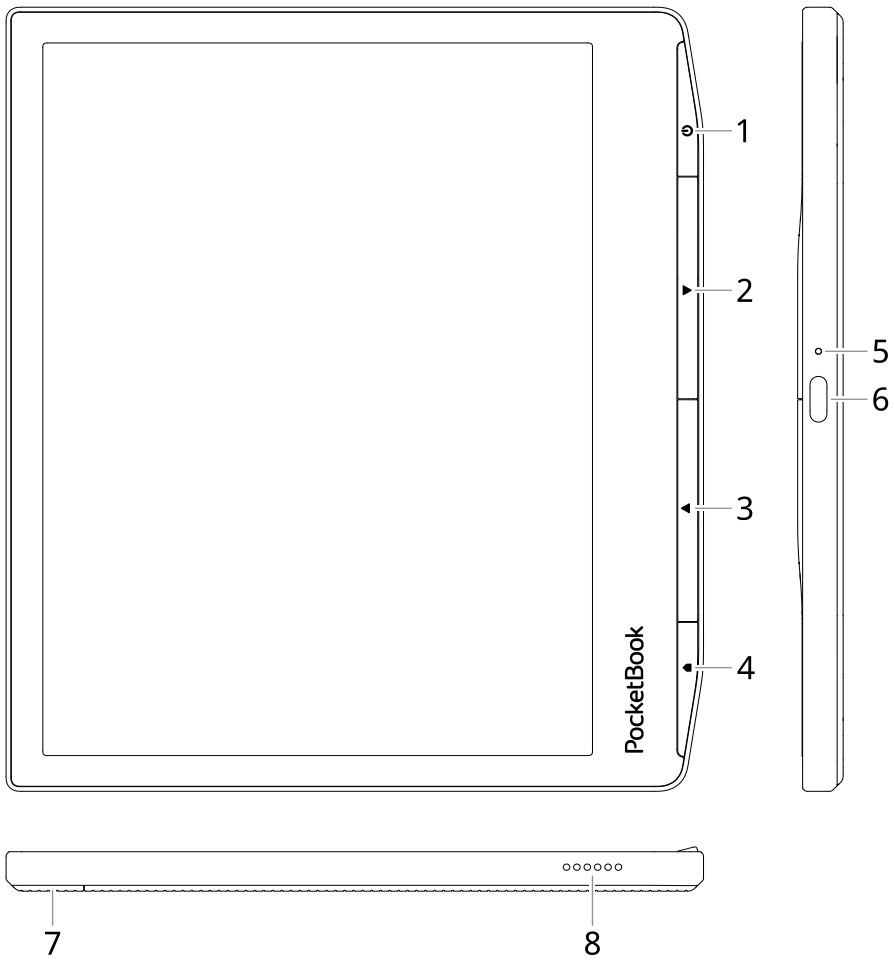
- Menu | On/Off – open menu (if available). Continuous press turns the Device on/off.
- Forward – turns page forward.
- Backward – in reading mode turns page backward.
- Home – return to Main menu.
- LED indicator.
- USB Type-C – connect the Device to a PC or charge using USB-cable.
- Decorative lid.
- Speaker.
NOTE: You can configure key mapping to your own in Settings > Personalize > Key mapping. Navigation and page turning buttons mapping depends on screen orientation.
Getting Started
Setup Step by Step
In this chapter you will learn how to prepare the Device to work and about its main control features.
Charging the battery
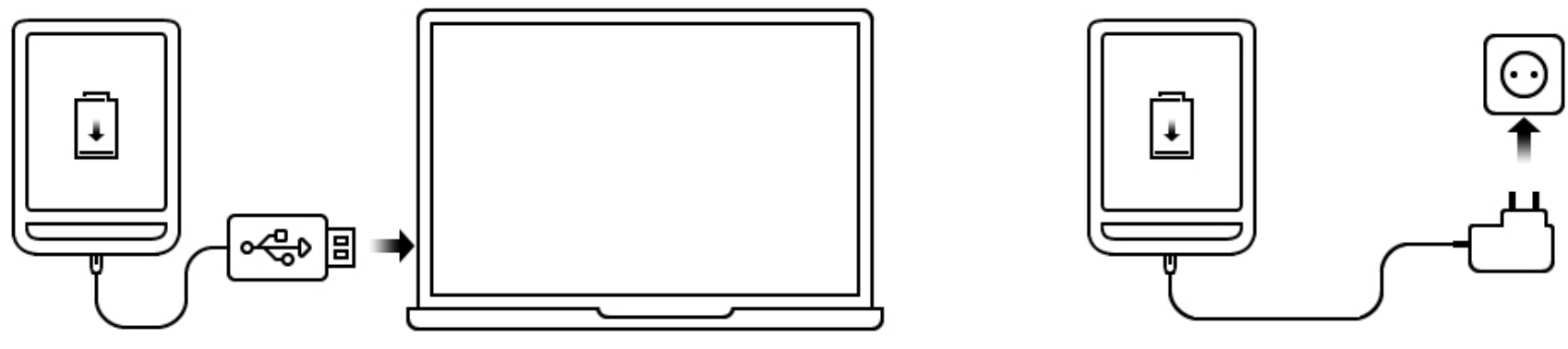
- Use the included USB-C cable.
- Connect to a computer USB port or a 5V/1A wall charger (sold separately).
- The device turns on automatically when it detects power.
- If you connect to a PC, a popup asks: PC Link (transfer files) or Charge (just power). Choose Charge if you only want to top up the battery.
To charge the battery for the first time, do the following:
- Connect the Device to a computer or charger with USB-cable. The device will turn on as soon as charging starts.
- When the battery is fully charged, you can disconnect the cable from the Device which is ready for usage.
If the Device is on when you connect the cable to PC, a dialog window asking to select action – PC link or Charge – will appear. Charging starts only if the appropriate mode was selected.
First-time power on
Press and hold the power button (top right edge) for about 5 seconds. The screen will flash a few times – that’s normal for E Ink. After 30 seconds, you’ll see the setup wizard.
Navigating the interface
- Tap = open a book or menu item
- Touch and hold = open context menu (delete, move, add to collection)
- Slide left/right on the screen = turn pages
- Slide down from top = notification panel (Wi-Fi, brightness, dark mode, sync)
- Press the physical buttons = whatever you mapped them to
On-screen keyboard tips
- Long press a letter to get accents or special characters.
- To add a new keyboard language: Settings > Languages > Keyboard layouts.
- When typing a password, tap the eye icon to see what you typed – saves you from lockouts.
Wi-Fi, Bluetooth, and Syncing
Connecting to Wi-Fi
- Swipe down and tap the Wi-Fi icon.
- Select your network.
- Enter the password (case sensitive).
- If your network is hidden, tap “Add network” and enter the SSID manually.
Troubleshooting Wi-Fi issues
- The Era only supports 2.4 GHz. If your router has separate bands, make sure 2.4 GHz is enabled.
- Forget the network and reconnect.
- Restart the device (hold power button for 10 seconds, then press again to turn on).
Bluetooth pairing for audiobooks
- Put your Bluetooth headphones or speaker into pairing mode.
- On the Era: Settings > Bluetooth > Enable > Scan.
- Tap your device name to pair.
- Open an audiobook (M4B, M4A, OGG, or MP3) and press play. The audio routes to your Bluetooth device.
Send-to-PocketBook (cloud sync)
- Register for a free PocketBook account.
- In Settings > Accounts and Synchronization > Send-to-PocketBook, log in.
- You get a unique email: yourname@pbsync.com
- Email any book file to that address. When your Era is on Wi-Fi and “Receive files automatically” is ON, the book appears in your Download folder.
MAIN MENU OVERVIEW
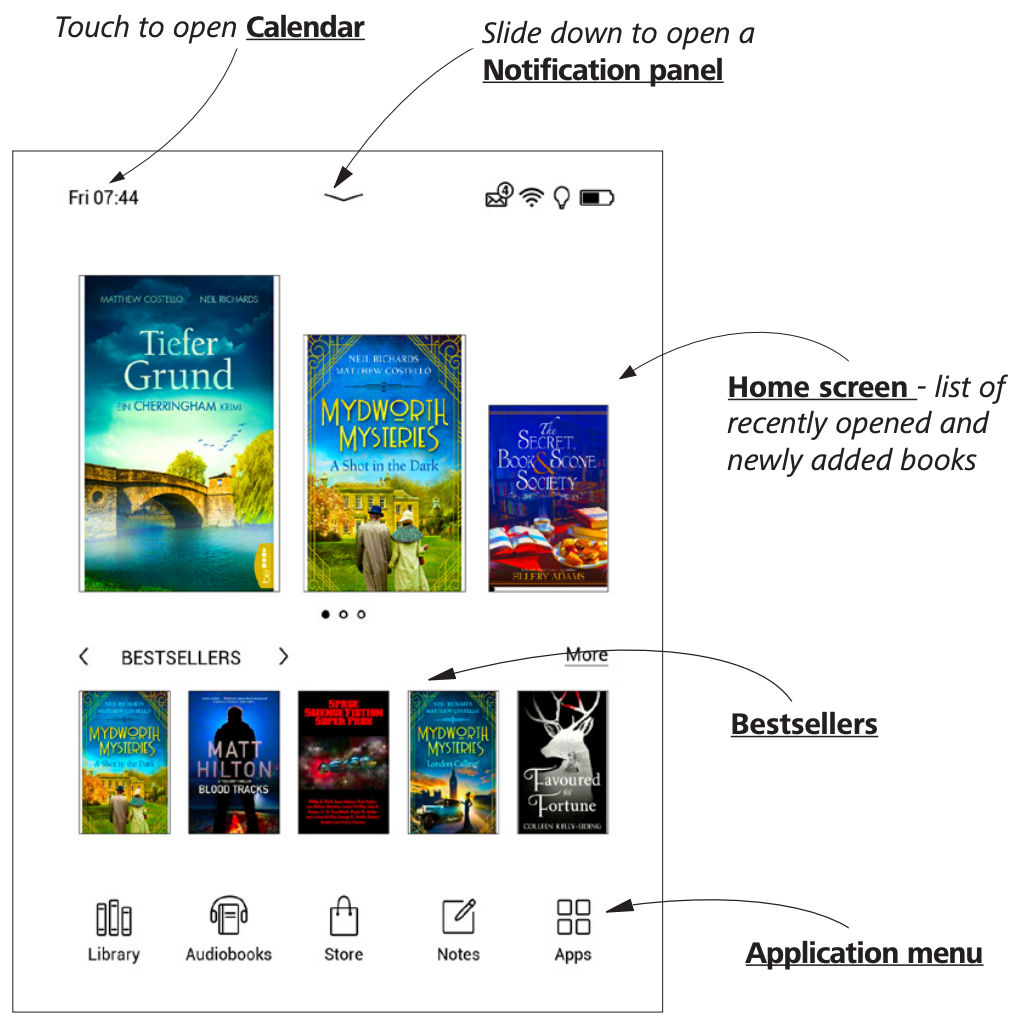
Notification panel
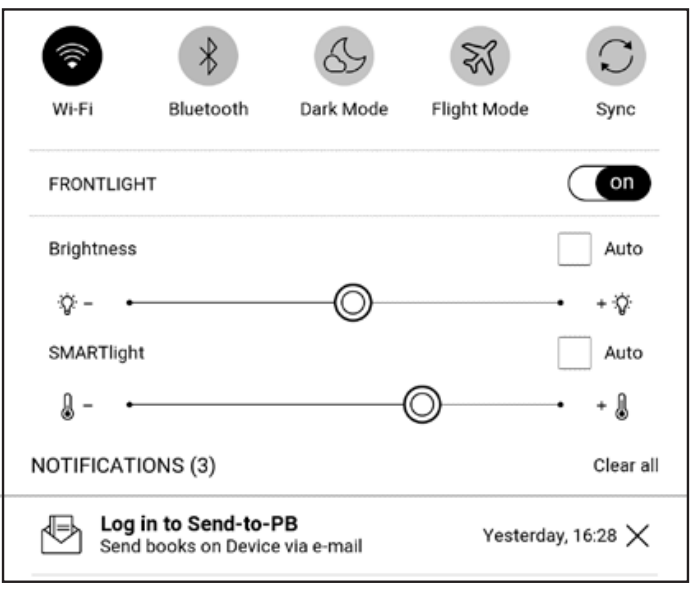
- Touch or slide down the icon
 to open a Notification panel.
NOTE: You can open Notification panel also pressing a Menu button.
Notification panel gives an easy access to configuration of Wi-Fi, Bluetooth, DARKmode, Flight Mode, Sync of network services and Brightness.
GESTURES
CAUTION! Touch screen of the Device is sensitive enough and is a fragile detail. To avoid its damage, please, touch it carefully while controlling the Device with gestures.
Tap
- Opens an element (book, file, folder application or menu item).
Touch & hold
- Opens context menu of an element (if available).
Slide
- Turns pages of a book or a list; moves an image: slide your finger across the screen.
Flick
- Scrolls lists: move your finger across the screen rapidly.
Scaling
- Changes the image scale: place two fingers on a screen and pinch them together to zoom out or spread them apart to zoom in.
WORKING WITH ON-SCREEN KEYBOARD
- On-screen keyboard is used when it’s necessary to enter text information, for example, for search or network connection credentials.
- To type a character, tap a dedicated button. To type a special character, long press a dedicated button. Select the required special character in the drop-down list. To switch from alphabet to numeric keyboard, tap . To switch from numeric to alphabet keyboard, tap .
- To add a new keyboard language, go to Settings > Languages > Keyboard layouts.
- To switch to a different keyboard language, tap . The selected language is displayed on the spacebar.
- If necessary, you can enable/disable the preview of special characters in the top-right corner of the keyboard. To do so, go to Settings > Languages > Keyboard layouts > Key shortcut preview
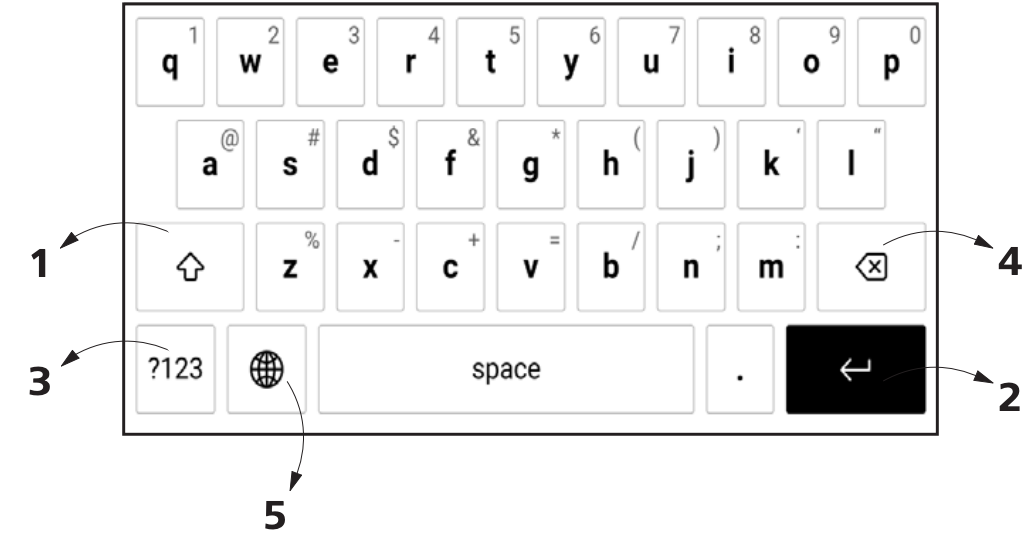
- Change case;
- Enter the typed text;
- Switching keyboard modes;
- Erase last typed symbol;
- Change input language.
As you type a password (e.g. Wi-Fi credentials) icon will appear on a text field. Touch it to see typed symbols.
ACCOUNTS AND SYNCHRONIZATION
PocketBook Store
You can use your PocketBook Store account to log in to any of the PocketBook services. Store — in this section you can enter Login and Password for authorization in the Store.
Send-to-PocketBook
The following options are available:
- PocketBook account: your account email.
- Login/Log out: if you are not authorized in the application, input your contact email address and password, to authorize. If you are authorized, the email, to which you can send books, is displayed. You can logout Send-to-PocketBook.
- Receive files now: The content of the Download folder will be updated. Before update, please, check if your Device is connected to the Internet.
- Receive files automatically: On or Off. Files, sent to the Device address username@pbsync.com, will be automatically updated in the download folder, if Wi-Fi connection is on. You can turn off automatic receiving files to optimize the Device productivity.
- Download folder: location of received files. The Send-to-PocketBook folder is set by default. You can choose any other folder or create a new one in the internal Device storage.
- About service:— more detailed about service.
Real-World Troubleshooting
(Not in the Official Manual)
Here are fixes for problems that actually happen to real users – not the ones the manufacturer wants to admit.
Problem 1: The screen is frozen or won’t refresh
-
Fix: Hold the power button for 30 seconds. Release, then press power again for 5 seconds. This forces a hardware reset. No data loss.
Problem 2: Battery drains in 2 days instead of weeks
-
Fix: Turn off Wi-Fi when not in use. Go to Settings > Wi-Fi > Network Access = Off. Also disable “Receive files automatically” under Send-to-PocketBook. Finally, check if a book is stuck indexing – remove recently added EPUB files one by one.
Problem 3: Page turns are very slow
-
Fix: Large PDFs with heavy images are slow by nature. Convert them to EPUB or KFX using Calibre (free software). Also, go to Settings > Reading > Page refresh and set to “Every chapter” instead of “Every page” – this speeds things up.
Problem 4: Won’t connect to PC (USB not recognized)
-
Fix: On the Era, when you plug in USB, you must select “PC Link” on the popup. If the popup doesn’t appear, go to Settings > USB Mode and set it manually. Also try a different USB cable – some cheap cables are charge-only.
Problem 5: Ghosting (previous page faintly visible)
-
Fix: E Ink naturally has some ghosting. Go to Settings > Display > Full refresh frequency and set it to “Every 1 page.” This forces a full black flash each time – eliminates ghosting at a tiny battery cost.
Problem 6: Device feels warm and battery drops quickly
-
Fix: Something is running in the background. Restart the device. If that doesn’t help, check if you have a corrupted book – delete the most recently added files. Finally, perform a factory reset (Settings > Maintenance > Factory Reset) as a last resort.
Problem 7: Can’t open DRM-protected books from other stores
-
Fix: The Era supports Adobe DRM (ACSM files). Download the book as .acsm from your library or store, then open it on the Era – it will automatically download the decrypted book. For Kindle books, you’ll need to remove DRM using third-party tools (not covered here).
More Troubleshooting Errors
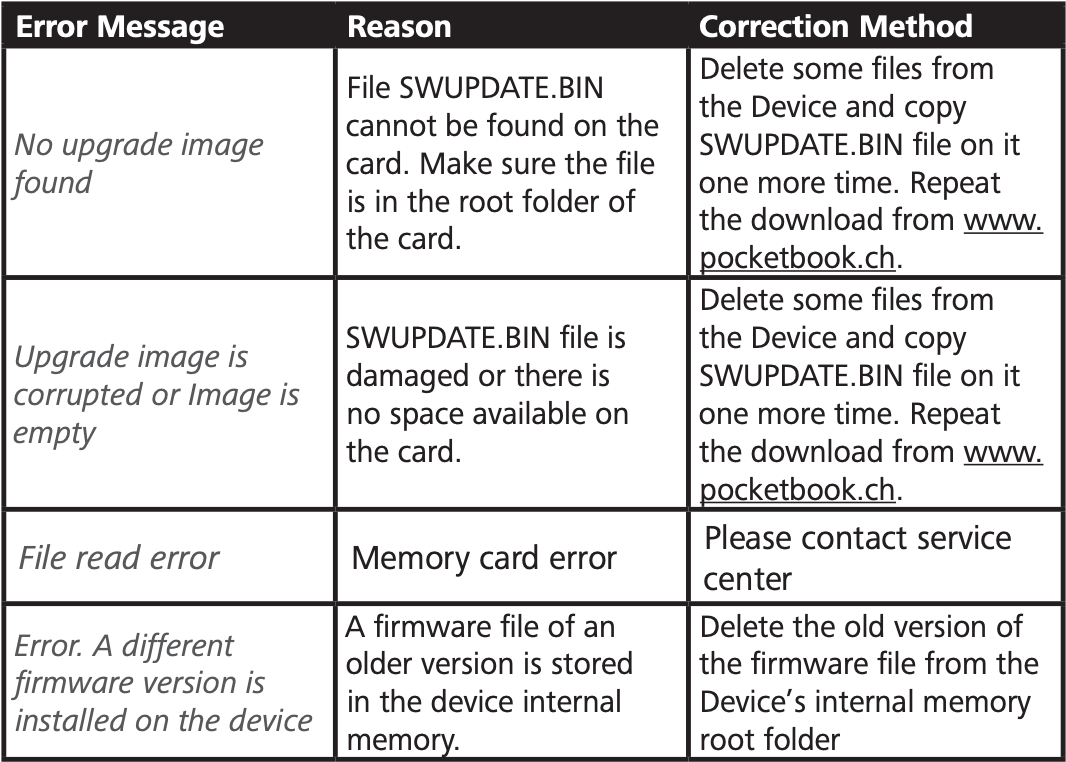
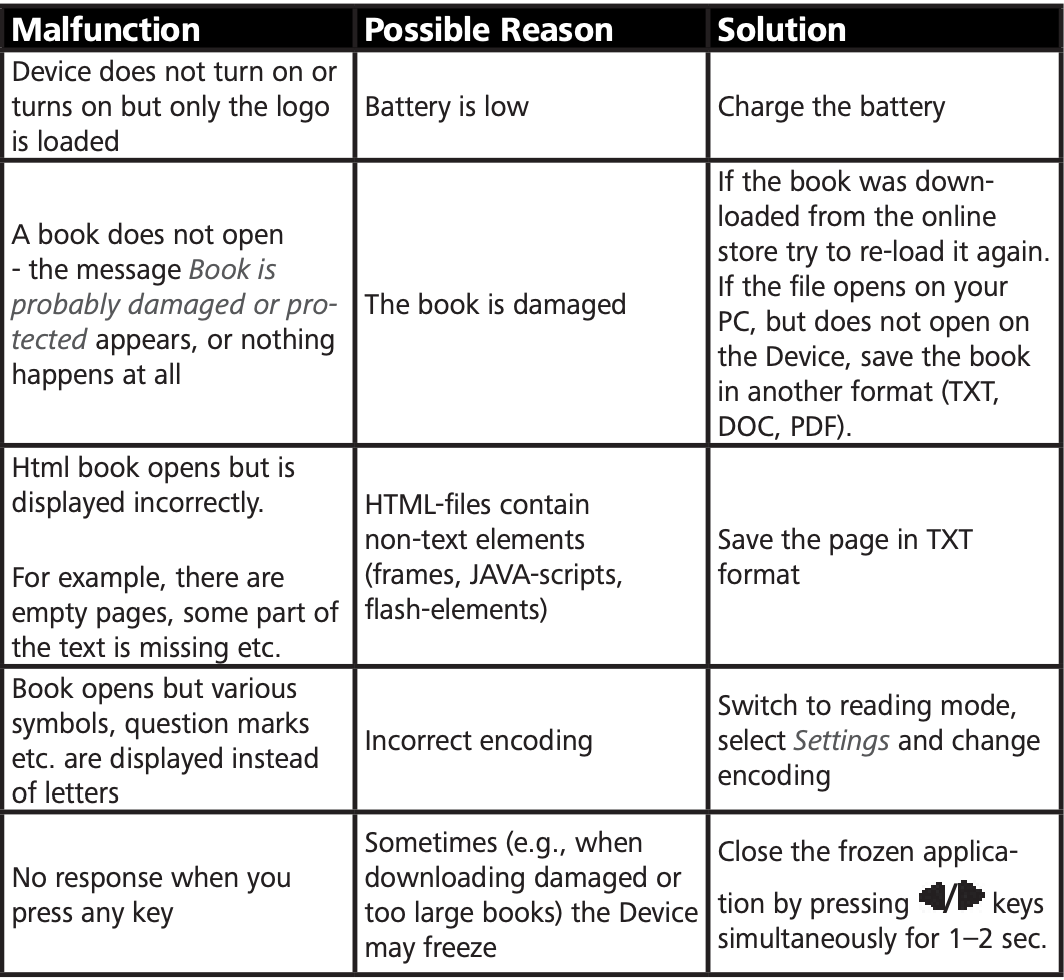
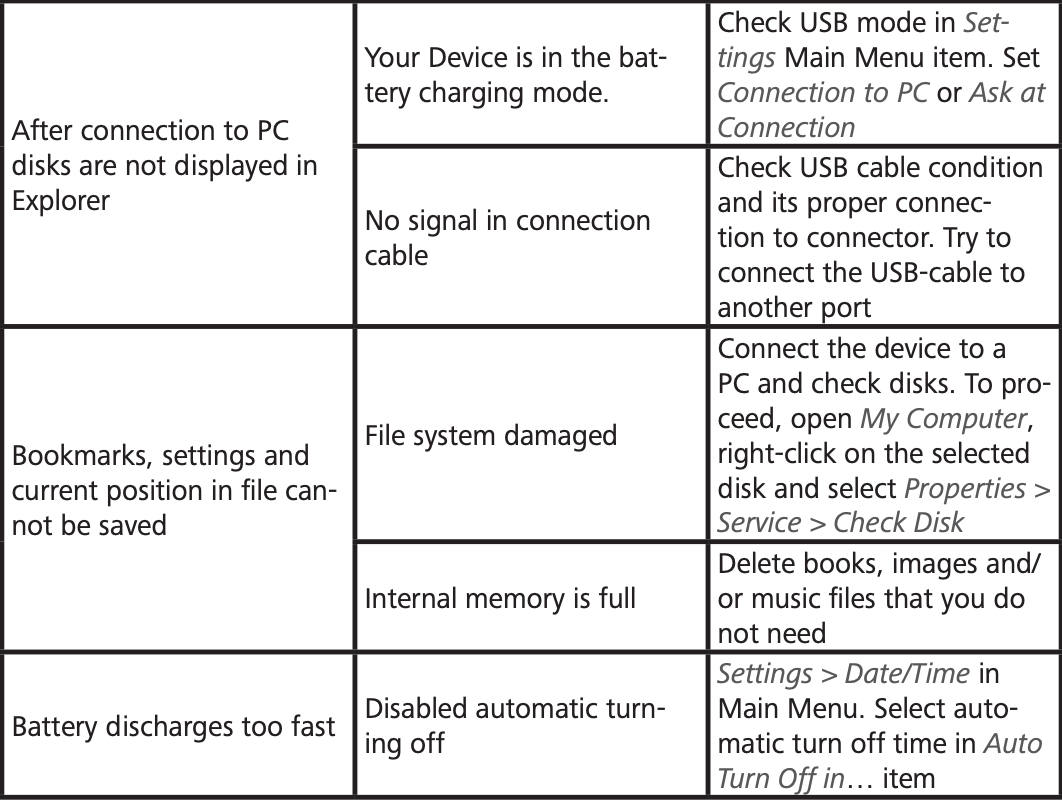
Factory Reset
When and How
Do this only if you’re selling the device or if software problems persist after trying everything else.
Steps:
- Go to Settings > Maintenance > Factory Reset
- Confirm “Erase all data”
- The device will restart and wipe everything. You’ll need to set it up like new.
Warning: This deletes all books, settings, and accounts. Back up your files first via USB.
Customer Support
For detailed information about service centers in your country please use contacts below:
- Deutschland 0-800-187-30-03
- 0-800-183-39-70
- Česko 800-701-307
- France 0-805-080-277
- Österreich 0-800-802-077
- 0-800-281-770
- Polska 0-800-141-01-12
- 4-822-307-92-56
- Switzerland 0-800-898-720
- ישראל 1-809-494-246
- Україна 0-800-304-800
More Contact Details
- Website: https://pocketbook.ch/
- Website: http://www.pocketbook.ch/
- Email: help@pocketbook.ch
Compliance with International Standards
- Product name: PocketBook Era
- Model number: PB700
- Firmware version: 6.8
- Rated input power: 5V/1A
- Manufacturer: Pocketbook International SA. Crocicchio Cortogna 6, 6900, Lugano, Switzerland. Tel. 0800-187-3003. Made in China.
EU DECLARATION OF CONFORMITY
Pocketbook International SA (Crocicchio Cortogna 6, 6900 Lugano, Switzerland) hereby declares that the radio equipment in this product box corresponds to Directive 2014/53/EU. The full text of the EU declaration of conformity for the product in box is available at the following internet address: https://pocketbook.ch/en-ch/declaration-of-conformity-pocketbook-readers
RF OUTPUT POWER
WLAN & Bluetooth Output Power (dBm):
This device has been tested and meets applicable limits for Radio Frequency (RF) exposure. The frequency and maximum transmitted power in EU are listed as bellows:
- 2412 – 2472MHz: 9,78 (WLAN 2.4G)
- 2402 – 2480MHz: 2.05 (BT-EDR)
WLAN 2.4G Transfer Rate (Mbps):
- 802.11b: 13CH
- 802.11g: 13CH
- 802.11n (20MHz): 13CH
FCC STATEMENT
This device (FCC ID: 2AUVWPB700) complies with part 15 of the FCC rules. Operation is subject to the following two conditions:
- This device may not cause harmful interference
- This device must accept any interference received, including interference that may cause undesired operation.
15.21 Information to the user. Any changes or modifications not expressly approved by the party responsible for compliance could void the user’s authority to operate the equipment. 15.105 Information for the user.
NOTE: This equipment has been tested and found to comply with the limits for a Class B digital device, pursuant to part 15 of the FCC rules. These limits are designed to provide reasonable protection against harmful interference in a residential installation. This equipment generates, uses and can radiate radio frequency energy and, if not installed and used in accordance with the instructions, may cause interference to radio communications. However, there is no guarantee that interference will not occur in a particular installation. If this equipment does cause harmful interference to radio or television reception, which can be determined by turning the equipment off and on, the user is encouraged to try to correct the interference by one or more of the following measures:
- Reorient or relocate the receiving antenna.
- Increase the separation between the equipment and receiver.
- Connecting the equipment to a socket on a circuit different from that to which the receiver is connected.
- Contact with the provider or a radio TV technician for help.
SAR
The exposure standards for wireless devices employ a unit of measurement known as the Specific Absorption Rate, or SAR. The SAR limit set by the FCC/IC is 1.6 W/kg. The SAR limit recommended by the Council of the European Union is 2.0 W/kg, but since the output power is less than 13dBm, according to the EN50360 SAR test for such devices is not provided.
This device’s maximum SAR value is well below the FCC/IC and EU limits with specific measurements shown in the below table.
FCC/IC | Max SAR Value (W/kg)
- 1.6: 0.470 1-g Body (Separation distance of 0mm)
This device was tested for typical operations of use on the body, with the back of the PB700 at 0mm from the body. To maintain compliance with FCC RF exposure requirements, use accessories that maintain a distance of 0mm between the user’s body and the back of the PB700.
IMPORTANT: Changes or modifications to this product not authorized could void the EMC and wireless compliance and negate your authority to operate the product. This product has demonstrated EMC compliance under conditions that included the use of compliant peripheral devices and shielded cables between system components. It is important that you use compliant peripheral devices and shielded cables between system components to reduce the possibility of causing interference to radios, televisions, and other electronic devices.
Frequently Asked Questions
- Q: My PocketBook Era won’t turn on. What do I do?
- A: First, charge it for at least 2 hours using a wall charger (not a PC port). Then hold the power button for 30 seconds. Release and press again for 5 seconds. If still nothing, connect to a PC – sometimes the screen is frozen but the device is on. The PC will detect it. Then eject and restart.
- Q: How do I transfer books from an iPhone or Android phone?
- A: Use the Send-to-PocketBook feature. Email the book file to your unique @pbsync.com address. Or install a file manager app on your phone, connect to the Era via Bluetooth (slow) or use a USB-C OTG cable (faster).
- Q: Can I read Kindle books on the PocketBook Era?
- A: Not directly. Amazon uses a proprietary format (AZW/KFX) with DRM. You can convert Kindle books by removing DRM using software like Calibre + DeDRM plugin, then save as EPUB. That’s legal for personal backups in many regions, but check your local laws.
- Q: What’s the best way to organize my library?
- A: Create collections (like folders). Tap and hold a book cover, then choose “Add to collection.” You can also sort by author, title, or recent. For advanced users, use Calibre on PC to manage metadata and then transfer.
- Q: How long does the battery actually last in real life?
- A: With Wi-Fi off, brightness at 50%, reading 1 hour per day: about 3 weeks. With Wi-Fi on, SMARTlight on auto, and audiobooks via Bluetooth: 3–5 days. The 1-month claim is only with Wi-Fi off, brightness at 10%, and 30 min/day.
- Q: Can I listen to audiobooks and read at the same time?
- A: No. The software doesn’t support text-to-speech or simultaneous playback. You either listen or read, not both. For immersive reading, you’d need a separate device.
- Q: The screen has a dead pixel. Is that covered?
- A: PocketBook’s policy allows up to 5 faulty pixels. If you have more than 5, contact support. If fewer, they consider it normal. This is standard for E Ink displays.
- Q: Can I install Android apps on the PocketBook Era?
- A: No. The Era runs a custom Linux-based OS, not Android. You cannot install APKs. There’s no app store. It only reads books, plays audio, and browses the web (basic).
- Q: How do I clean the screen safely?
- A: Use a soft, dry microfiber cloth. For fingerprints, dampen the cloth with distilled water (not tap water, not alcohol). Wipe gently. Never spray liquid directly on the screen.
- Q: My Era fell in water. What now?
- A: It’s IPX8 rated, so it should survive. Rinse it with fresh water if it was salt water. Shake out excess water. Leave it to dry for 24 hours in a warm (not hot) place. Do not plug in to charge until completely dry.
- Q: Why is my PocketBook Era not connecting to WiFi?
- A: If your PocketBook Era WiFi is not working, restart the device and router, verify the WiFi password, and move closer to the network source. Updating the firmware can also fix PocketBook Era connection issues.
- Q: How do I update PocketBook Era firmware?
- A: Go to Settings > Software > Firmware Update on your PocketBook Era. Connect to WiFi and download the latest software update to improve performance, battery life, and compatibility.
- Q: Does PocketBook Era support PDF and EPUB files?
- A: Yes, the PocketBook Era supports popular eBook formats including PDF, EPUB, MOBI, FB2, DOC, and TXT files. It also supports audiobook playback and cloud synchronization.
- Q: Why is my PocketBook Era running slowly?
- A: Slow performance may occur due to low storage space or outdated firmware. Restart the device, delete unnecessary files, and install the latest software updates for smoother operation.
- Q: How do I reset the PocketBook Era?
- A: Open Settings > Maintenance > Factory Reset to restore default settings. A factory reset can fix freezing, syncing, or software-related problems.
- Q: Is PocketBook Era waterproof?
- A: Yes, the PocketBook Era includes IPX8 water resistance, allowing protection against accidental water exposure during reading.
Accessories Worth Buying
- Protective cover – The screen has a glass base. One drop can crack it. Buy a folding cover or a silicone bumper case.
- USB-C to 3.5mm adapter – If you have wired headphones, get a compact adapter. The Era has no built-in headphone jack.
- Screen protector (matte) – Optional. It reduces glare but slightly softens text contrast. Most users skip it.
- Bluetooth page turner – Search for “Bluetooth remote shutter” on Amazon. Pair it as a keyboard, then map the volume buttons to page forward/back.
More Information
Final Verdict: Who Should Buy the PocketBook Era?
Buy it if:
- You want a 7-inch screen (sweet spot between portable and readable)
- You read EPUBs and PDFs from libraries or sideloaded content
- Waterproofing matters (bath, beach, pool)
- You like physical page turn buttons (rare these days)
Skip it if:
- You’re deeply invested in Kindle’s ecosystem
- You need 5 GHz Wi-Fi or cellular connectivity
- You want to install Android apps
The Era is a fantastic reader – but only if you know how to use its hidden potential. This guide should get you there.
Need More Help?
Drop a comment below (if your site has comments) or check the official PocketBook support forum. I also answer questions via the contact form.
Please Read or Download The Full User Manual Here:
PocketBook-Era-One-of-Our-Favorite-PCs-Fits-in-Your-Pocket-User_Manual_EN

[…] Some newer Kindles offer a “Set up with your phone” option during the initial process. This method uses the Kindle app on your iOS or Android device to transfer Wi‑Fi credentials and your Amazon account without typing passwords on the e‑reader itself. […]