
Tiny Tracker with Big Questions
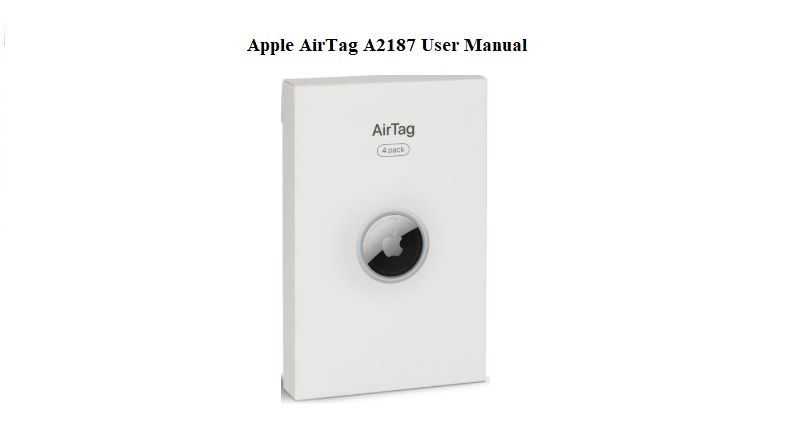
Apple ships the AirTag (model A2187) with a glossy white disc, a battery pre‑installed, and a small regulatory pamphlet. There’s no printed guide that explains how to set it up, what the sound and lights mean, how to change the battery, or what to do when it stops showing in Find My. This companion fills those gaps. It’s written in everyday language, based on real use, so you can keep track of your keys, bag, or suitcase without frustration.
What You’ll Find in the Box
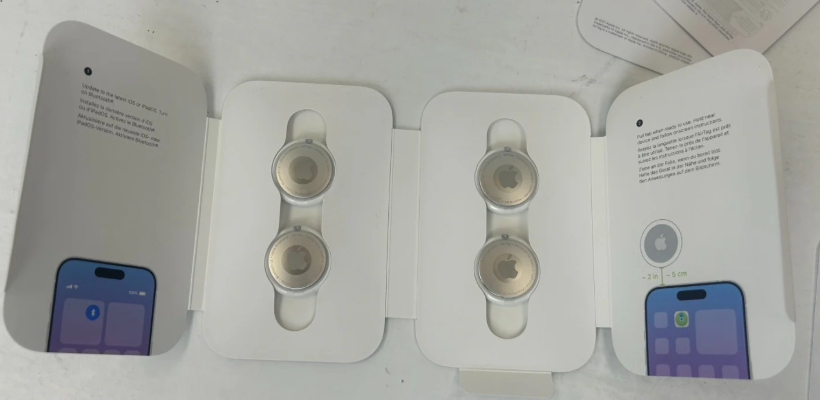
Your box includes:
- A single Apple AirTag (model A2187, polished metal on one side, white plastic on the other)
- A printed safety and regulatory leaflet
- The CR2032 battery is already installed; a plastic pull tab prevents it from activating during shipping
No key ring or holder is included. AirTags must be purchased with an accessory (like a leather key ring or loop) or carried loose in a bag or pocket.
Setting Up Your AirTag with an iPhone or iPad
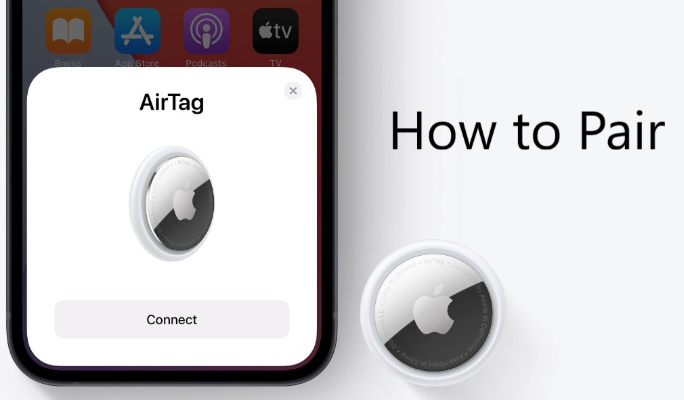
- Remove the plastic pull tab from the AirTag. You’ll hear a welcome chime — this means the battery is now connected.
- Unlock your iPhone or iPad and hold the AirTag close to it. A setup animation appears on screen.
- Tap “Connect.” Give your AirTag a name (e.g., “Backpack” or “Car Keys”). You can also choose an emoji for it.
- The AirTag registers to your Apple ID and appears in the Find My app under the Items tab.
What if the setup animation doesn’t appear?
- Make sure Bluetooth is on (Settings > Bluetooth).
- Restart your iPhone and try again.
- If the AirTag still isn’t detected, remove and reinsert the battery (see the battery replacement section) to force a reset.
Using the Find My App to Locate Your AirTag
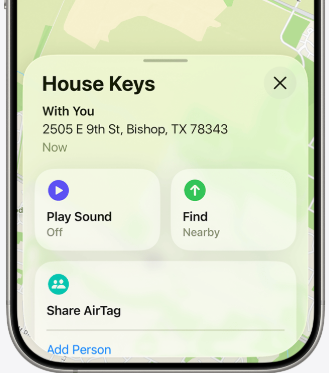
Open the Find My app and tap the Items tab. Your AirTag will show its current or last known location on a map.
- Play Sound: Tap this button and the AirTag emits a loud chirping sequence. Useful when the AirTag is nearby but out of sight (under a cushion, inside a bag).
- Find Nearby (Precision Finding): Available on iPhones with a U1 chip (iPhone 11 and later). Your phone displays an arrow and a distance reading, guiding you step by step until you’re right next to the AirTag.
- Directions: If the AirTag is far away, you can get driving or walking directions to its last known location.
What if the AirTag shows a location from hours ago?
The AirTag updates its location when it’s near any Apple device in the Find My network. If it’s in a remote area with no Apple devices nearby, the location won’t update until someone with an iPhone walks past it.
Understanding AirTag Sounds and Alerts
The AirTag makes sounds for different reasons. Here’s what each one means:
| Sound | Meaning |
|---|---|
| Single chime on battery insert | AirTag has power and is ready to pair |
| Loud chirping (continuous) | You triggered “Play Sound” in Find My, or an unknown AirTag is moving with you (safety alert) |
| Three rapid chirps repeated | AirTag is separated from its owner and is alerting people nearby |
| No sound when pressing Play Sound | Speaker may be disabled or AirTag is out of Bluetooth range |
Privacy alert: If an AirTag that doesn’t belong to you is detected moving with you over time, your iPhone will show a notification. This prevents unwanted tracking. You can play a sound on that unknown AirTag and view instructions on how to disable it.
Replacing the Battery
The CR2032 battery lasts about one year with normal use. When the battery is low,
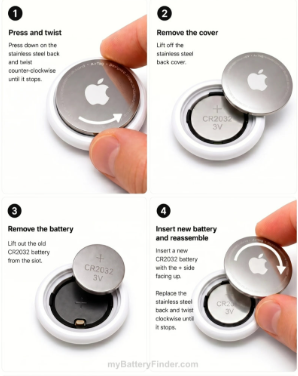
your iPhone will send a notification.
Steps to replace:
- Place the AirTag with the white plastic side down on a flat surface and the polished metal side facing up.
- Press down on the metal back with two fingers and rotate counter‑clockwise until it stops.
- Lift off the metal cover. Remove the old battery.
- Insert a new CR2032 lithium 3V coin battery with the positive side facing up. You’ll hear a chime when the new battery connects.
- Replace the metal cover, aligning the tabs with the slots, and rotate clockwise until it locks.
Important: Some CR2032 batteries have a bitter coating to deter children from swallowing them. That coating may prevent the AirTag from making proper contact. If the chime doesn’t sound, try a different battery brand without the bitterant coating.
How to Reset an AirTag
A factory reset clears the AirTag from your Apple ID so it can be paired by someone else.
Reset steps:
- Remove the battery (see the steps above).
- Wait 5 seconds, then reinsert the battery.
- When the chime sounds, remove the battery again.
- Repeat this process 4 more times (5 times total, each time you hear a chime after inserting the battery).
- On the 5th insertion, the chime will sound slightly different — this confirms the AirTag is reset.
- Replace the metal cover. The AirTag is now ready to pair with a new Apple ID.
Reset via Find My app (if AirTag is still paired to your Apple ID):
- Open the Find My app, go to Items, and tap your AirTag.
- Swipe up on the card and tap “Remove Item.” Confirm.
- This unpairs the AirTag from your account. It won’t need the manual battery reset to pair with a new owner.
Lost Mode and What Happens When Someone Finds Your AirTag
If you lose an item with an AirTag attached, you can activate Lost Mode in the Find My app.
- Tap your AirTag, swipe up, and select “Lost Mode.”
- Enter a phone number or email address that will be displayed to anyone who finds the AirTag.
- If an iPhone user taps your AirTag with their phone (via NFC), they’ll see your contact message and can reach you.
What if a stranger with an Android phone finds it?
They can hold the AirTag near the back of their NFC‑enabled Android phone. A link will open showing the Lost Mode message if one has been set.
Quick Reference Card
| Task | How |
|---|---|
| Set up AirTag | Remove pull tab, hold near iPhone, tap Connect |
| Play a sound | Find My app > Items > Tap AirTag > Play Sound |
| Precision Finding | Tap “Find Nearby” on iPhone 11 or later |
| Replace battery | Press and rotate metal back, swap CR2032 + side up |
| Factory reset | Remove and reinsert battery 5 times until chime changes |
| Remove from account | Find My > Items > AirTag > Remove Item |
| Activate Lost Mode | Find My > Items > AirTag > Lost Mode > Enter contact info |
