
Before You Mount It
The Ring Video Doorbell (2nd Gen) arrives with a battery, a charging cable, a mounting bracket, and a quick‑start pamphlet that covers just the basics. There’s no printed guide that explains how to adjust motion zones, what the light ring colors mean, why the doorbell sometimes stops talking to your Wi‑Fi, or how to give access to a family member. This companion answers those everyday questions. It’s written to help you get the doorbell mounted, connected, and tuned exactly how you want it.
What You’ll Find Inside the Box
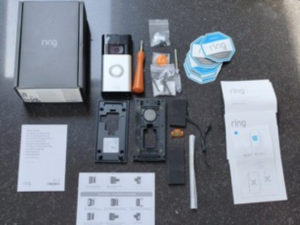
Your package includes:
- The Ring Video Doorbell (2nd Gen) unit
- A rechargeable, removable battery pack
- A mounting bracket and a set of screws and wall anchors
- A small screwdriver (double‑ended)
- A micro‑USB charging cable (orange)
- A quick‑start guide and safety sheet
No wedge kit or corner mount is included; those are available separately if your doorbell faces a wall or you need a specific angle.
Physical Features and Light Ring Meanings
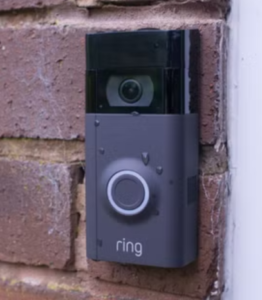
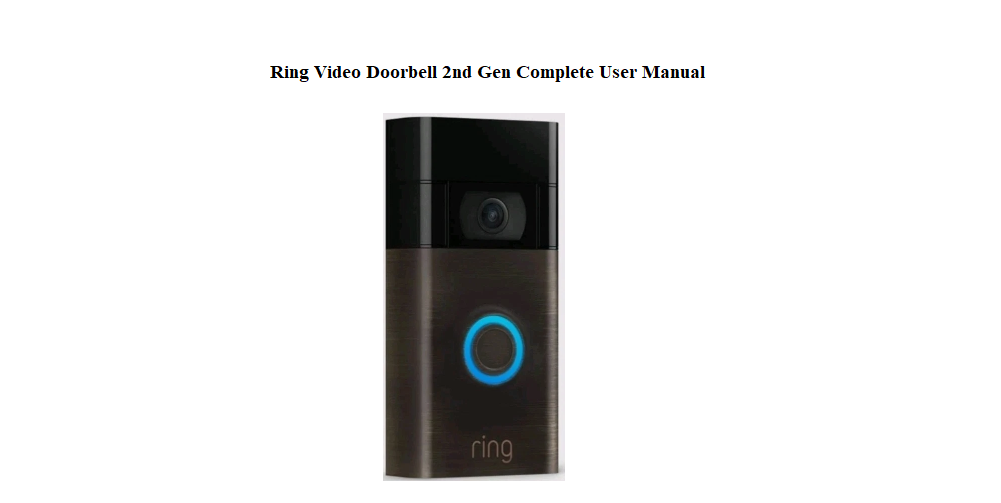
The doorbell has a camera lens at the top, a large push button, a motion sensor, and a small LED light ring around the button.
- Solid white: The doorbell is powered on and connected to Wi‑Fi.
- Spinning white: The doorbell is in setup mode, ready to connect to the Ring app.
- Blinking blue: A firmware update is in progress. Do not remove the battery or restart the doorbell.
- Blinking red: The battery is critically low and needs recharging.
- No light: The battery is dead or the doorbell is off.
Setting Up in the Ring App and Connecting to Wi‑Fi
- Fully charge the battery using the included micro‑USB cable (about 5–6 hours). The small green LED on the battery glows solid when full.
- Insert the battery into the bottom of the doorbell until it clicks.
- Download the Ring app on your smartphone and create an account or sign in.
- Tap “Set Up a Device” and select “Doorbells” and then “Video Doorbell (2nd Generation).”
- Press and release the orange setup button on the back of the doorbell. The light ring will spin white, indicating setup mode.
- The app will ask you to connect to the doorbell’s temporary Wi‑Fi network (named “Ring‑” followed by a code). Follow the prompts, then select your home Wi‑Fi and enter the password. The doorbell works best on 2.4 GHz networks, which have longer range.
- Once connected, the light ring turns solid white and the app confirms setup.
If Wi‑Fi connection fails repeatedly, move the doorbell (or just the battery‑loaded unit) closer to the router during setup, then re‑mount it afterwards. Also, temporarily disable any VPN or ad‑blocker on your phone.
Mounting the Doorbell on Your Wall
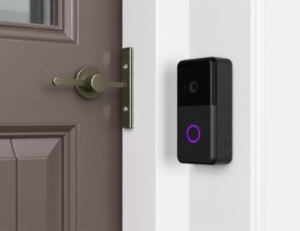
- Choose a location about 1.2 metres (48 inches) above the ground for the best camera angle.
- Hold the mounting bracket in place and mark the screw holes. If mounting on masonry, use the provided wall anchors.
- Screw the bracket to the wall. Ensure the small security screws (on the bottom of the bracket) are accessible later.
- Slide the doorbell down onto the bracket until it clicks. Use the included screwdriver to tighten the security screw on the bottom of the doorbell, preventing theft.
- In the Ring app, you can adjust the Motion Zones and Privacy Zones to define exactly where you want alerts. For example, draw a privacy zone over a busy footpath to avoid constant notifications.
Motion Settings and Notifications That Reduce False Alerts
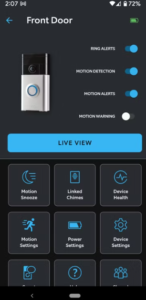
The doorbell can detect motion from about 1.5 metres to 9 metres, depending on the environment. Too many alerts? Adjust these settings:
- Motion Sensitivity: In the Ring app, go to your doorbell, tap Device Settings > Motion Settings > Motion Sensitivity. Lower it a few notches if you get alerts for passing cars or swaying branches.
- Motion Zones: Use the on‑screen grid to draw irregular shapes that cover only your yard or porch. Exclude the street and neighbouring properties.
- Smart Alerts: With a Ring Protect subscription, you can filter alerts to notify you only when a person is detected, or only when a package is visible (package detection).
- People Only Mode: Toggle this on in Device Settings > Smart Alerts to ignore general motion and only alert on people.
- Motion Frequency: Under Motion Settings > Advanced > Motion Frequency, select “Periodic” to limit how often the doorbell triggers after multiple events.
Charging the Battery and Managing Power
- Battery life: The fully charged battery lasts 2–6 months, depending on the number of motion events and live views.
- Low battery warning: The light ring blinks red, and the Ring app shows a “Low Battery” banner. Recharge it soon.
- To charge: Remove the security screw, lift the doorbell off the bracket, and press the release tab on the battery to slide it out. Connect the micro‑USB cable and a standard USB charger. The green LED on the battery turns solid when fully charged (about 5–6 hours).
- Hardwired option: The 2nd Gen can be connected to an existing doorbell transformer (8–24 VAC, 50/60Hz) using the wiring terminals on the back. If hardwired, the battery stays trickle‑charged and you’ll rarely need to remove it.
Battery care tips:
- Avoid leaving the battery fully discharged for weeks.
- Charge it at room temperature; extreme cold temporarily reduces battery capacity.
Troubleshooting Common Problems
| Problem | What to Check |
|---|---|
| Doorbell won’t connect to Wi‑Fi | Move the doorbell closer to the router during setup. Ensure you’re using a 2.4 GHz network. Restart your router. Hold the setup button on the back for 15 seconds to reset the doorbell, then try again. |
| Live view says “Activating device” but never loads | Your Wi‑Fi upload speed may be too low (need at least 2 Mbps). Test your internet speed near the doorbell. If it’s weak, consider a Wi‑Fi extender. |
| Notifications arrive late | Check the Motion Frequency setting — “Periodic” can delay alerts. Set it to “Frequent” for instant alerts (battery drains faster). Also, ensure your phone’s Do Not Disturb mode is off. |
| Doorbell recording stops mid‑event | The battery may be low. Charge fully. Also, check that the Ring Protect subscription is active (required for recordings). |
| Two‑way audio sounds choppy | Move closer to the doorbell with your phone when speaking. Check for Wi‑Fi interference (large metal objects, other wireless devices). |
| Night vision is blurry | Clean the camera lens with a soft, dry cloth. Ensure no bright light source is directly reflecting into the lens. |
How to Perform a Hard Reset
A factory reset clears all settings and allows the doorbell to be set up from scratch. This is useful if the device becomes unresponsive or you’re transferring ownership.
Hard reset steps:
- Remove the doorbell from the bracket (unscrew the security screw first).
- Press and hold the orange setup button on the back of the doorbell for 20 seconds.
- Release the button after 20 seconds. The light ring will flash blue a few times, then turn off briefly, then begin spinning white — this indicates the doorbell is now in setup mode.
- Follow the Ring app’s setup process as if it were a new device. All previous settings, Wi‑Fi credentials, and motion zones will be erased.
Soft reset (restart):
If the doorbell is just sluggish, you can simply remove and re‑insert the battery. This reboots the device without deleting any settings.
Quick Reference Card
| Task | How |
|---|---|
| Put into setup mode | Press orange button on back once |
| Hard reset | Hold orange button on back for 20 seconds |
| Recharge battery | Remove doorbell, slide out battery, plug in micro‑USB cable |
| Adjust motion zones | Ring app > Device Settings > Motion Settings > Motion Zones |
| Share access | Ring app > Device Settings > Shared Users > Add User |
| Turn off motion alerts temporarily | Ring app > Device Settings > Motion Settings > Motion Schedule |
