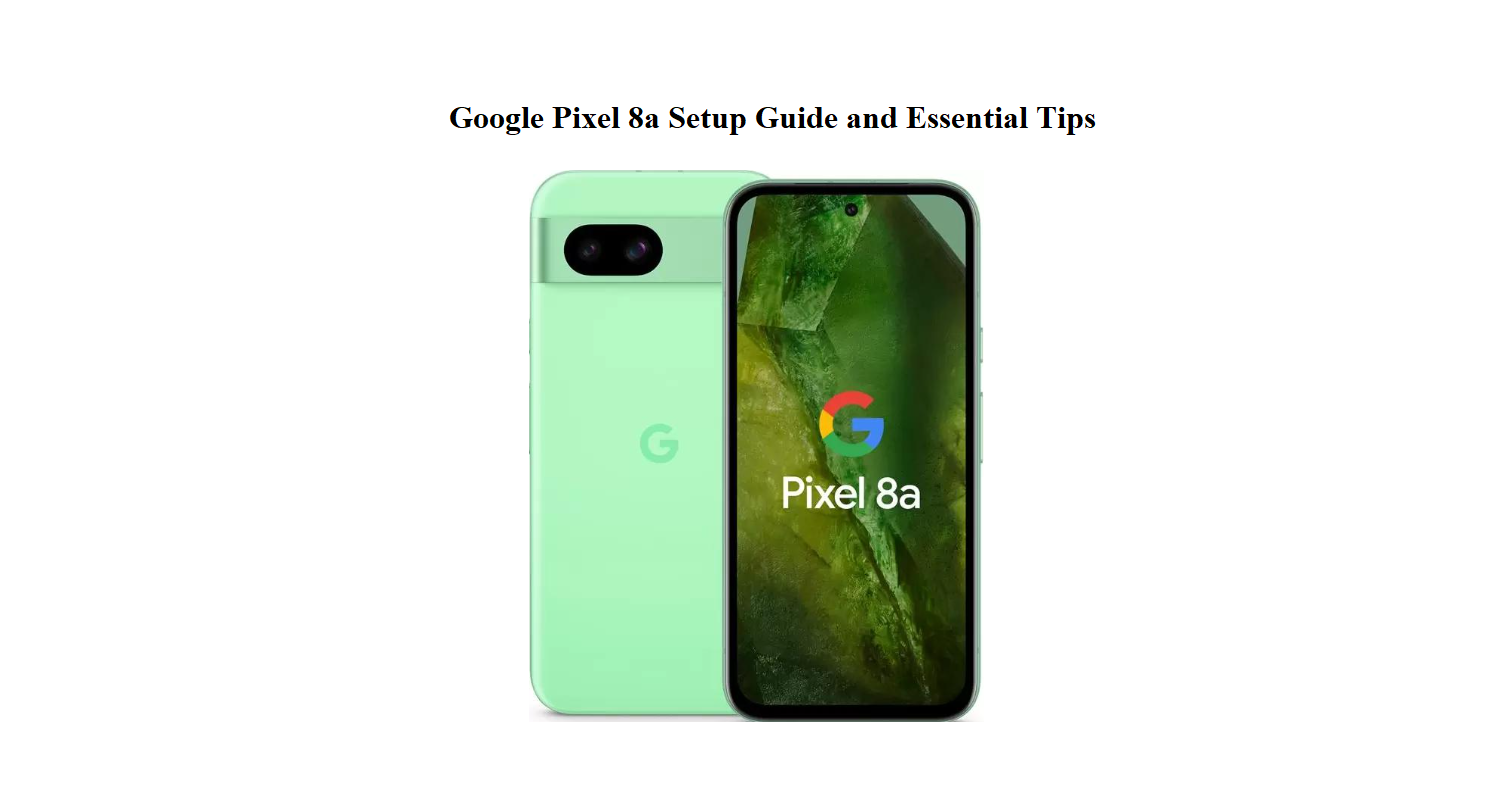

Google Pixel 8a Setup Guide and Essential Tips
Introduction
Getting Comfortable with Your Pixel 8a
The Pixel 8a arrives with a USB‑C cable, a SIM tool, and a Quick Switch adapter. The printed material is minimal, so many people search for a “Google Pixel 8a manual” to figure out the camera bar, the AI features, and how to move everything from an old phone. This guide fills those gaps. It’s written for real‑world use — setting up the fingerprint sensor, learning the gesture navigation, extending battery life, and solving problems that pop up months later.
What’s in the Box
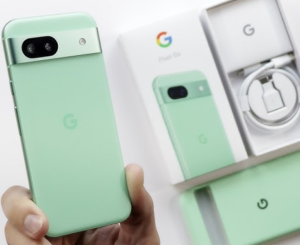
Your box includes:
- The Pixel 8a phone (with a pre‑installed screen protector)
- A USB‑C to USB‑C cable
- A Quick Switch adapter (to transfer data from an old phone)
- A SIM card ejector tool
- A safety and warranty booklet
No charging brick is included. You’ll need a USB‑C PD charger (18W or higher) to charge at full speed.
Physical Buttons and Gesture Navigation
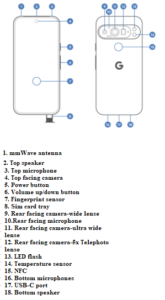
The Pixel 8a uses gesture navigation by default. There’s no physical home button — all navigation is done with swipes.
- Go Home: Swipe up from the bottom edge.
- Go Back: Swipe inward from the left or right edge of the screen.
- Recent Apps: Swipe up from the bottom and hold, then swipe left or right through open apps.
- Power button: Press and hold to turn on or off. Double‑press to open the camera.
- Volume rocker: Press to adjust media volume. Press and hold the power and volume down buttons together to take a screenshot.
- Fingerprint sensor: The under‑display optical sensor sits near the bottom of the screen. Press firmly on the screen when unlocking. You can add face unlock as a backup in Settings > Security & privacy > Device unlock.
First‑Time Setup and Data Transfer
- Press and hold the power button until the Google logo appears.
- Select your language, connect to Wi‑Fi, and sign into your Google account.
- When prompted, connect your old phone using the included Quick Switch adapter (or a compatible cable) to transfer contacts, photos, messages, and settings. If you don’t have the old phone, you can restore from a Google One backup.
- After setup, go to Settings > System > System update and install any waiting updates. The Pixel 8a gets security patches monthly and feature drops every few months.
Customizing the Phone for Everyday Comfort
- Display brightness and colour: Settings > Display > Colors — choose “Natural” for accurate colours or “Adaptive” for a more vibrant look. Turn on “Smooth Display” to keep the screen at 120Hz.
- Always‑on display: Settings > Display > Lock screen > Always show time and info. You can tap the screen to wake or lift the phone to see notifications.
- Quick Tap: Settings > System > Gestures > Quick Tap lets you double‑tap the back of the phone to take a screenshot, open an app, or turn on the flashlight.
- Now Playing: When enabled (in Settings > Display > Lock screen > Now Playing), the lock screen automatically shows the name of any song playing around you — no internet needed for basic recognition.
Camera Features You’ll Actually Use
The camera bar on the back holds a 64 MP main sensor and a 13 MP ultrawide lens. The front camera is 13 MP.
Key camera modes:
- Photo: The default. Tap the viewfinder to set focus and exposure. Use the zoom buttons to switch between 0.5x (ultrawide), 1x, and 2x.
- Portrait: Adds background blur. Adjust the blur strength after taking the shot in Google Photos.
- Night Sight: Automatically brightens low‑light scenes. Keep the phone still for a few seconds.
- Long Exposure and Action Pan: Found under “Long Exposure” in the mode selector. Adds motion blur to moving water or moving subjects while keeping the background sharp.
- Pro mode: Swipe to “More” and tap “Pro”. You control ISO, shutter speed, focus, and white balance.
AI editing tools (available in Google Photos after taking a shot):
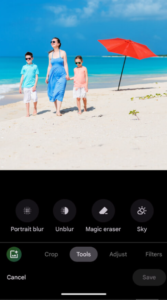
- Magic Eraser: Remove unwanted people or objects from the background.
- Photo Unblur: Sharpens blurry faces.
- Best Take: If you took several group photos, this tool lets you choose the best face for each person from the burst.
Battery Life and Power Management
- Battery capacity: 4,492 mAh, easily lasting a full day with mixed use.
- Charging: Supports up to 18W wired charging and 7.5W wireless charging. Using a compatible charger, you can get about 50% charge in 30 minutes.
- Battery Saver: Toggle it on in Settings > Battery > Battery Saver, or set it to turn on automatically at 20% or 10%.
- Extreme Battery Saver: Pauses most apps and only allows essentials. You can add a few chosen apps to the allowed list.
- Adaptive Battery: Settings > Battery > Adaptive Battery — this learns your app usage and limits battery for apps you rarely open. Leave it on.
- Charging optimization: Settings > Battery > Charging optimization — enable this to slow battery ageing by learning your routine and pausing charging at 80% overnight.
Privacy, Safety, and Security Settings
- Pixel’s security core: The Titan M2 security chip handles fingerprint data and encryption. Keep your phone updated to benefit from the latest protections.
- Camera and mic indicators: A green dot appears in the top‑right corner when an app accesses the camera or microphone. Swipe down to see which app.
- Privacy Dashboard: Settings > Security & privacy > Privacy dashboard shows a timeline of camera, mic, and location access.
- Find My Device: Ensure Find My Device is on. It lets you locate, ring, lock, or erase your phone from android.com/find.
- Safety app: The pre‑installed Personal Safety app can detect car crashes (in some regions) and send emergency alerts to your contacts.
Troubleshooting Common Problems
| Issue | What to Check |
|---|---|
| Fingerprint sensor is slow or fails | Clean the screen and your finger. Delete and re‑register your fingerprints. Register the same finger twice. |
| Phone overheats while charging | Remove the case. Charge in a cool, ventilated area. Use an 18W PD charger; avoid wireless charging if the phone feels hot. |
| Notifications not showing | Go to Settings > Notifications > App settings, tap the app, and ensure notifications are allowed. Check that Do Not Disturb is off. |
| Wi‑Fi disconnects often | Restart the router and the phone. In Settings > Network & internet > Internet, forget the network and reconnect. |
| Camera app crashes | Clear the camera app cache: Settings > Apps > See all apps > Camera > Storage & cache > Clear cache. |
| Storage full | Go to Settings > Storage and tap “Free up space.” Use Google Photos backup (free high‑quality storage is no longer unlimited, but “Storage saver” reduces file size). |
How to Restart, Reset Google Pixel 8a
How to Restart, Reset, and Enter Recovery Mode
Soft restart: Press and hold the power button, then tap “Restart.”
Force restart (frozen screen): Press and hold the power button and volume down button together for about 10–15 seconds until the Google logo appears. Release.
Factory reset from Settings: Settings > System > Reset options > Erase all data (factory reset). Confirm. This wipes everything. You’ll need your PIN or password.
Factory reset via Recovery Mode (phone won’t boot):
- Turn off the phone.
- Press and hold the power button and volume down button simultaneously.
- When the fast boot menu appears, use the volume buttons to navigate to Recovery mode, then press power to select.
- On the screen with an Android robot and “No command,” press and hold the power button, then press the volume up button once to enter recovery.
- Use volume buttons to select Wipe data/factory reset, then press power to confirm.
Quick Reference Card
| Task | How |
|---|---|
| Take a screenshot | Press Power + Volume Down |
| Open camera | Double‑press Power |
| Quick Tap gesture | Double‑tap back of phone (enable in Settings) |
| Toggle flashlight | Swipe down Quick Settings, tap flashlight icon |
| Call screening (US) | When a call comes in, tap “Screen call” |
| Factory reset | Settings > System > Reset options > Erase all data |
More Information
Download the Pixel 8a Cheat Sheet
A one‑page PDF with button shortcuts, camera tricks, battery settings, and reset steps. Keep it on your device or print it for when you need a quick reminder.
“Google Pixel 8a Quick Guide (PDF)”
Official Google Support
For warranty, service, and the official Pixel 8a user guide, visit: https://support.google.com/pixelphone
FAQs
Q. How do I move data from my old phone to the Pixel 8a?
A. Use the included Quick Switch adapter to connect your old phone to the Pixel 8a during setup. The phone will guide you through copying contacts, photos, messages, and apps. If you don’t have the cable, you can restore from a Google One backup.
Q. Does the Pixel 8a support wireless charging?
A. Yes, it supports up to 7.5W Qi wireless charging. Use any Qi‑certified wireless charger. For the fastest charging, however, use a USB‑C PD wired charger (18W or higher).
Q. What’s the best way to extend battery life on my Pixel 8a?
A. Turn on Adaptive Battery, use Battery Saver when needed, and enable Charging optimization in Settings > Battery. Also, lower the screen brightness and set the screen timeout to 1 minute.
Q. How do I use Magic Eraser on photos?
A. Open the Google Photos app, select a photo, tap Edit, and look for Tools > Magic Eraser. The phone will suggest items to remove, or you can circle something yourself. It works best on clearly defined objects.
Q. Why does the phone sometimes feel warm?
A. During intensive tasks like 4K video recording, gaming, or fast charging, the phone generates heat. This is normal. If it feels uncomfortably hot, remove the case and let it cool. The phone will automatically slow down to protect itself if it gets too hot.
Q. How do I set up face unlock as a backup?
A. Go to Settings > Security & privacy > Device unlock > Face unlock. Follow the prompts to scan your face. Face unlock is less secure than the fingerprint, but it’s convenient for quick unlocks; the phone will require the fingerprint for sensitive actions like payments.
Q. Can I use the Pixel 8a underwater?
A. No! The Pixel 8a is IP67 rated, which means it can survive splashes and brief submersion in fresh water (up to 1 metre for 30 minutes). It is not designed for swimming, salt water, or intentional underwater use. If it gets wet, dry it thoroughly with a soft cloth.
Before You Go
This manual was written to help your Pixel 8a disappear into your daily life, leaving only the useful stuff — the photo edits, the call screening, the song recognition — without the frustration. May your battery last through every commute, your group photos always pick the best expressions, and your fingerprint scanner never fail when you’re in a hurry. If a friend ever unwraps the same phone and looks puzzled, share this page. It might just make their day run a little smoother.
Copyright warning!
Copyright 2026 [Your Name or Site Name]. All rights reserved. This Google Pixel 8a manual is original content and may not be copied, republished, or redistributed without written permission. Google, Pixel, and the Pixel logo are trademarks of Google LLC. This guide is unofficial and not affiliated with Google.
