
Your Everyday Fitness Companion
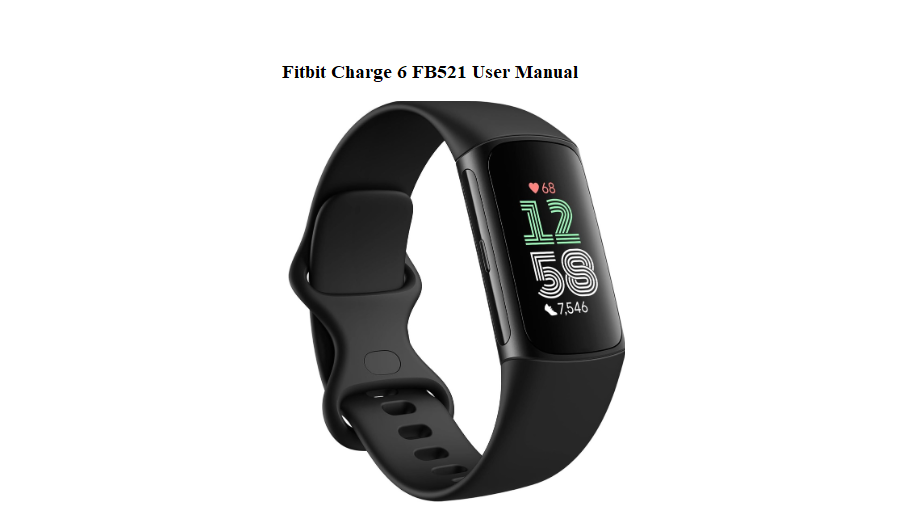
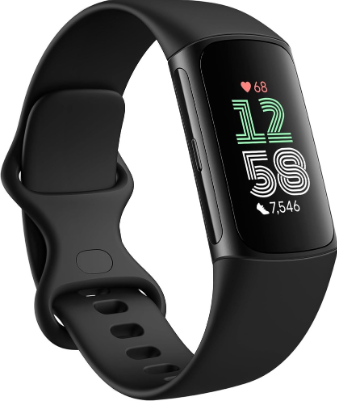
The Fitbit Charge 6 (model FB521) arrives with a band, a magnetic charger, and a tiny safety leaflet. The full user guide lives online, and it doesn’t always answer the questions you run into during a workout or a busy day. This companion is written to bridge that gap. It explains the display, the health sensors, syncing to your phone, and the small fixes that keep your tracker working perfectly.
What Comes in the Box
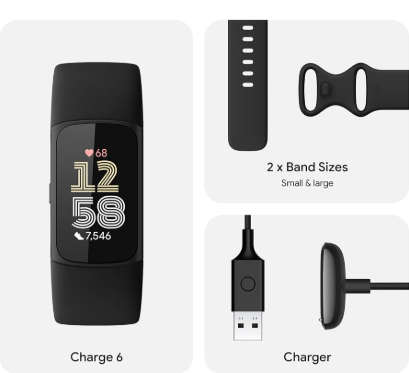
Your package includes:
- The Fitbit Charge 6 tracker (model FB521)
- A magnetic USB charging cable (proprietary connector)
- Two band sizes (small and large) — the small band is usually pre‑attached
- A quick‑start card and safety information
No wall adapter is included. Plug the USB end of the charger into any standard USB port or a 5W USB wall adapter.
Getting the Tracker Ready and Connected to Your Phone
- Press and hold the side button on the tracker until the Fitbit logo appears.
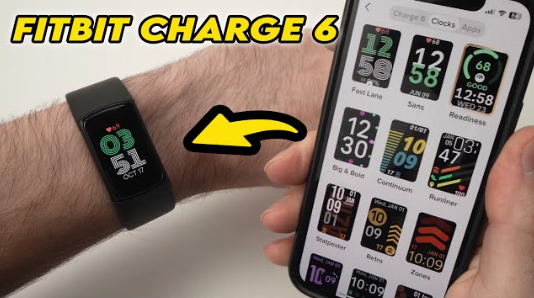
- On your phone, download the Fitbit app (iOS or Android). Create or sign into your Google account. (Fitbit now uses Google accounts for sign‑in.)
- In the app, tap your profile picture, then “Set up a device.” Select “Charge 6.”
- The app will search for the tracker. When it finds it, a code appears on the tracker’s screen. Enter that code in the app to confirm pairing.
- Follow the on‑screen steps to set up heart rate tracking, notifications, and goals.
If pairing fails repeatedly:
- Turn Bluetooth off and on again on your phone.
- Restart the Charge 6 by pressing and holding the side button for 10 seconds until the screen turns off and the logo reappears.
- Make sure no other device is currently connected to the tracker.
Understanding the Display and Navigating Menus
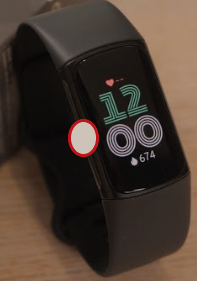
The Charge 6 has a color AMOLED touchscreen and a single side button.
- Swipe down from the top: Quick settings (Do Not Disturb, sleep mode, water lock, screen brightness)
- Swipe up from the bottom: Daily stats (steps, heart rate, sleep, activity)
- Swipe left or right: Scroll through apps and tiles (Exercise, ECG, notifications, alarms, timers)
- Press the side button once: Wake the screen or go back
- Press and hold the side button: Quick access to settings or a chosen app
Heart Rate, ECG, and Health Sensors
The Charge 6 uses improved heart rate sensors and includes an ECG app (available in select countries).
Continuous heart rate
The tracker automatically measures your heart rate all day. You can view it by swiping up from the clock face. In the Fitbit app, you can see your resting heart rate and trends over time.
ECG (electrocardiogram)
- Swipe to the ECG app on the tracker.
- Place your index finger and thumb on the metal edges of the tracker (the frame acts as electrodes).
- Sit still for 30 seconds. The result will show “Normal Sinus Rhythm” or “Atrial Fibrillation.” The detailed report appears in the Fitbit app.
SpO2 (blood oxygen)
The tracker measures your blood oxygen overnight. You’ll see the data in the Fitbit app under the Sleep section each morning. There’s no on‑demand spot check for SpO2 on this model.
Stress management and EDA
The Charge 6 measures electrodermal activity and gives you a stress management score. Swipe to the EDA Scan app, place a finger on the frame, and follow the breathing exercise to see your stress response.
Syncing Data to Your Phone
Your Charge 6 syncs automatically when the Fitbit app is open and the tracker is nearby. You can also force a sync by pulling down on the app’s home screen.
If syncing stops working:
- Restart your phone and the tracker.
- In the Fitbit app, go to Account > Charge 6 > Sync.
- Check that your phone’s Bluetooth is on and the tracker isn’t connected to another device.
- If problems continue, remove the tracker from the app and set it up again.
Battery Life and Charging
- Battery life: Up to 7 days with normal use. Using GPS or the always‑on display drains the battery faster.
- Charging: Attach the magnetic charger to the back of the tracker. The pins will snap into place. A full charge takes about 1–2 hours.
- Battery check: Swipe down from the top of the screen to see the battery percentage.
- Low battery alert: The tracker vibrates and shows a low battery icon. Charge it soon to avoid losing data.
Battery care:
- Avoid leaving the tracker fully discharged for long periods.
- If you store it, leave about 50% charge and keep it in a cool, dry place.
How to Restart and Factory Reset
Restart (soft reboot):
Press and hold the side button for 10 seconds until the screen goes blank and the Fitbit logo appears. Release. This doesn’t erase any data.
Factory reset (clear all data and pairings):
- Swipe down from the clock face and tap Settings.
- Scroll down and tap Device Info > Clear User Data.
- Confirm. The tracker will erase everything and restart. It will need to be set up again in the Fitbit app.
Factory reset without the screen (if unresponsive):
Connect the tracker to its charger. Press and hold the side button while it’s charging. Keep holding for about 15 seconds. The tracker may restart and eventually clear user data after multiple attempts.
Common Problems and Fixes
| Problem | What to Do |
|---|---|
| Tracker screen won’t turn on | Charge for at least 30 minutes. Press and hold the side button for 10 seconds. |
| Heart rate reading seems wrong | Clean the back sensor with a dry cloth. Wear the tracker snugly, about one finger width above your wrist bone. |
| Notifications not coming through | In the Fitbit app, go to Account > Charge 6 > Notifications and re‑enable them. Ensure Do Not Disturb is off on the tracker. |
| GPS not connecting | GPS is connected through your phone. Keep your phone nearby with Bluetooth and location services on. |
| Water lock won’t turn off | Swipe down from the clock face, tap the water lock icon, then firmly double‑tap the center of the screen. |
| Battery draining quickly | Turn off the always‑on display and reduce the screen wake‑up setting. Restart the tracker. |
Water Resistance and Cleaning
The Charge 6 is water‑resistant to 50 metres. You can wear it in the shower or pool, but use the Water Lock feature (swipe down and tap the water drop icon) before swimming. After swimming or sweating, rinse the tracker with fresh water and dry it with a soft cloth.
Clean the back sensors and charging contacts weekly with a dry, lint‑free cloth. Avoid soaps, alcohol, and abrasive cleaners.
Quick Reference Card
| Task | How |
|---|---|
| Wake screen | Press side button or raise wrist |
| Turn on water lock | Swipe down > Water Lock icon |
| Turn off water lock | Swipe down > Water Lock > double‑tap screen |
| Restart | Hold side button 10 seconds |
| Factory reset | Settings > Device Info > Clear User Data |
| Take ECG | Open ECG app, fingers on metal edges, stay still 30 seconds |
| Sync manually | Open Fitbit app, pull down on home screen |
Download the Fitbit Charge 6 Cheat Sheet
A one‑page PDF with button shortcuts, health sensor tips, charging reminders, and reset steps. Keep it on your phone so you always have a quick reference.
“Fitbit Charge 6 Quick Guide (PDF)”
Official Fitbit Support and Manuals
For warranty, service, and the official PDF manual, visit:
https://support.google.com/fitbit
A Small Note Before You Start Moving
This guide was written to help your Charge 6 blend into your daily rhythm — counting every step, tracking every heartbeat, and waking you gently each morning. May your stress score stay low, your battery last the full week, and every workout sync perfectly. If a friend ever unwraps the same tracker and can’t figure out the ECG screen, share this page.
Copyright Warning!
Copyright 2026 productsmanuals.com All rights reserved. This Fitbit Charge 6 FB521 manual is original content and may not be copied, republished, or redistributed without written permission. Fitbit, Charge, and the Fitbit logo are trademarks of Google LLC. This guide is unofficial and not affiliated with Google or Fitbit.
